Telma User Guide
Telma is a texting (SMS and MMS) portal for teams: your agents exchange with your customers from the company's numbers, together, in the browser. When your organization has voice, the same portal also manages your numbers, the routing of your calls, the call history and your extensions. This guide describes every screen. What you see depends on your profiles in the organization (User, Admin, or a profile of your organization or of your domain) and, for the staff of a reseller or of the platform, on their platform permissions (see Profiles and Permissions).
Table of Contents
- Finding Your Way Around
- Login and Profile
- Conversations
- Teams
- Performance
- Numbers
- Call Routing
- Calls
- Extensions
- Credit
- Settings
- Organization
- Administration
- Help and Support
Finding Your Way Around
The Sidebar Menu
The menu on the left only shows what your permissions and your organization allow (in brackets, the built-in profiles that have them; see Profiles and Permissions):
- Conversations: when the organization has the Messages feature; Profile: everyone;
- Calls (history, statistics, voicemail, blocklist): when the organization has voice;
- Numbers: permission "Numbers of the organization" or "Buy and port numbers" (Admin); Credit: "Balance, transactions and invoices" or "Cards, recharges…" (Admin);
- Call routing: permission "Call routing: flows, groups, sounds, voice settings of the numbers" (Admin), when the organization has voice;
- Extensions: permission "Extensions (SIP accounts), their settings and diagnostics" (Admin), when the organization has phone extensions;
- Teams: permission "Opening hours and automatic replies of the teams" or "Create, change and delete teams" (Admin, Manager). When the organization has a single team and the Messages feature, the idea of a team goes away: the entry is called Message settings and opens the hours, the welcome message, the message templates, the members and the closed conversations directly (see "Teams");
- Performance: permission "Statistics of the whole organization" (Admin, Manager), when the organization has the Messages feature and at least two teams;
- Organization: "Invite and remove members…" or "Settings of the organization" (Admin); Settings: "Settings of the organization" or "Integrations, webhooks and widgets" (Admin);
- Organizations, Domain and Domains: platform permission "Domain administrator"; Providers and Infrastructure: "Platform administrator".
An organization without voice sees no voice tools (calls, routing, extensions). What the domain puts first (the conversations, the numbers or the calls) comes first in the menu and opens after signing in.
The ⋮ button next to the name, at the top of the menu, offers:
- Collapse menu (large screens): the menu goes away, and the "Show menu" button, at the top left of the page, brings it back;
- Reorder the menu: handles appear in front of the entries of the main block; drag them, or use the arrows, then Done. Default order goes back to the original order. Your order follows your account on all your devices, and the first entry becomes your home page;
- Menu at the top (large screens): the column layout (see "The Top Menu").
The red badge next to "Conversations" counts your team's unread messages; the one of "Calls", the new voicemail messages. The bottom of the menu shows the domain, the current organization, your name with your role (the summary of your profiles, see Profiles and Permissions), and the "Logout" button. On a phone, the menu opens with the ☰ icon.
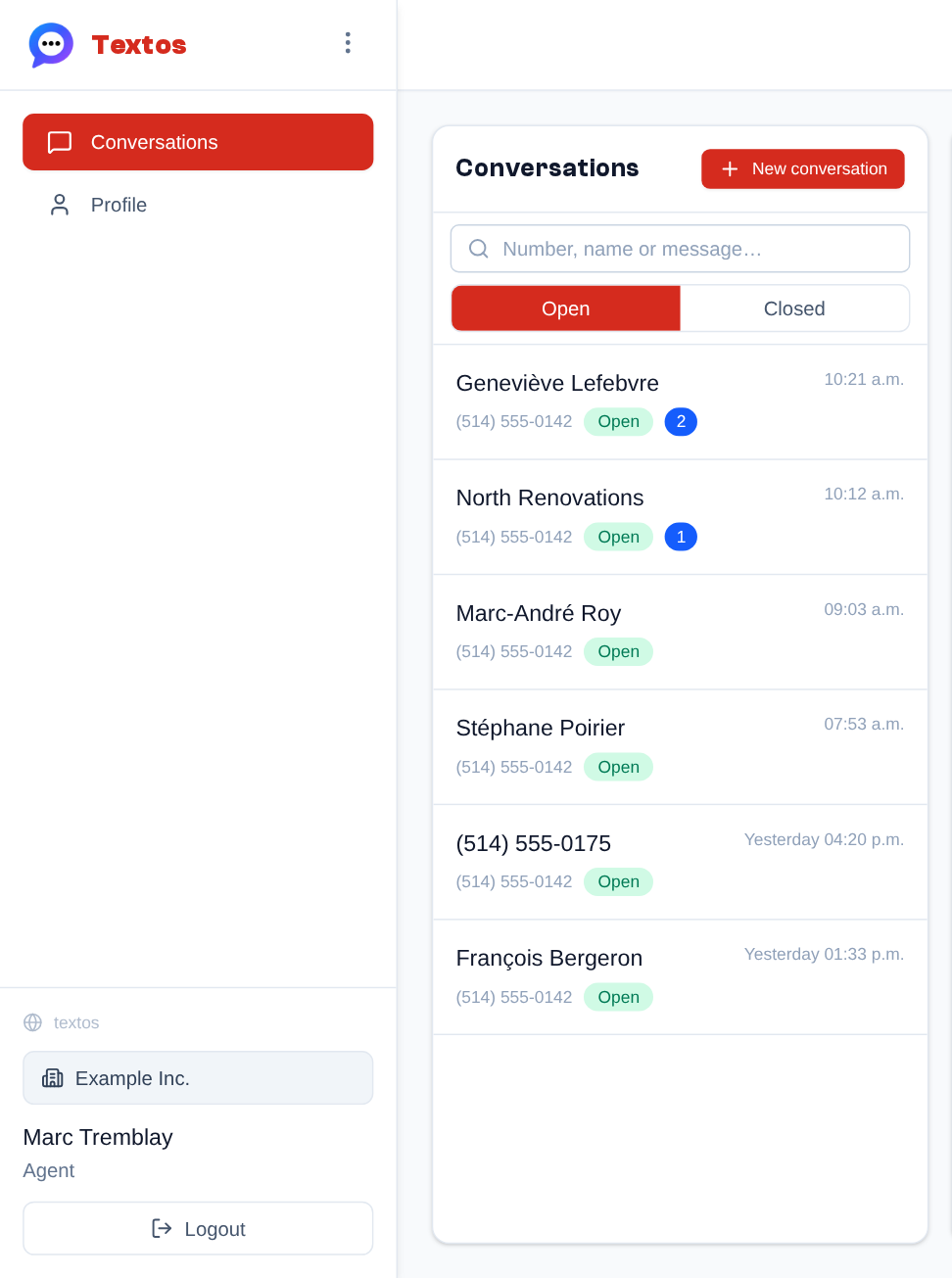 What an agent of an organization without voice sees: the menu only has Conversations and Profile, and the list only shows their team's conversations.
The Top Menu
On large screens, the menu can also sit at the top of the page, in columns: choose "At the top, in columns" in "Menu layout" of your profile, or Menu at the top in the ⋮ button of the left menu. The columns are My account (numbers, extensions, teams, credit, organization, settings), Tools (conversations, calls, call routing), Reports (performance) and Administration (organizations, domain, domains and, for the platform, providers and infrastructure). Each column opens on hover or click; they are the same pages as in the left menu.
On the right:
- the menu of your initials: your name and role, the domain, the current organization, "Profile" and "Logout". The colored dot on your initials gives the real-time status (green, orange or red, see "The Header");
- the ☰ menu ("Display and help"): "Documentation" (and the domain's support links), the "Theme" ("Automatic", "Light", "Dark"), the "Language" ("Français", "English") and Menu on the left, which goes back to the usual layout.
On a phone, the menu stays the one of the ☰ icon, on the left.
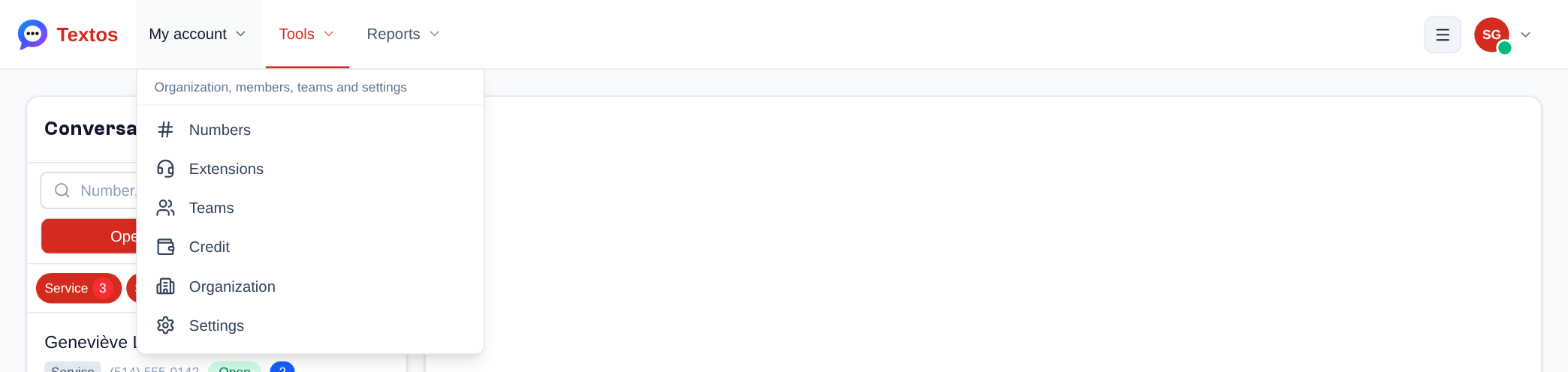 The top menu: the My account, Tools, Reports and Administration columns (here, My account open), the ☰ menu and the menu of your initials on the right.
The Header
At the top right of every page (with the menu on the left; with the menu at the top, the book, the theme and the globe are gathered in the ☰ menu):
- for domain admins and super admins, "Administer a customer" (the shield icon; the label only shows on a very wide screen; see Administering an Organization);
- the "Real-time connected" indicator: a green dot means new messages arrive live; orange ("Real-time connected, no team followed") or red ("Real-time disconnected, reconnecting…") signals a problem;
- the book opens this documentation. When your domain has its own support links (help center, support tickets, what's new, service status), the book becomes a life buoy: it opens the Support menu, which gathers the documentation and these links;
- the sun or the moon changes the theme, which goes from automatic to light, then to dark;
- the globe switches the interface between French and English (see Language).
 At the top right of every page: the real-time status, the documentation, the theme and the globe that switches the language between French and English.
Switching Organization
If your account belongs to several organizations, click the organization name at the bottom of the menu: the list of your organizations opens, with a search box when there are more than three and the number of unread messages of the other organizations. Click an organization to switch to it. The one that opens when you log in is chosen in the profile (see Default Organization).
The list only contains the organizations you are a member of. A super admin or a domain admin working for a customer uses « Administer » (see Administering an Organization): the mode holds for that tab only, without changing the organization of their account or of the mobile app. A platform admin who is a member of no organization sees, instead of the list, a short message pointing to the Organizations page. As long as the tab administers no organization and the organization of their account is not one of their own, the menu only shows the Profile and the administration, and the home page is the Organizations page. An admin who manages several domains goes from one to the other by clicking the domain name, above the organization ("Switch domain").
Login and Profile
First Login
Your admin invites you by email; the invitation link is valid for 7 days.
- Click the invitation link: the "Register" page shows the organization and your address.
- Enter your name in "Name".
- Choose a "Password" of at least 8 characters, mixing at least two kinds among lower case, upper case, digits and symbols (not a common password, nor your email address), then type it again in "Confirm password".
- Click "Create my account": you are logged in right away.
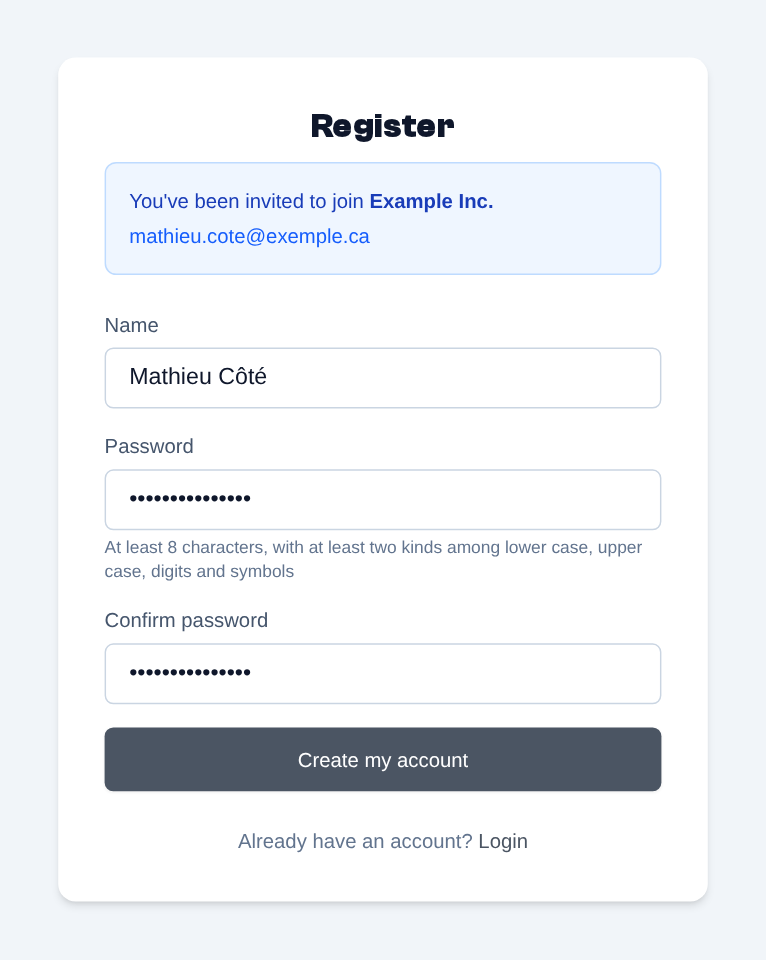 The invitation link opens the "Register" page: the organization and the invited address are shown; enter your name, then your password twice.
The link works once: opened again after the account was created, the page says your account already exists and offers "Login", with your address filled in. From then on, always sign in from the Telma address, with your email and password.
If the page says "This invitation is invalid or has expired", ask your admin to send it again. If you already have a Telma account (in another organization, for example), there is nothing to create: first sign in with the account the invitation is addressed to, then open the link in the email. The "Invitation to an organization" page accepts the invitation and adds the organization to your account (never without you opening that link yourself); "Open this organization" switches you to it, "Back to the application" leaves you where you were.
Logging In
- Open your company's Telma address.
- Enter your "Email address" and your "Password".
- Click "Login".
The login page may carry your provider's logo and footer. After your account is deleted, it says so: "Your account has been deleted.", or the date it will be; signing in before then cancels the deletion (see Danger Zone).
Below the form, depending on what your provider turned on: "Sign in with a passkey" (no address nor password, see Second Factor), "Continue with Apple", "Continue with Google" and "Continue with Microsoft".
If your account has a second factor, the password is not enough: the "Two-step verification" page asks for your passkey ("Use my passkey") or the 6-digit code of your authenticator app. Lost device: "Use a backup code".
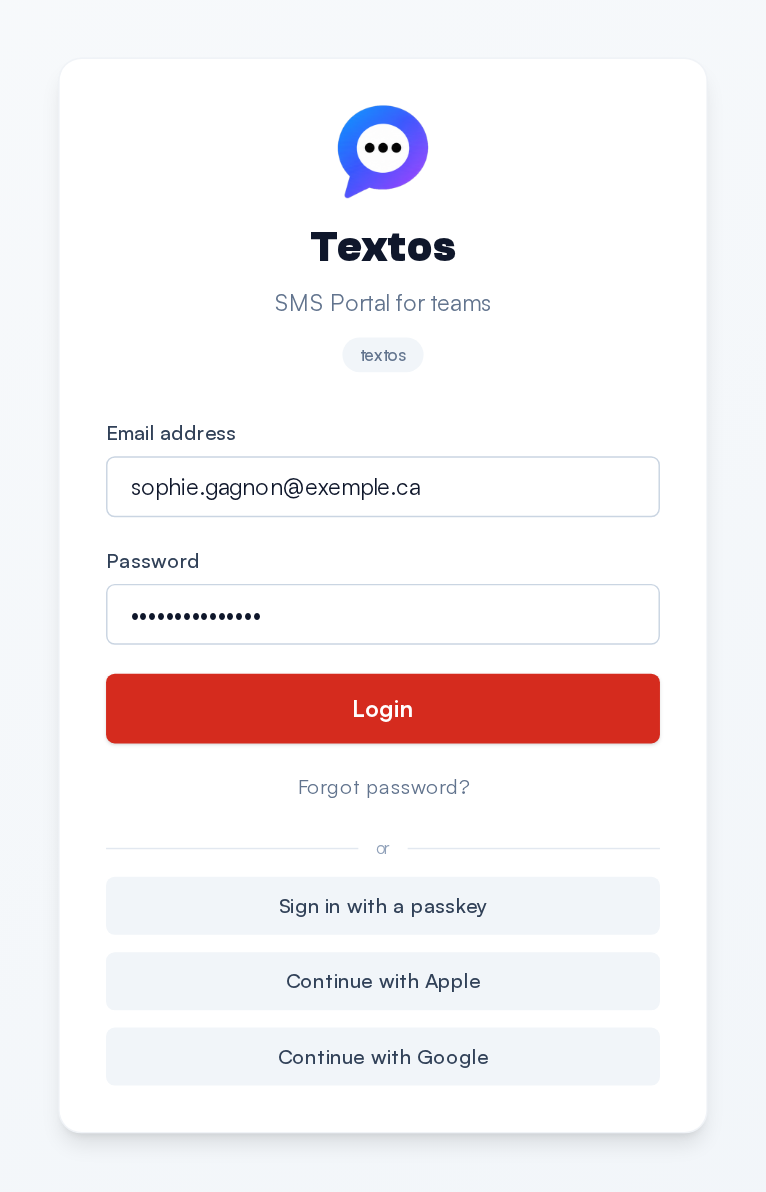 The login page: email address, password, then "Login". Under "or": the passkey, Apple and Google.
Creating an Account
When your provider opens sign-ups, the login page offers "Don't have an account? Create my account":
- Enter your first name, your last name, your email, your language, your password (twice) and, if you wish, your "Mobile phone (optional)": you can verify it later, in your profile.
- Tick "I accept the terms of use" when the page asks for it, pass the anti-bot check if there is one, then click "Create my account".
Your organization is created with your account, and you are its admin. Depending on your provider, a starting credit or a free trial is added to it. If sign-ups are closed, the page shows "Sign-up closed": ask your organization's admin for an invitation.
Forgot Password
- On the login page, click "Forgot password?".
-
Enter your email address and click "Send reset link".
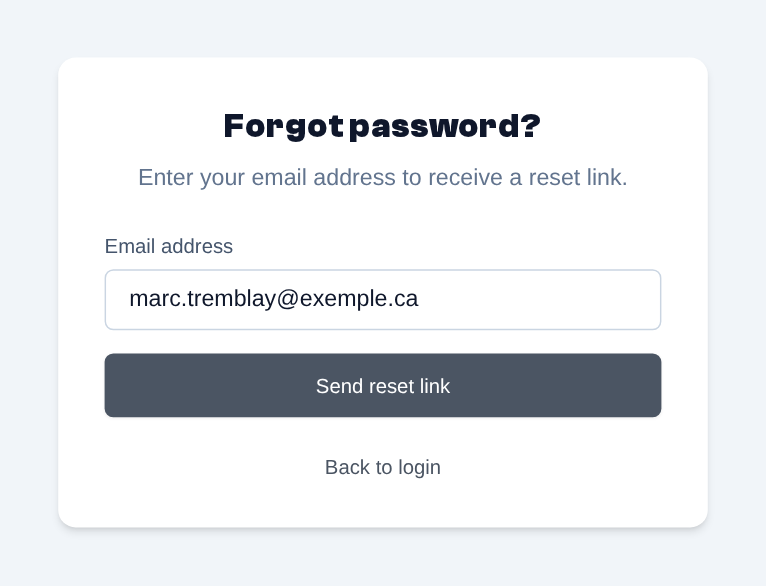 Forgot password: enter your email address and click "Send reset link".
 -
Open the email you receive and follow its link, valid for 24 hours.
- Enter your new password in "New password" and "Confirm password", then click "Reset password". Telma takes you back to the login page.
The email comes from the email server of your account's domain (the Telma platform's if that domain has none), and its link leads to that domain's address, whatever the site you asked from. Admins of several domains (or who ask from the site of another domain) and accounts that belong to organizations of several domains receive it from the Telma platform. For security, the page answers the same way whether the address matches an account or not: if nothing arrives, check the address you typed and your spam folder.
Profile
Sidebar menu > Profile (with the menu at the top: the menu of your initials), for everyone. The "My profile" page has four tabs: Profile, Security, Alerts and Danger zone.
Profile Tab
- Personal information: first name, last name (shown above your messages and notes), time zone and language. Click "Save" ("Cancel" discards the changes).
- Account access: your "Email", your "Mobile phone" ("Verified on …" or "Not verified") and your "Password", each with "Edit". Each change of email or phone is confirmed by a code sent to the new address or number; changing the email also asks for your current password. The password's "Edit" leads to the Security tab.
- Display: the menu layout (see below).
- Account Information: the organizations you are a member of, with your role in each (the current organization is highlighted, the default organization has a star), the domain of the session and, if you have one, your team. A super admin or a domain admin also sees their role and its scope (every organization, or those of their domains): those organizations are not listed one by one, you work in them with "Administer".
- My endpoint, at the bottom of the page, when a phone extension is assigned to you in the current organization: its short number, its state ("Normal", "Do not disturb", "Forwarded to …", "Follow me") and the "Settings" button for your own "Do not disturb", forwards and follow me settings (see Extension Settings).
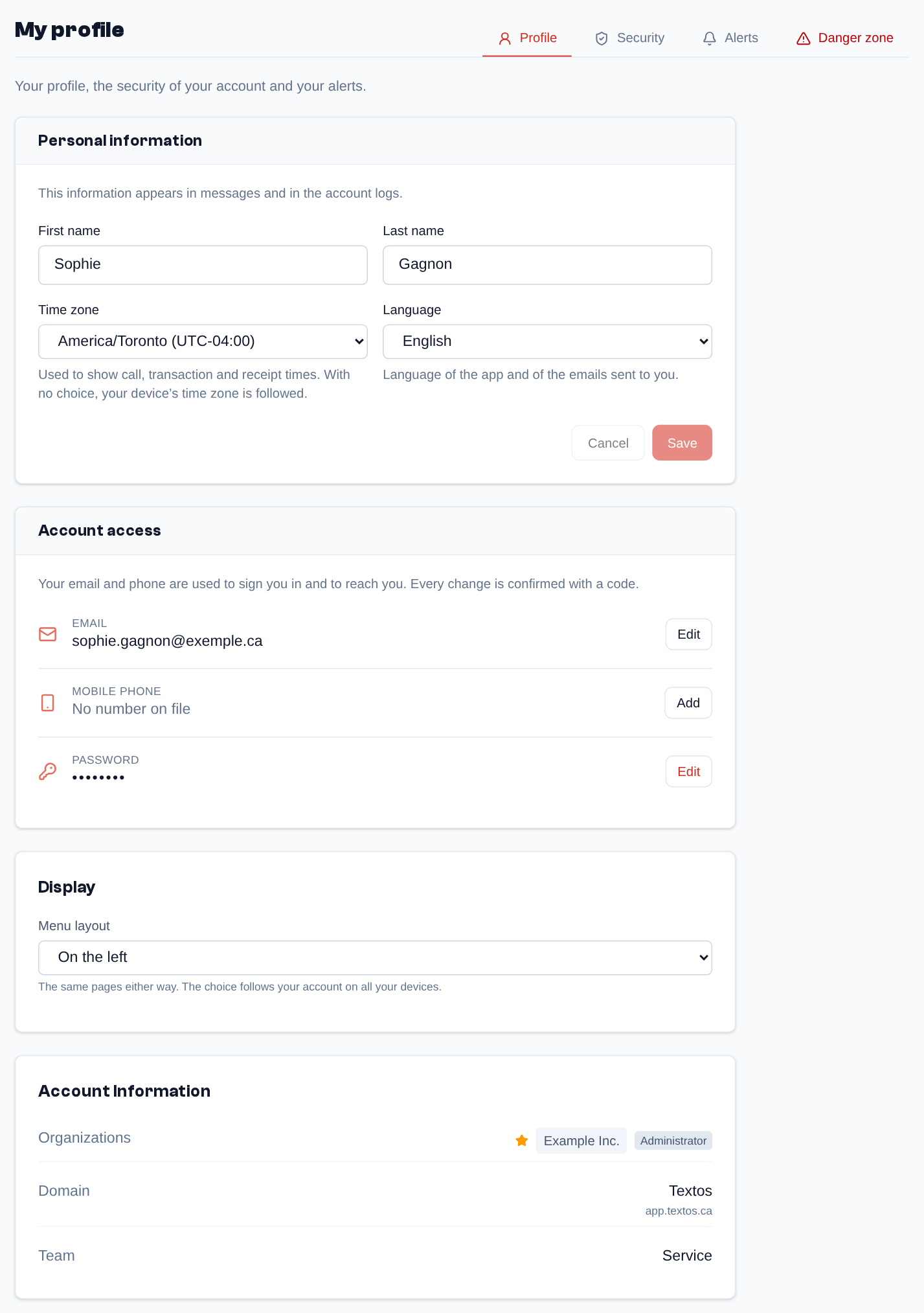 The "My profile" page, Profile tab: personal information (first name, last name, time zone, language), account access (email, phone, password), menu display, then your organizations and your role in each.
Language
The "Language" field, in "Personal information", offers "Français" and "English". The change applies when you click "Save" and is kept in your account; it is also the language of the emails sent to you. The globe in the header (or, with the menu at the top, the "Language" of the ☰ menu) also changes the language, but only in this browser.
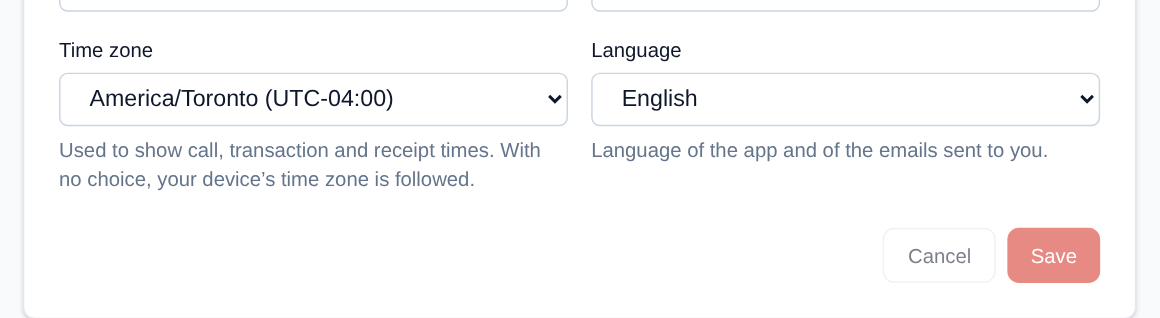 The Language field, next to the time zone: the change applies with "Save" and is kept in your account.
Menu Layout
"On the left" (the default) or "At the top, in columns": see "The Top Menu". The change applies at once and follows your account on all your devices.
Default Organization
If you belong to several organizations, the "Default organization" section chooses the one that opens when you log in on this domain: click "Change", pick the organization, then click "Save". Each domain has its own default organization.
Security
The Security tab changes your password on the spot: in "Change password", enter the "Current password", the "New password" and "Confirm the new password", then click "Change password". You stay signed in on this device. The "Session" card shows this device and your last sign-in, with "Sign out". If you forgot your password, use Forgot Password.
Second Factor
The "Second factor" card of the Security tab adds a second proof to the sign-in:
- Passkeys: "Add a passkey" registers this device (fingerprint, face, device PIN) or a USB or NFC security key. You can then sign in with "Sign in with a passkey", without a password. A passkey works on the address it was created on; the list shows its name, site, creation and last use (pencil to rename it, bin to remove it).
- Authenticator app: "Set up the app", scan the QR code with Google Authenticator, Microsoft Authenticator, 1Password or another one, then enter the code it shows and "Enable".
- Backup codes: when the first factor is added, 10 codes are shown once ("Copy", "Download"); each one allows one sign-in if you lose your device. "New backup codes" replaces them.
Removing a factor or renewing the codes asks for a code of the app or a backup code.
In the Telma mobile app, signing in also offers the passkey: a passkey created on your company's site (with the iPhone or the Android phone, for example) also works in the app, and the app asks for the same two-step verification as the site.
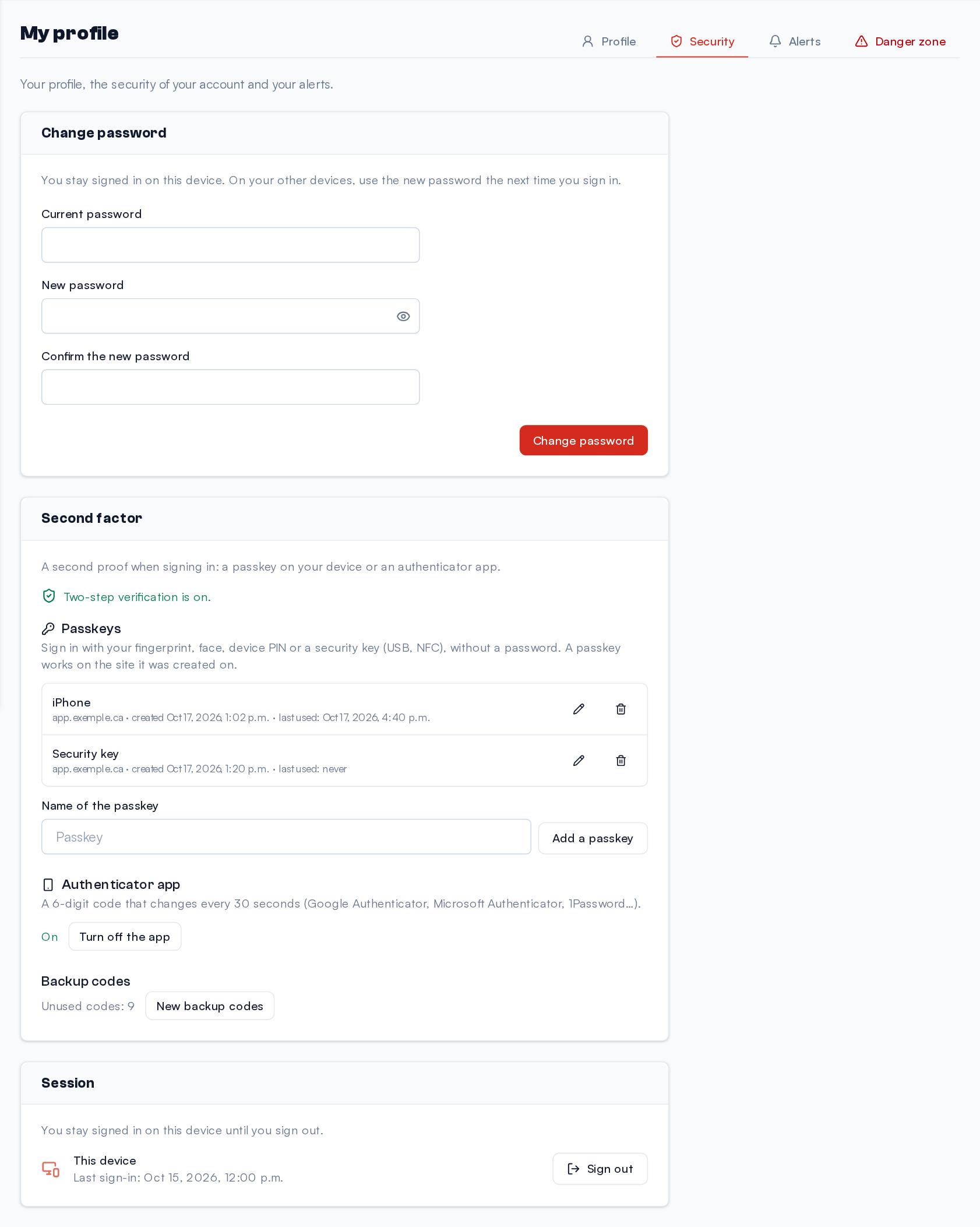 The Security tab of the profile: the "Second factor" card with two passkeys, the authenticator app enabled and the backup codes.
Recommended, soon mandatory for administrators. Platform and domain administrators, and organization administrators when the domain asks for it (Domain page, General tab, "Security" section), see a yellow banner: "A second factor will become mandatory for administrators". For now, signing in is never refused without a second factor; add one now. When it becomes mandatory, there will be 14 days of grace, then signing in will first ask to add a passkey or the authenticator app; the last factor of such an account will not be removable.
Alerts and Notifications
The Alerts tab sets the emails you receive (product news, surveys, purchases and top-ups, sign-ins, low balance, with the alert threshold) and the "Mobile app notifications" ("New messages", "Missed calls", "Voicemails"); click "Save". Security and service messages (password, verification codes, invitations, negative balance…) are always sent.
In the mobile app, Do not disturb stops, for a while (at most 7 days) or until you turn it off, the notifications of new messages and missed calls, makes those of voicemails silent and puts all your extensions in "Do not disturb"; emails do not change. It turns itself off at the chosen time.
Telma can also show a browser notification when a new message arrives: in the "Notifications of this browser" section of the same tab, or in the yellow banner of the Conversations page, click "Enable" and accept the browser's request. If notifications are blocked, allow them in the browser settings for this site. On iPhone and iPad, first install Telma on the home screen: tap the Share button, then "Add to Home Screen".
Danger Zone
The Danger zone tab deletes your account. The page first details what will be lost: the account's numbers are released, the credit balance is not refundable, the history and your settings are erased. Tick "I have read and understand the consequences…", click "Delete my account…", then type your email and your password and click "Delete permanently". Depending on your provider, the deletion happens after a delay during which you can cancel it by signing in again. An account whose balance is negative, or of which you are the only administrator while it has other members, cannot be deleted: the page says what to do.
In "Administer" mode (see Administering an Organization), the account access, the password and the danger zone are locked.
Conversations
The Conversations page is the heart of Telma: this is where you read your contacts' texts and answer them. Everyone sees their team's conversations; with the permission "Every team of the organization" (Admin, Manager), those of every team of the organization.
Conversation List
Above the list, the "Open / Closed" switch chooses the conversations shown: the open ones (the default) or the closed ones, never both at once. A conversation you close leaves the list of open ones at once; a closed conversation the contact reopens by writing comes back among the open ones.
The "Number, name or message…" search field finds a conversation by the contact's number or the
team's (written any way: 514 555, (514) 555-0123), by the contact's name or by the text of a
message. It searches every conversation of the chosen view, not only the ones shown: a closed
conversation is searched in "Closed". Escape clears it.
The list, on the left, is sorted by last activity. Each row shows:
- the contact's name, or their number if their name is not known;
- the team (when you see several teams) and the team number used;
- the status: "Open" or "Closed", depending on the view;
- the time of the last message, then "Yesterday", the day of the week or the date for older messages;
- the number of unread messages, for your team's conversations.
At the bottom of the list, "Load more conversations" shows the next ones, with the number already shown out of the total ("20 of 85").
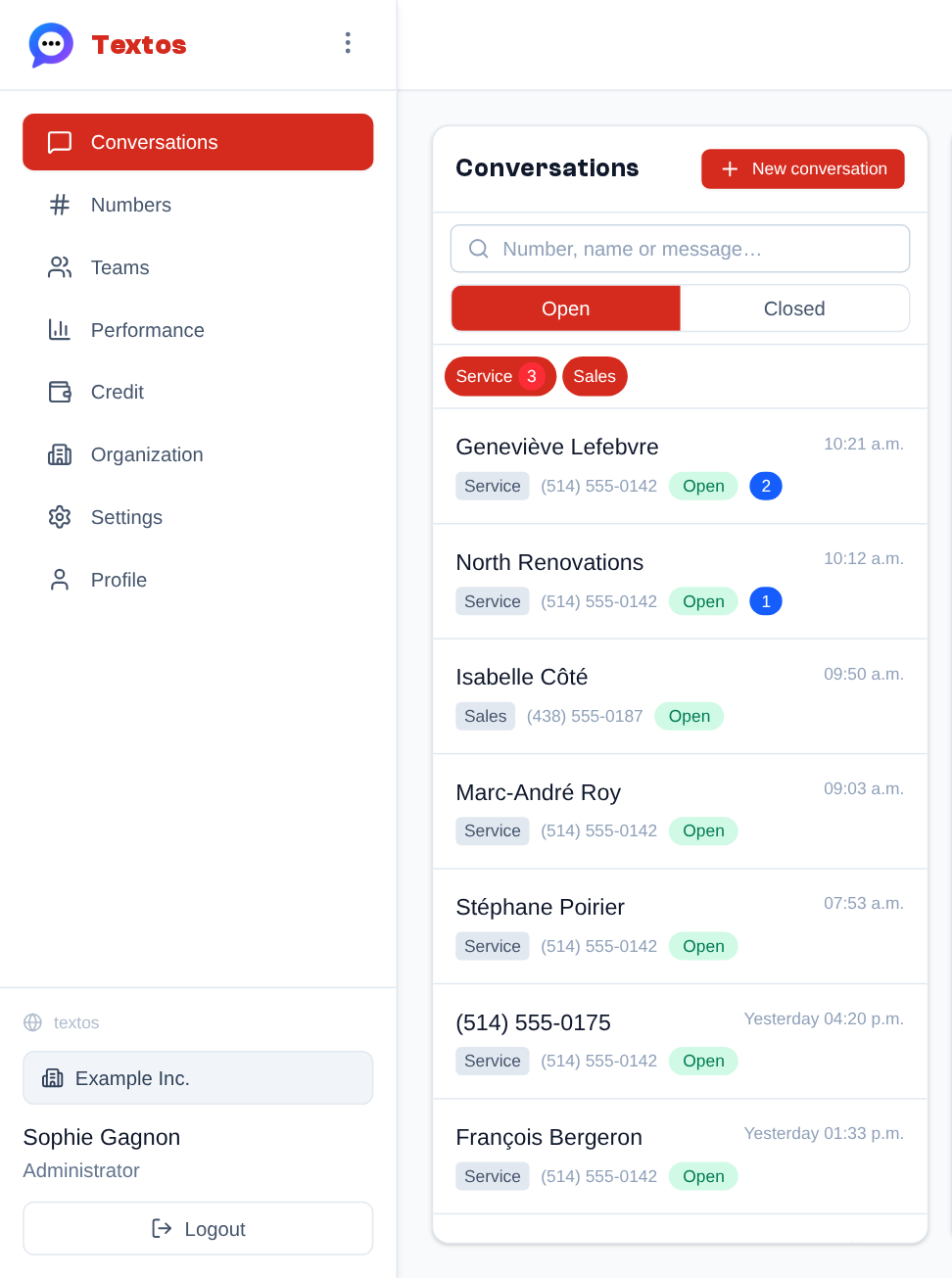 The list of open conversations: the search and the Open / Closed switch above it; for each conversation, the contact's name (or number), the team, the team number, the time of the last message and the number of unread messages.
Filtering by Team
When you see several teams, a row of chips appears above the list, below the search and the "Open / Closed" switch, one per team; your team's chip shows its unread messages. Click a chip to hide or show again that team's conversations.
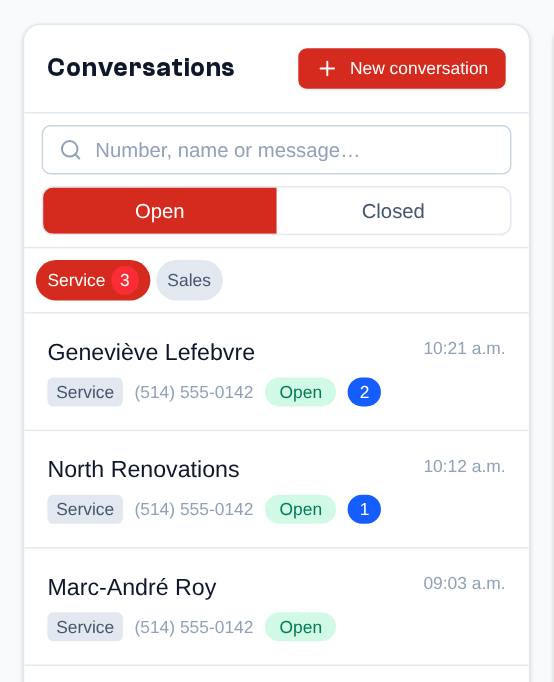 Below the search and the Open / Closed switch: one chip per team; a click turns it on or off. Here, Sales is turned off.
Reading a Conversation
Click a conversation to open it on the right; its messages are then marked as read. The header shows the contact, the status, the team number used and the team. Messages are displayed in chronological order:
- received messages on the left;
- sent messages on the right, with the name of the person who sent them, the time and the delivery status: "Pending", "Sent", "Delivered" or "Failed". "Delivered" only appears with providers that send back delivery receipts.
A message received outside the team's business hours can carry the "Queued (outside business hours)" or "Rejected (outside business hours)" mention (see Outside Hours Behavior). In a long conversation, "Load older messages" shows the beginning of the exchange.
The pencil next to the name (or the number) in the header names the contact: type the name, then Enter to save it or Escape to cancel; an empty field clears the name and the number shows again. The name is for this conversation only (a conversation with the same contact on another team number keeps its own); it shows in the list, it is found by the search and it appears at once for the other members of the team.
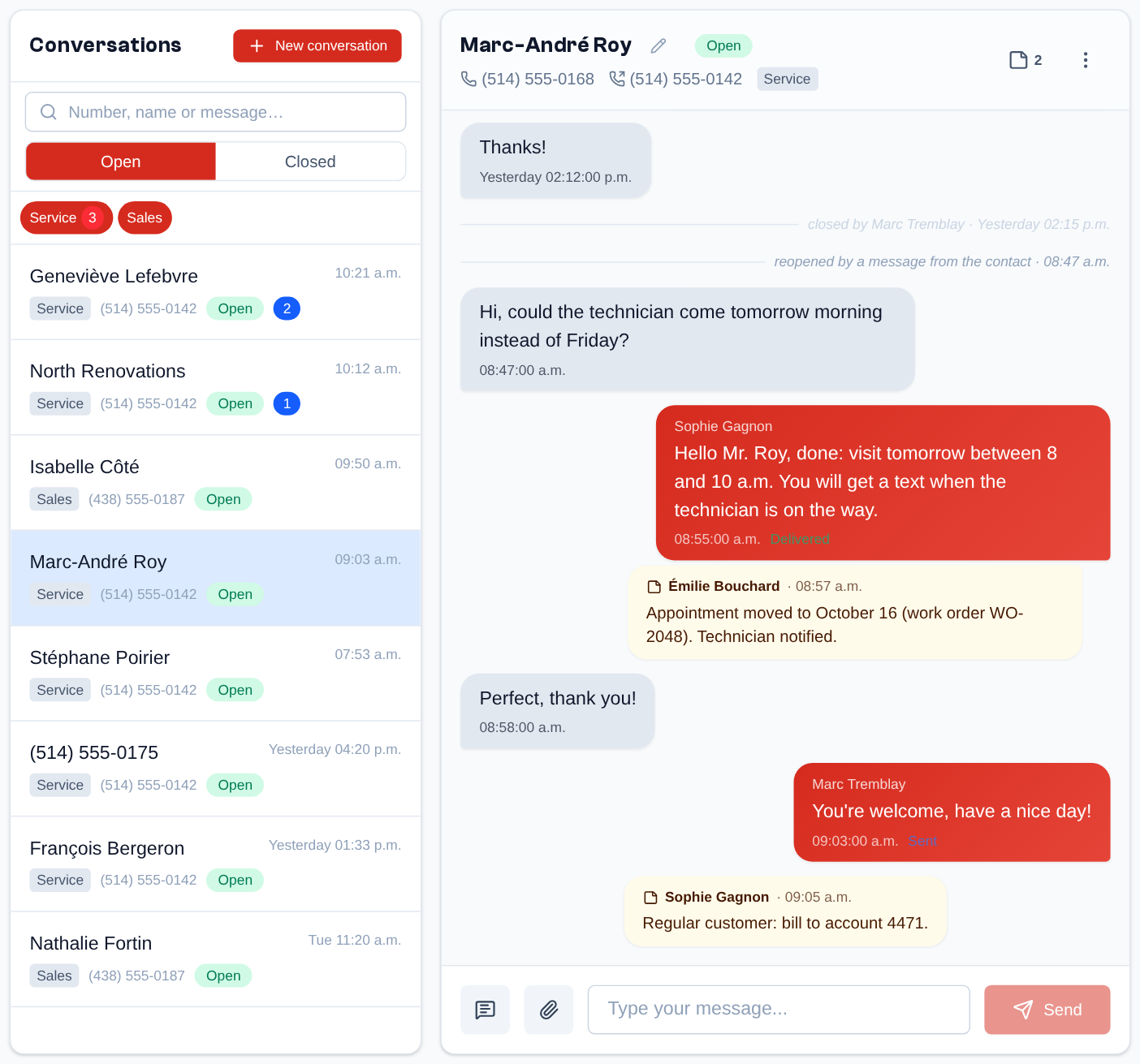 A conversation: received messages on the left, sent messages on the right with the agent's name, the time and the delivery status (Delivered, Sent); the team's notes appear in yellow in the timeline.
Sending a Message
- Open the conversation, or start one (see Starting a Conversation).
- Type your message in the "Type your message..." field, at the bottom of the conversation.
- Click "Send" or press Enter.
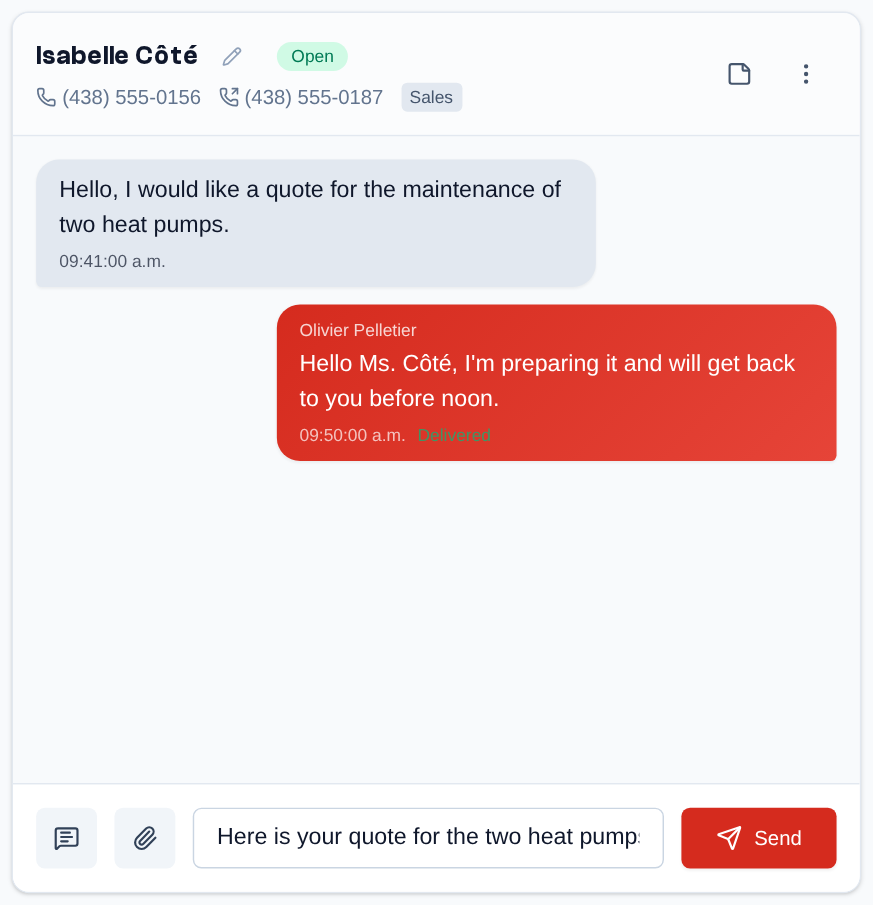 Type the message in the field at the bottom of the conversation, then "Send" (or Enter).
The message goes out from the team number used by the conversation. Each send uses the organization's credits. The button left of the field inserts a message template.
Sending Attachments (MMS)
When the conversation's number goes through a provider that handles MMS, a paperclip appears left of the input field. With an SMS-only provider, there is no paperclip.
- Click the paperclip and choose one or more files.
-
The attachments appear above the field. To remove one, hover it and click the red cross.
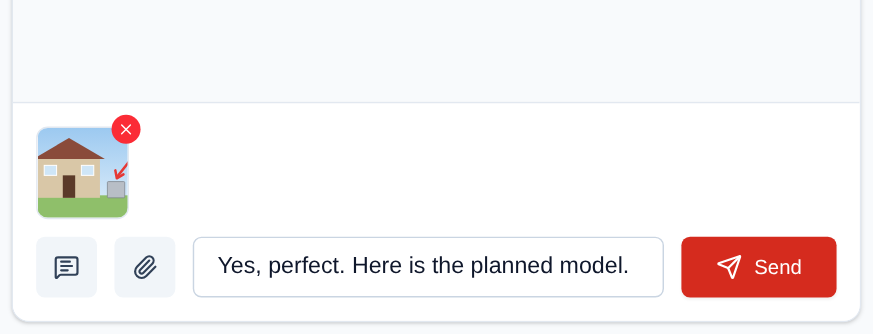 An image added with the paperclip appears above the field; the red cross, on hover, removes it before sending.
 -
Add a text if you wish, then click "Send".
Accepted formats: JPG, PNG, GIF and WebP images; MP4 and MOV videos; MP3, WAV and M4A sounds. Each file can be at most 10 MB.
Received MMS show in the message bubble: a click on an image opens it full size in a new tab; videos and sounds play in place.
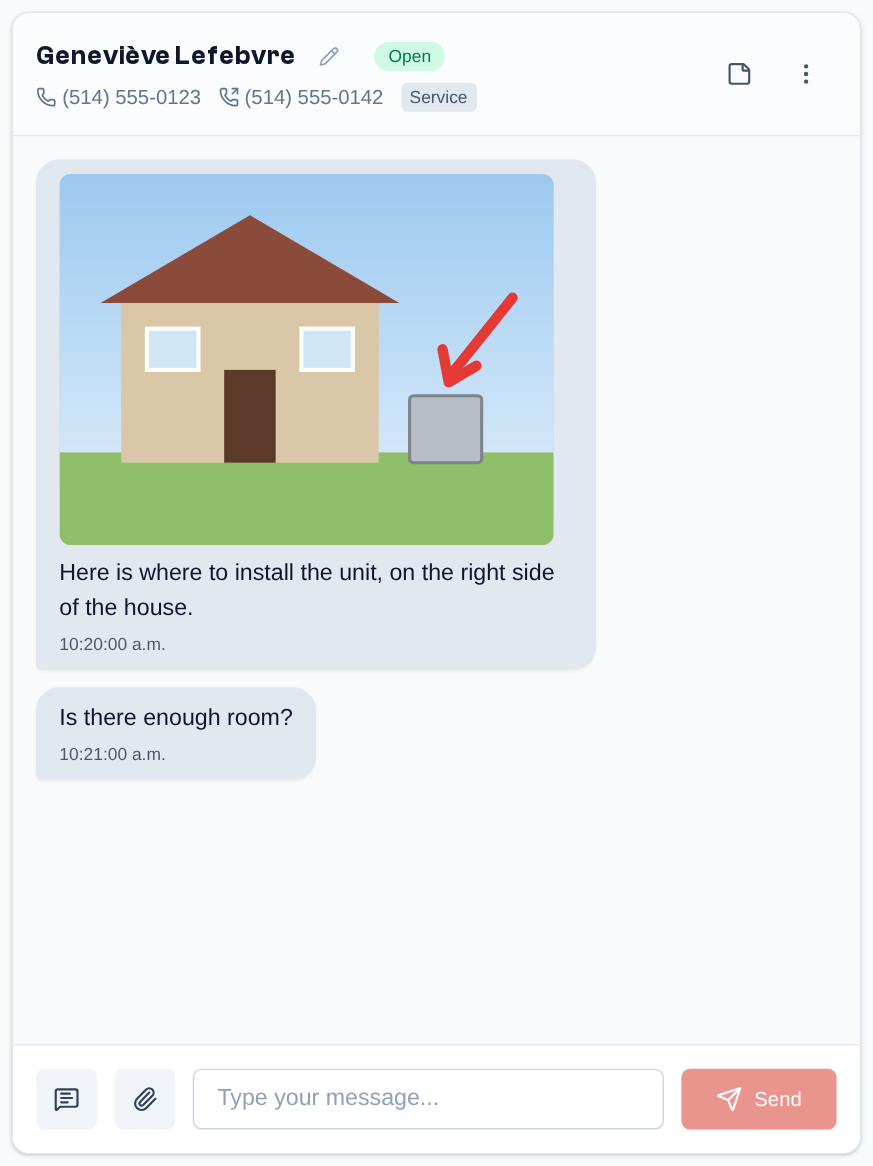 A received MMS: the picture shows in the bubble, above the text; a click opens it full size.
Starting a Conversation
- Click "New conversation", at the top of the list: a panel opens on the right.
- If you see several teams, choose the "Team".
- Enter the "Recipient number", for example (514) 123-4567; the number formats itself as you type.
- Choose the "Send from" number among the team's numbers.
- Type the first message in the bottom field and click "Send".
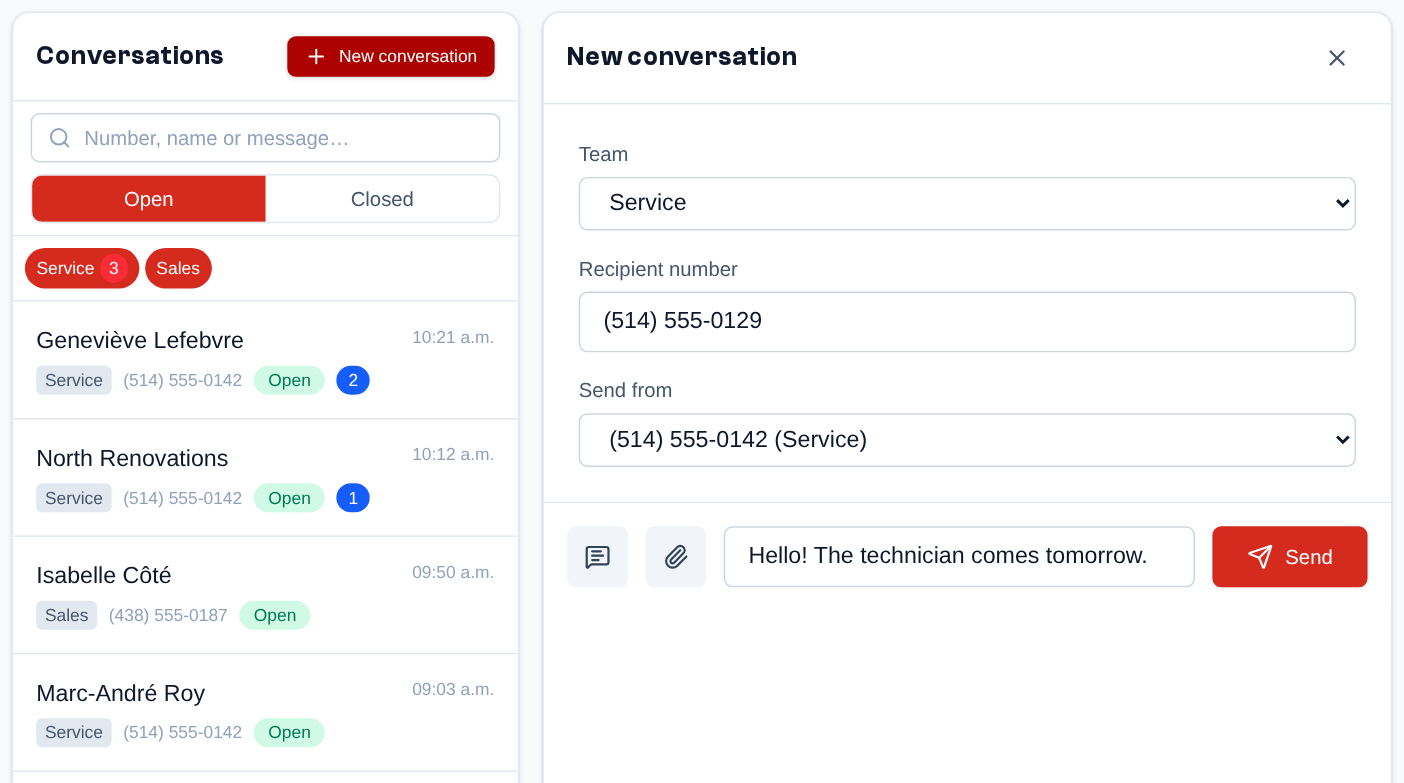 New conversation: choose the team, enter the recipient number (it formats itself), choose the sending number, then type the first message at the bottom of the panel and click "Send".
If a conversation already exists with this contact on this number, the message is added to it; if it is closed, it stays closed (only "Reopen" and a message from the contact reopen it). The cross at the top of the panel abandons it without sending anything.
Closing, Reopening or Deleting
The ⋮ menu, at the top right of the conversation, offers:
- "Close conversation": marks the exchange as finished. The conversation leaves the list of the open conversations for the closed ones: the "Open / Closed" switch above the list shows one or the other, and the team's Closed conversations tab files them by day of closing. A closed conversation offers "Reopen" (it then comes back among the open ones). There is no separate "archived" state any more: closing is archiving.
- "Delete conversation" (admins): permanently erases the conversation and all its messages. The first click changes the label to "Confirm deletion"; a second click deletes. This action cannot be undone.
A closed conversation is reopened automatically as soon as the contact writes again: it comes back among the open ones.
Conversation Notes
Conversation notes are the team's internal comments. They are never sent to the contact.
- Notes panel: the note icon, next to the ⋮ menu, opens the "Notes" panel on the right; it shows the number of notes. Write a note in the bottom field, then press Enter or click "Add" (Shift+Enter starts a new line). A note's author can edit it (pencil); the author and the members who manage members (Admin, Manager) can delete it (trash, then a second click to confirm).
- In the timeline: each note appears in yellow, at the moment it was written. Clicking a note in the panel scrolls the conversation to it, loading older messages if needed.
- Commenting a message: hover a bubble, click its three dots, then "Comment". The note is attached to the message and shown right after it. In the timeline, it does not repeat the message's text (it is right above); the panel does ("On the message …"). The same menu offers "Copy text".
- Notes from a connected application: they show the author and the application, for example "Julie Tremblay via My CRM" (see Integrations).
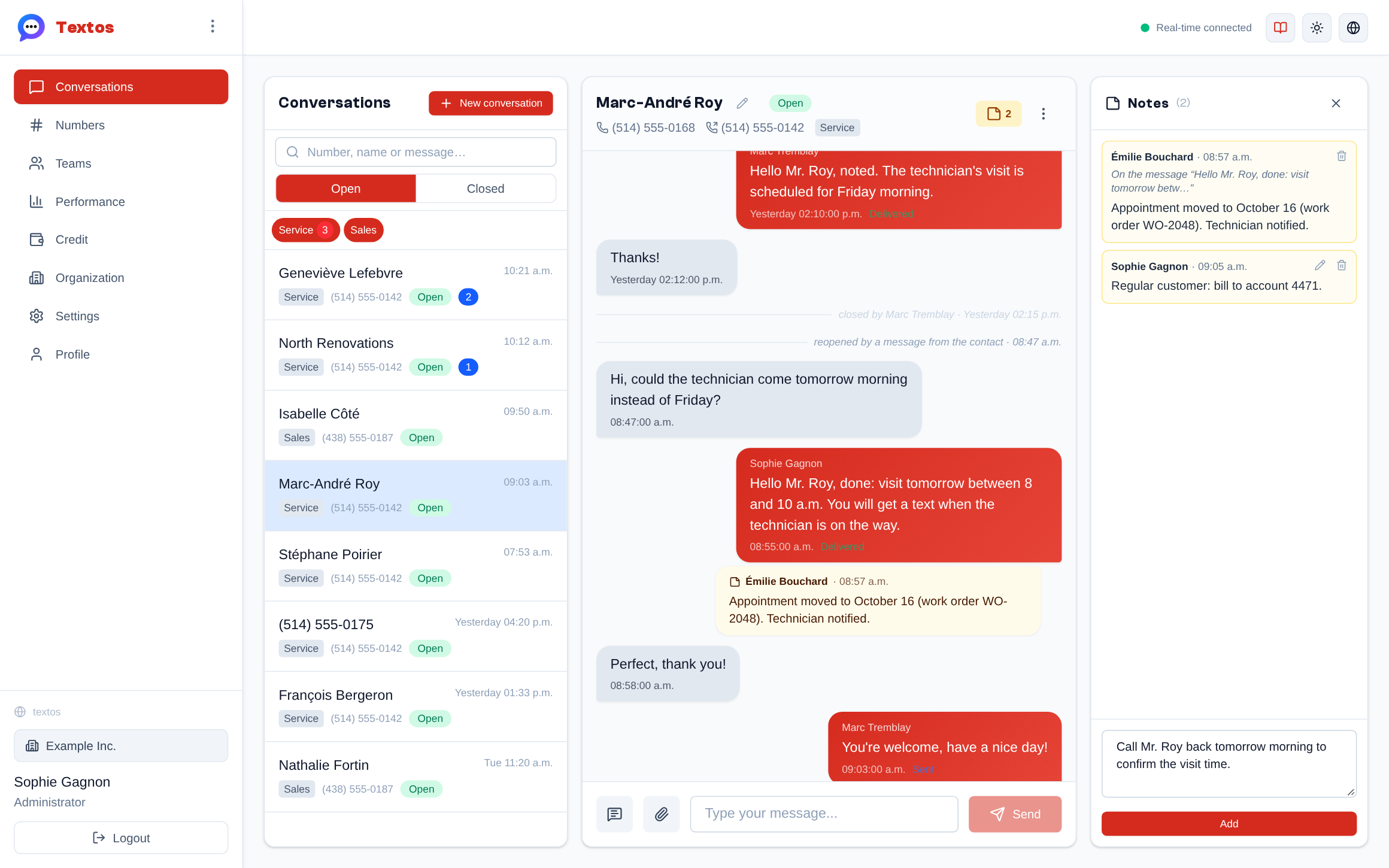 The Notes panel (icon next to the menu, with the number of notes): a note attached to a message quotes it, the author can edit or delete their note, and a new note is written at the bottom. In the timeline, notes appear in yellow.
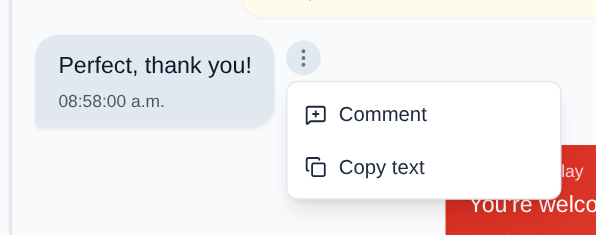 A bubble's three dots: "Comment" (note attached to the message) and "Copy text".
Closings and Reopenings in the Timeline
When a conversation is closed or reopened, a discreet line says so in the timeline, at the moment it happened: "closed by Marc Tremblay", "reopened by Marc Tremblay", "reopened by a message from the contact" (right before the message that reopened it) or "reopened by a message sent" (when a message is sent in a closed conversation).
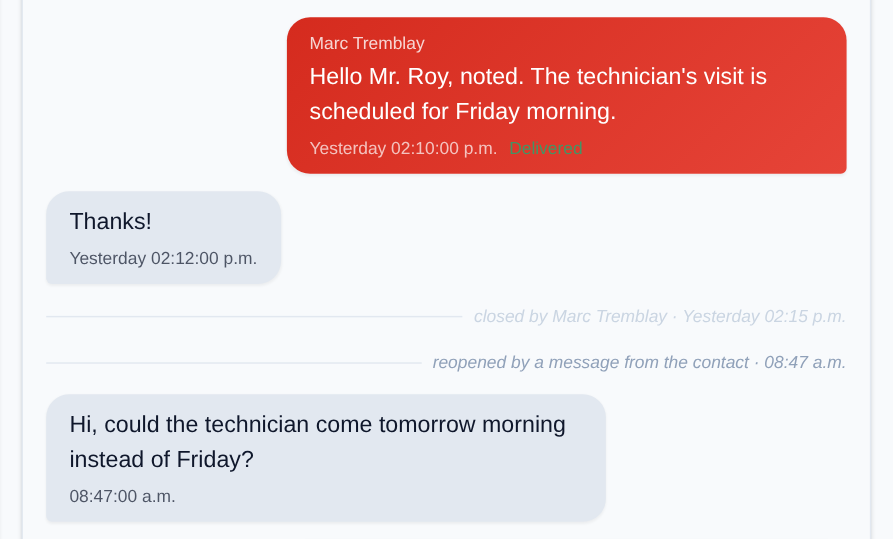 "closed by Marc Tremblay" yesterday, then "reopened by a message from the contact" right before the message that reopened it.
Information Banners
Banners can appear at the top of the conversation area:
- "Notifications are disabled. You won't be alerted of new messages.", with the "Enable" button: see Alerts and Notifications. If the browser refused them, the red "Notifications are blocked" banner reminds you to allow them in its settings for this site.
- "Your organization has no credits. You can no longer send SMS/MMS.": sending is blocked until credits are added. The banner reminds you to contact your service provider (the Telma team, or the company that provides Telma to you); admins also see the "View billing" link to the Credit page.
- "3 message(s) pending credits": these messages will go out automatically as soon as credits are added.
Above the input field, "The number … is no longer assigned to this team." says that the number was moved to another team or organization: this conversation can no longer be answered (the field shows "Cannot reply: number moved"); new messages from the contact reach the team that now holds the number.
Teams
Sidebar menu > Teams, for the Manager and Admin profiles (the User profile does not have this menu). When the organization has a single team and the Messages feature, this entry is called Message settings and opens the team's page directly, titled "Message settings" with the team's name as a subtitle; its last tab is then called "Settings". An admin finds "Create another team" there, which leads to the list of teams. Without the Messages feature, a team's page only shows its numbers, its members and its name: the hours, the welcome message, the templates and the closed conversations are about messages only.
A team groups agents who share one or more phone numbers and handle the same conversations. Each member of the organization belongs to one team at most.
Team List
The page shows one card per team; a click on a card opens the team's page. Admins also find the "New team" button there: enter the "Team name" and click "Create".
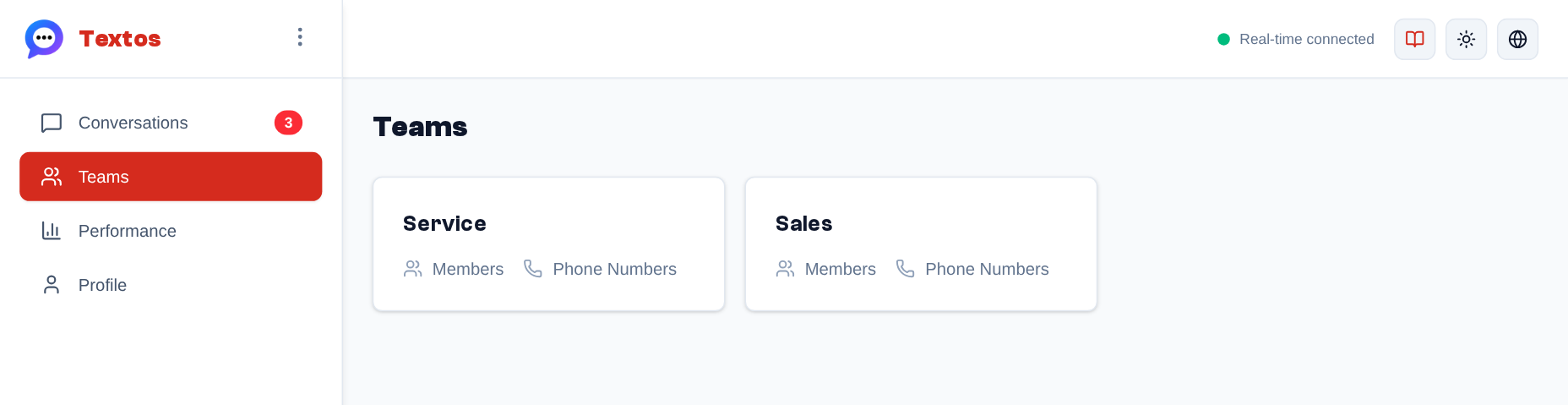 Sidebar menu > Teams (managers and admins): one card per team; a click opens the team's page.
A Team's Page
The team's name is the title; "Back" returns to the list. The tabs, and what can be done in them, depend on the permissions; the table gives those of the built-in Manager and Admin profiles:
| Tab | Managers | Admins |
|---|---|---|
| Phone Numbers | view | view |
| Members | view | add, remove |
| Business hours | view | edit |
| Closed conversations | view | view |
| Team settings | — | edit |
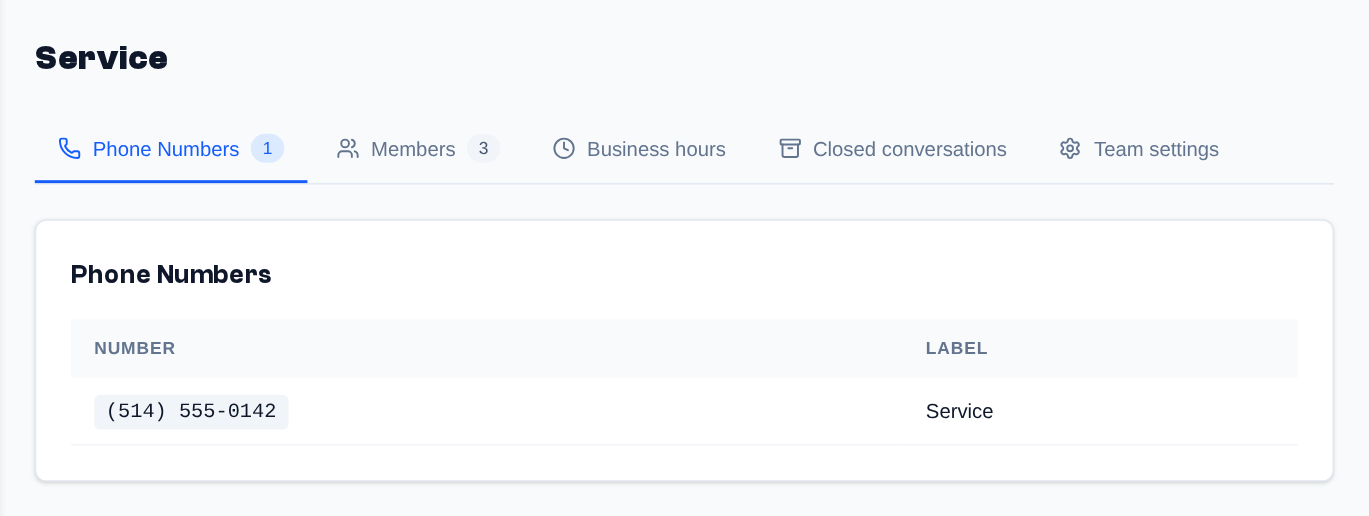 A team's page: its name, then the Phone Numbers, Members, Business hours, Closed conversations and Team settings (admins) tabs.
Team Numbers
The "Phone Numbers" tab lists the team's numbers and their label. An admin chooses the team that receives a number's SMS in that number's page; when the team has none, the tab offers admins an "Assign" link, which opens the Numbers page.
Team Members
The "Members" tab lists the team's members with their name, address and role. To add a member (admins):
- In the "Select a member..." list, choose an organization member who has no team yet (the list only appears if some are left).
- Click "Add".
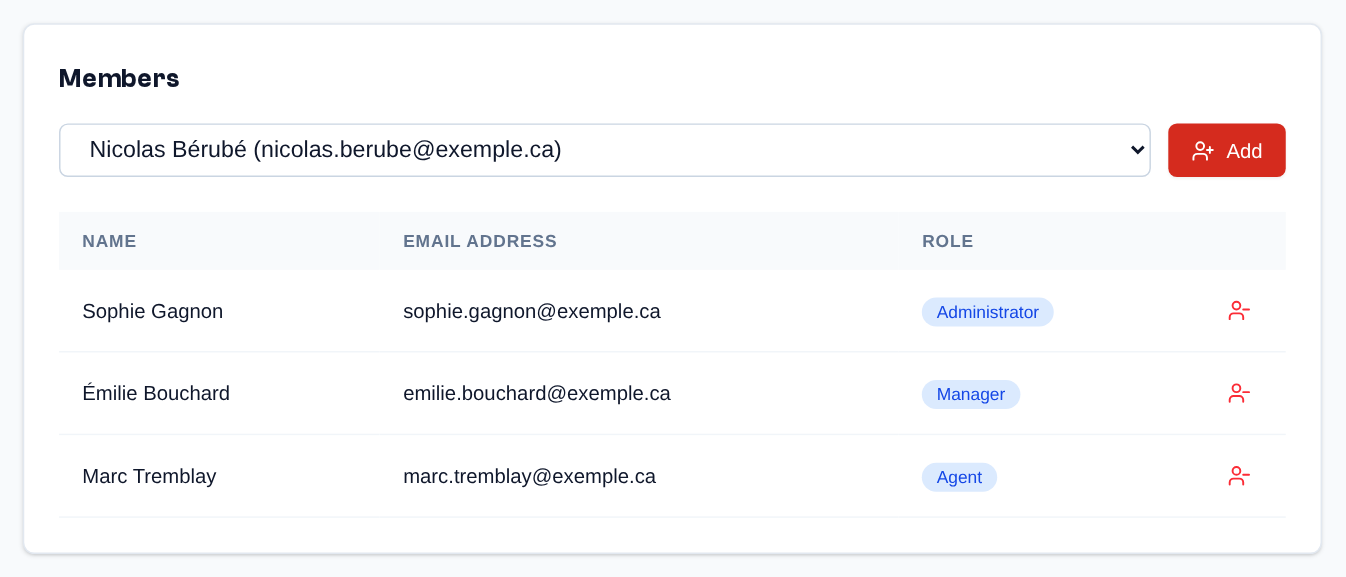 Members tab (admin): pick an organization member who has no team yet and click "Add"; the red icon removes a member from the team.
The red icon at the end of a row ("Remove from team") removes the member from the team; they stay a member of the organization. To bring a new person into the organization, see Inviting a Member.
Business Hours
Business hours tell when the team answers. Managers can view them; to change them (admins):
- In the "Business hours" tab, click "Edit".
- Choose the team's "Timezone".
-
For each range, choose the day, the start time and the end time. "Add hours" adds a row (seven at most); the trash removes one. The same day can have two ranges, for example around the lunch break.
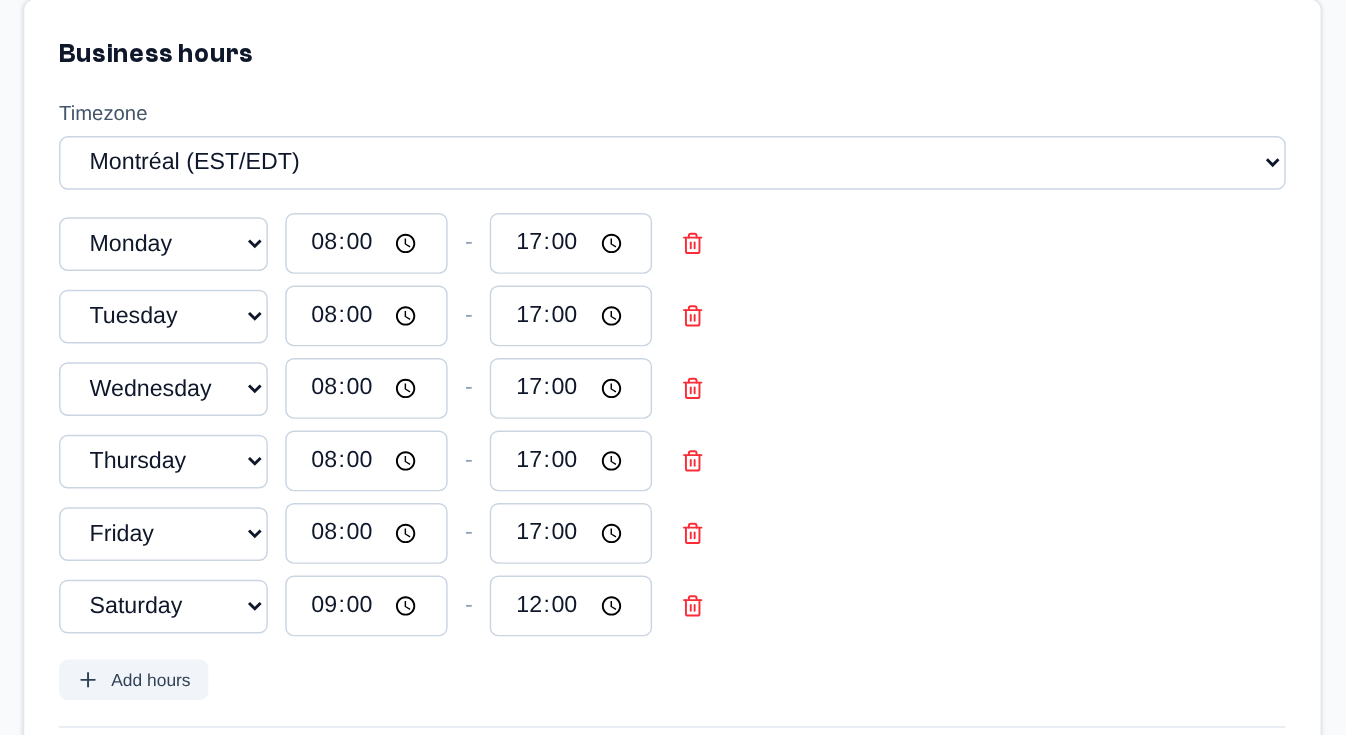 Business hours tab after "Edit" (admin): time zone, one row per range (day, start, end, trash) and "Add hours".
 -
Set the outside hours behavior, then click "Save" ("Cancel" discards the changes).
A team without any business hours is considered outside business hours at all times.
Outside Hours Behavior
In the same form, below the hours:
- Behavior: "Queue messages" (the default) or "Reject". Either way, a message received outside
business hours is kept and shown in the conversation:
- queued, with the "Queued (outside business hours)" mention, and the team is notified as usual;
- rejected, with the "Rejected (outside business hours)" mention, without push notification on the team's phones.
- Message (optional): automatic reply sent to a contact who writes outside business hours, whatever the behavior, at most once a day per conversation.
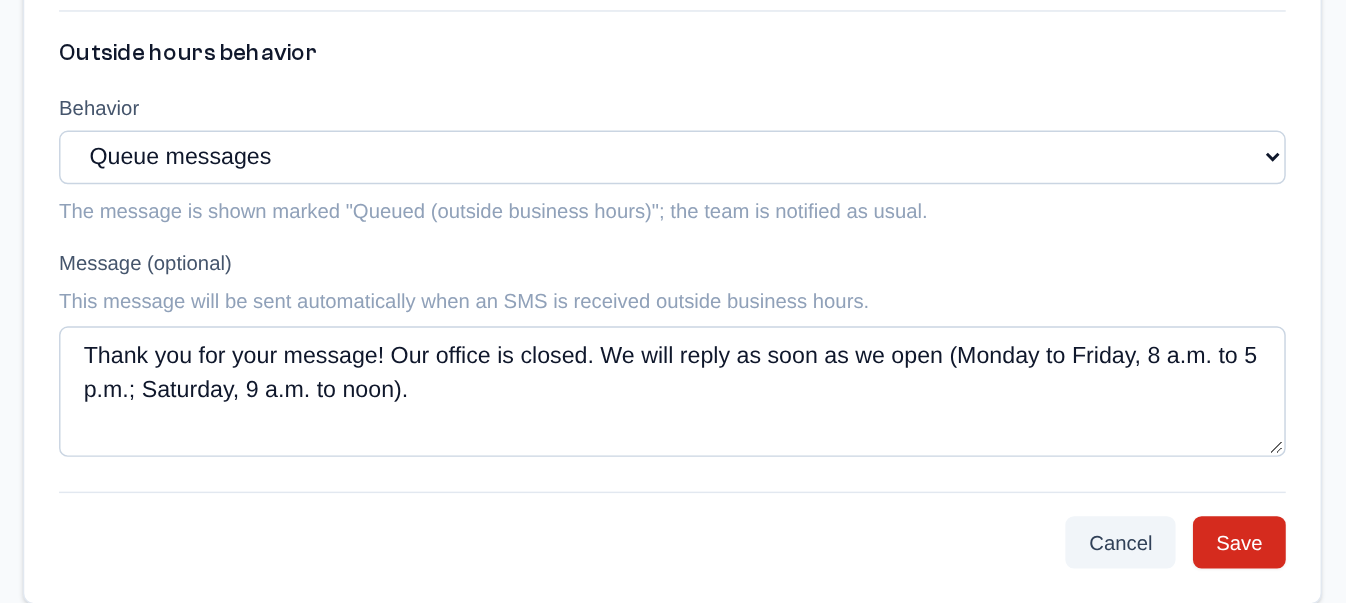 Further down the same form: the outside hours behavior and the optional automatic message, then "Save".
Team Settings
The "Team settings" tab is reserved for admins. It holds the "Team name" (change it, then click "Save"), the welcome message and the message templates.
Welcome Message
The "Welcome message" is sent automatically to a contact who writes to the team for the first time (new conversation). Write it, then click "Save"; leave it empty to send nothing.
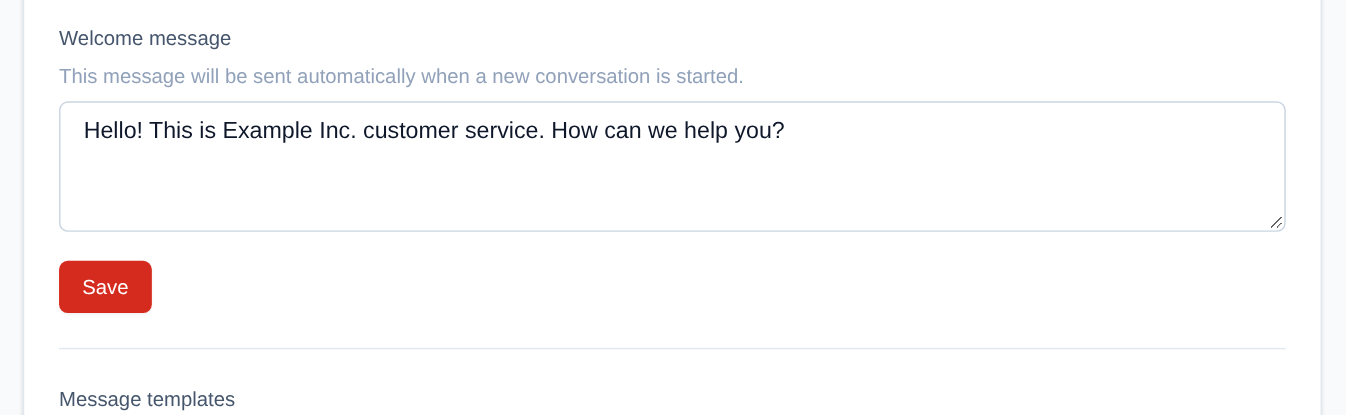 Team settings tab (admin): the welcome message and its "Save" button.
Message Templates
Templates are ready-made sentences (greeting, confirmation, thanks…), visible to every member of the team. To manage them (admins), in the "Team settings" tab:
- Click "Add a template".
- Give it a short title and write its text. A template's trash removes it.
- Click "Save".
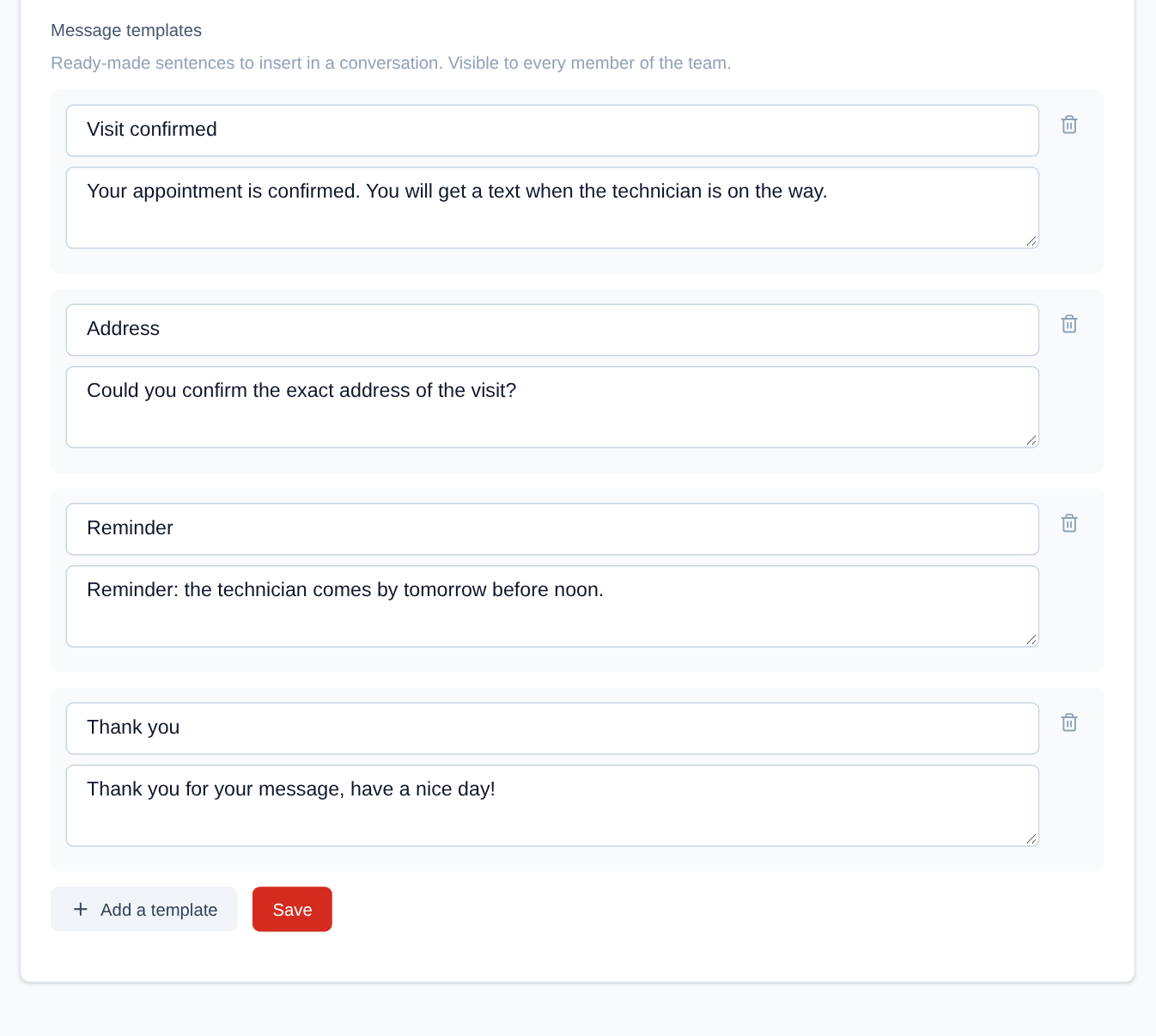 The team's message templates: a title and a text per template, the trash to remove one, "Add a template", then "Save".
In a conversation, the button left of the input field opens the team's templates; a click on a template inserts its text into the message, after what you have already typed. You can edit it before sending. This button only appears if the team has at least one template.
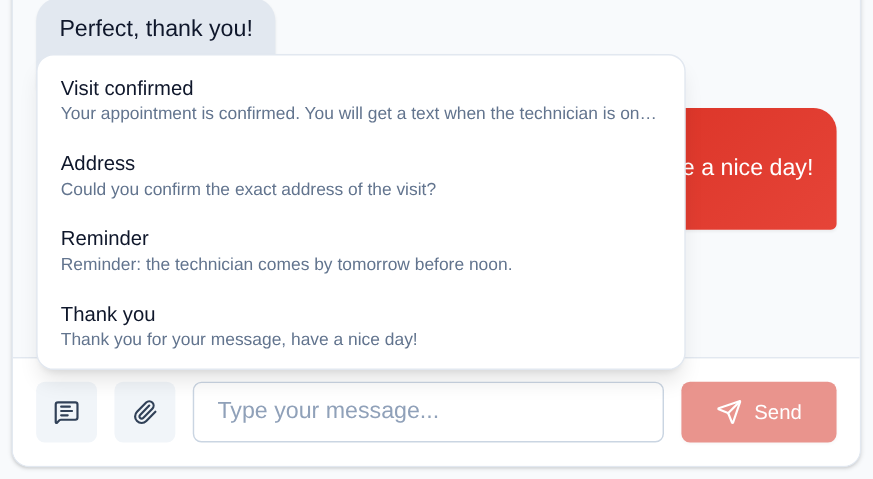 In a conversation, the button left of the field opens the team's templates; a click inserts the text into the message.
Closed Conversations
The "Closed conversations" tab (managers and admins) files the team's closed conversations by day of closing:
-
Click the "Closed conversations" tab: the conversations closed on the latest day there were any show at once.
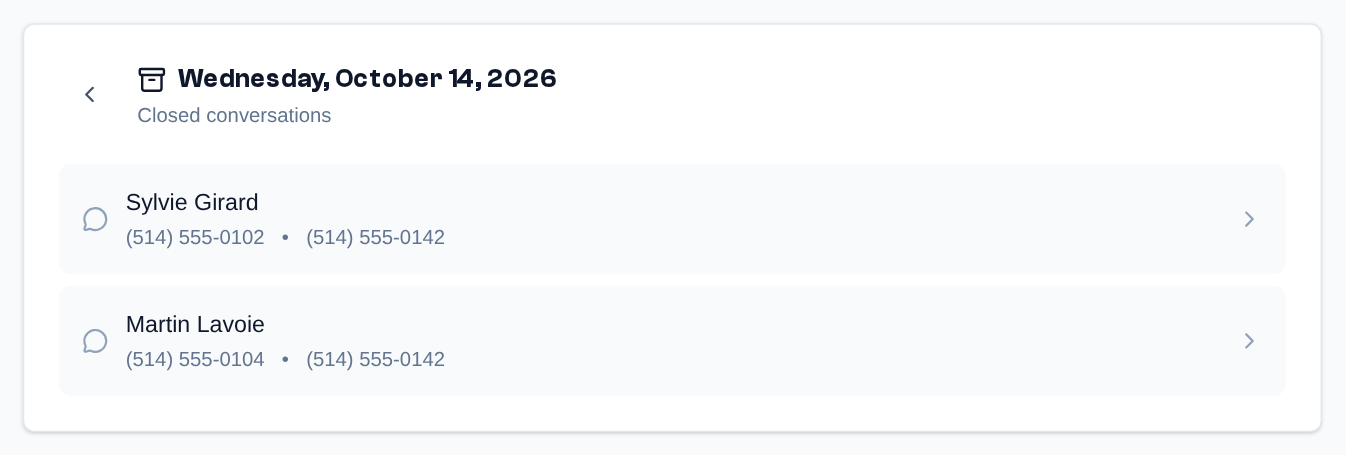 When the tab opens: the conversations closed on the latest day of closing.
 -
For another day, the left arrow opens the calendar, at that day's month: the days on which conversations were closed are highlighted, the arrows change the month. Click a day to see its conversations.
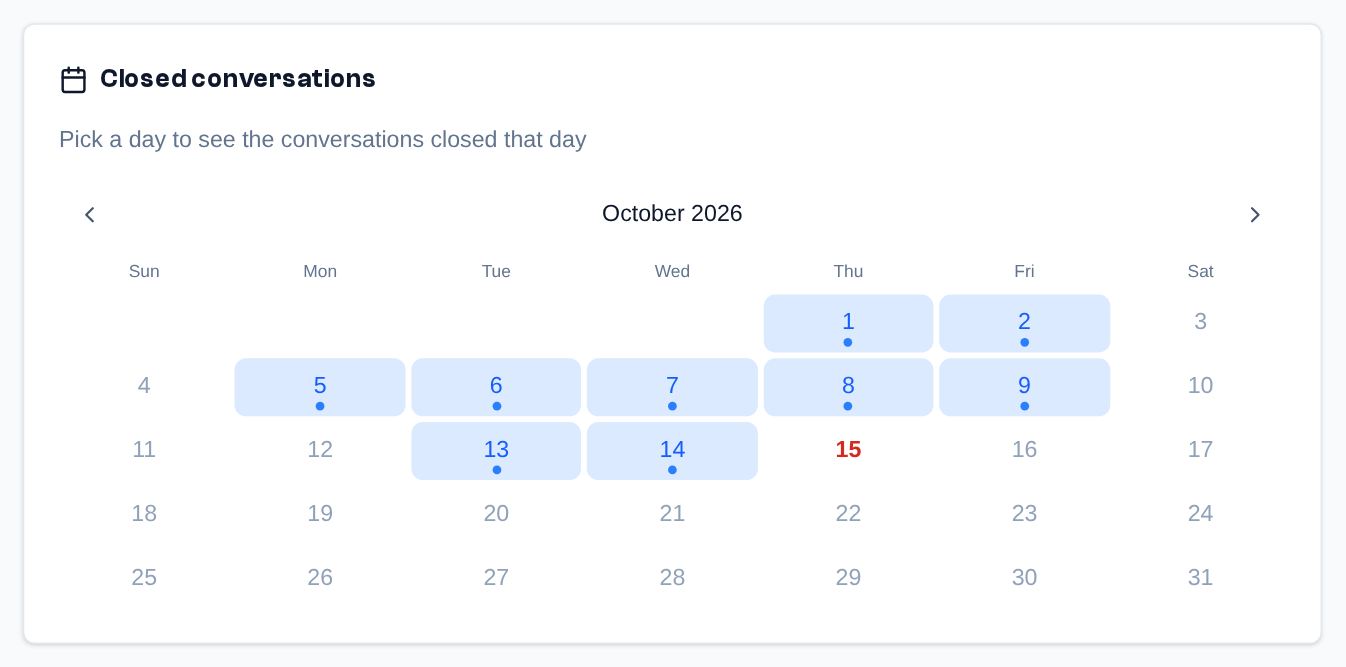 The calendar: "Pick a day to see the conversations closed that day"; the highlighted days have closed conversations, the arrows change the month.
 -
Click a conversation to read its messages; the left arrow goes back.
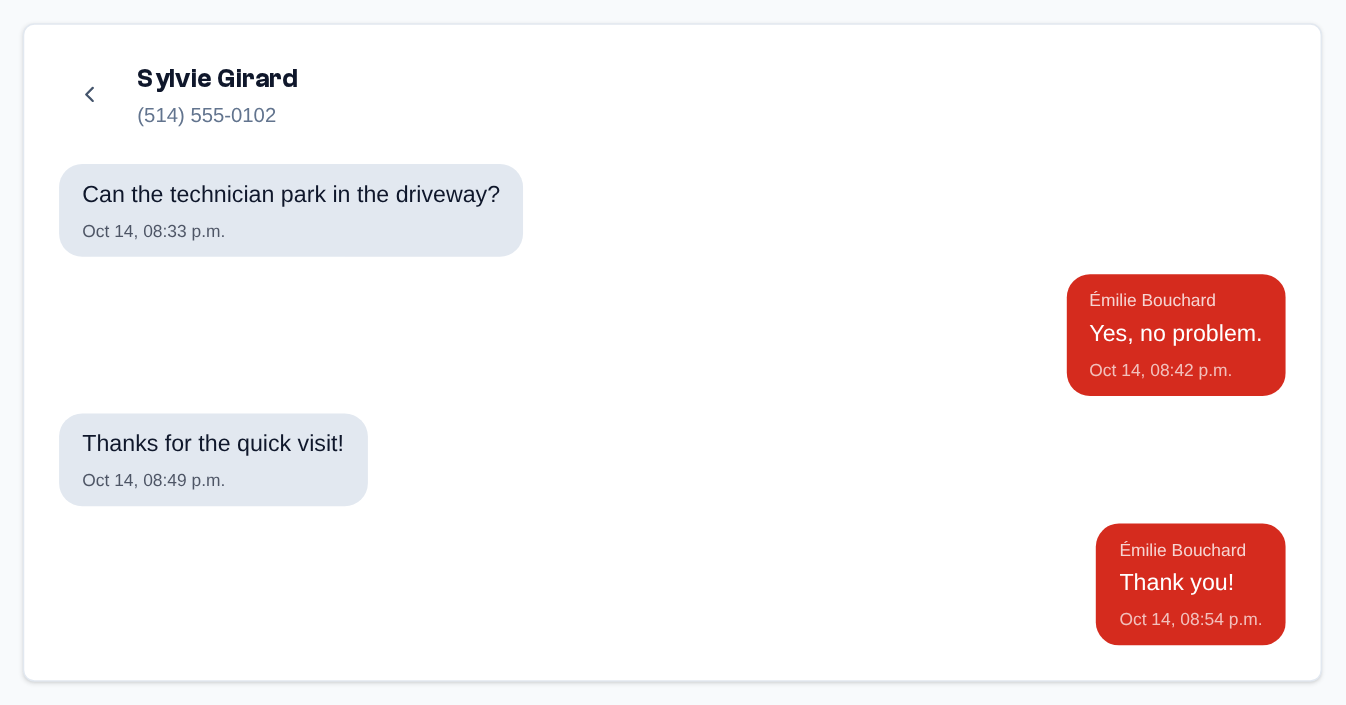 A closed conversation, read-only: its messages with the agent and the time; the arrow goes back to the day's list.
Here a closed conversation can be read but not answered; to answer it, open it in Conversations ("Closed" view): you can write in it without reopening it, or click "Reopen". If the contact writes again, it comes back, reopened, among the open conversations.
Performance
Sidebar menu > Performance, for the Manager and Admin profiles, when the organization has the Messages feature and at least two teams: the work of the teams and the agents, channel by channel. The Messages tab (the only one for now; the contact centre will be added) counts the organization's messages over the chosen period.
Overview
Three cards give the period's totals: "Total messages", "Received" and "Sent", with the breakdown per team (or per agent, see Period and Filters).
 The period's totals: messages, received and sent, with the breakdown per team.
Volume
The "Volume" chart shows the number of messages per day, with one color per team (or per agent); when a single team is ticked, it splits received and sent messages instead.
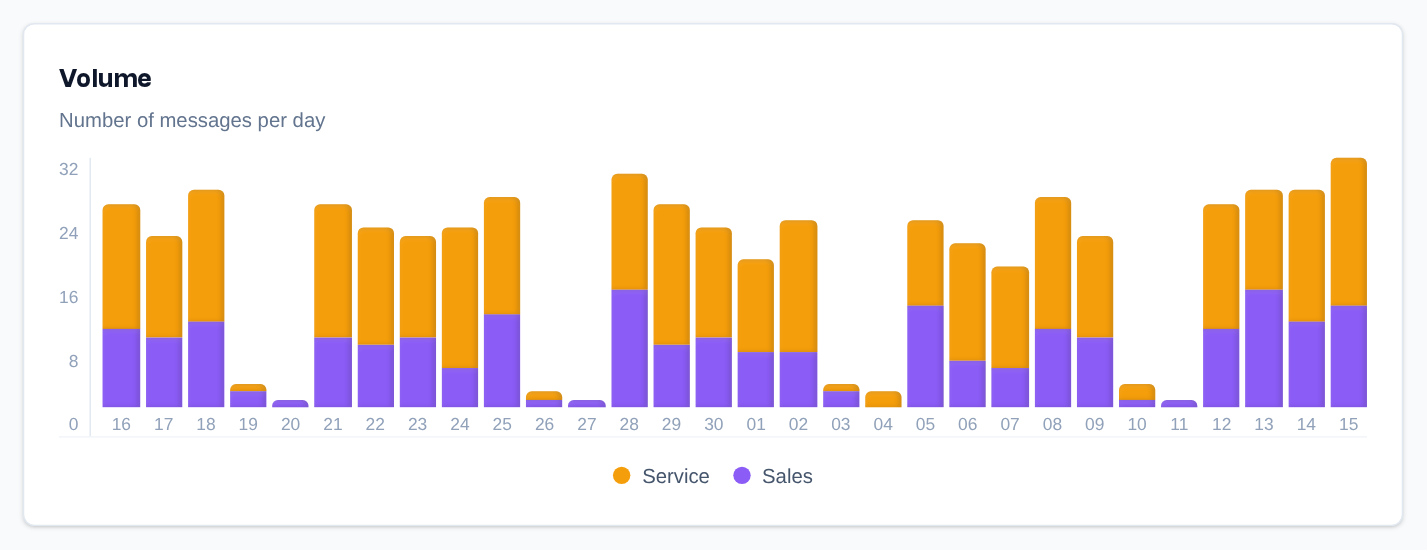 Volume: number of messages per day, one color per team.
Period and Filters
- Period: the list at the top of the page offers "Last 7 days", "Last 30 days" (the default) and "Last 90 days".
- "By team" and "By agent": when the organization has several teams, a filter card lets you choose the teams shown or switch to the per-agent view. Tick or untick each team or each agent; "Select all" ticks everything and, in the per-team view, "Clear" unticks everything.
- Per-agent view: only sent messages are counted, since a received message belongs to no agent; the cards are then limited to "Total messages" and "Sent". At least one agent stays ticked.
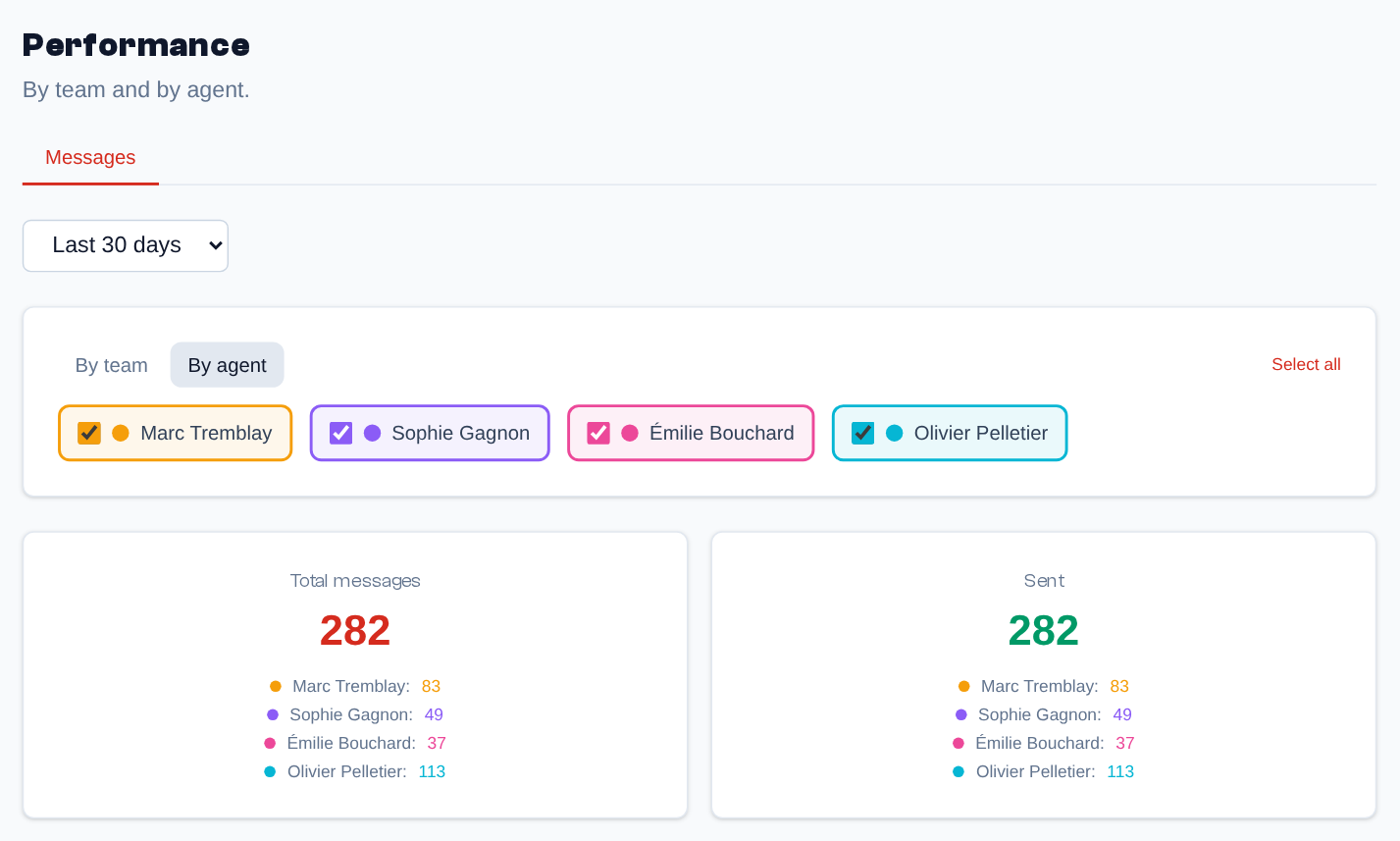 The period (top) and the "By agent" view: one box per agent; the totals then count sent messages only.
Numbers
Sidebar menu > Numbers, for admins. Your phone numbers, their destination and their features.
Number List
The Active, Paused and Trash tabs sort the numbers (plus Delivering while a bought number arrives, and Ports when your provider allows porting). Each row shows the number's name (editable in place), the number, its destination and features (forward, voicemail, call flow, or "No destination: calls are rejected") and, over the last 30 days, its cost and the number of calls. The search finds a number or a name. In the Active tab, the check boxes put several numbers in Sleep mode at once (or take them out of it); a number routed to a call flow can be neither asleep nor paused.
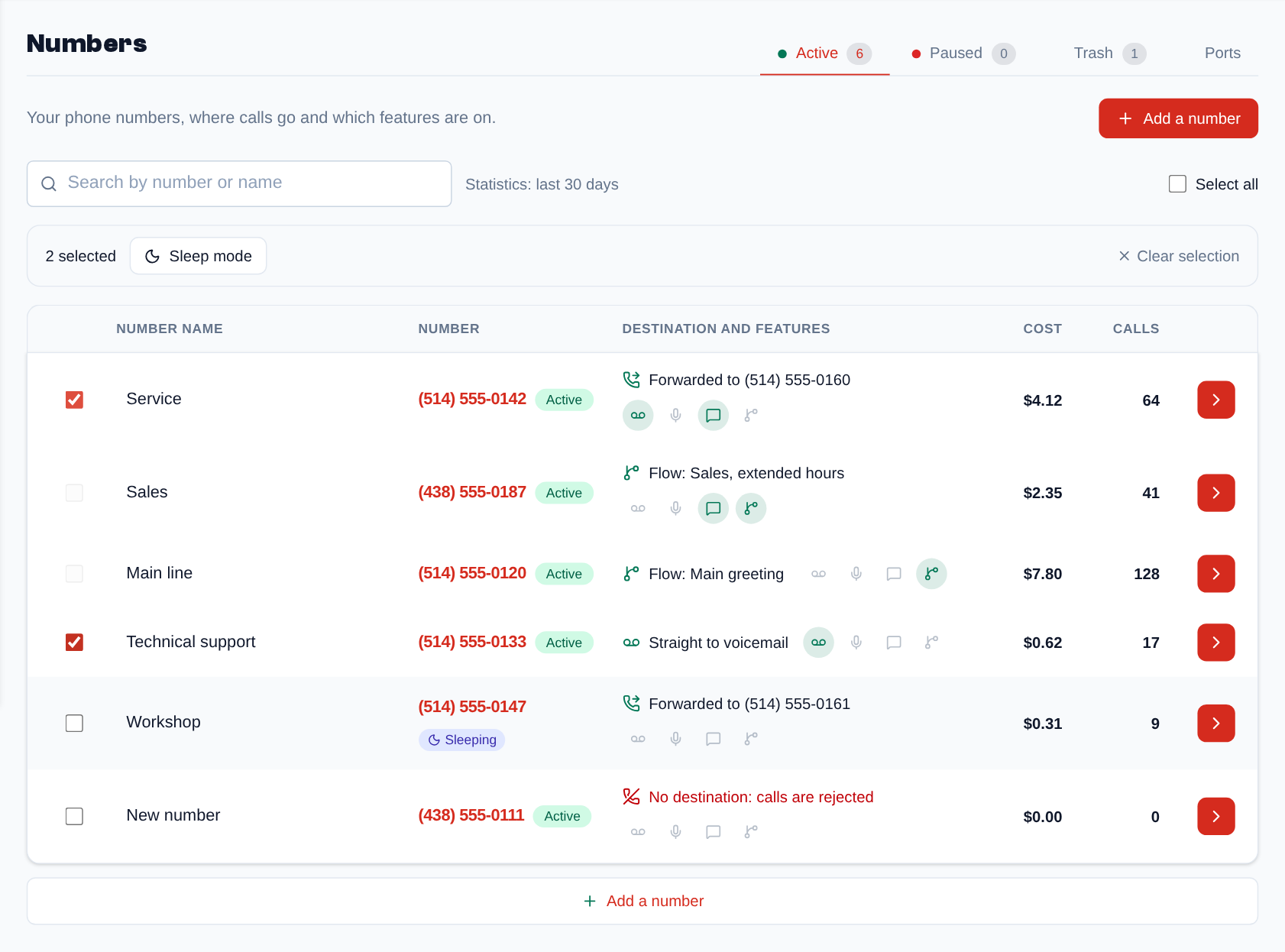 The number list, Active tab: each number's name, destination and features, its cost and calls over 30 days; two numbers ticked for sleep mode.
On a number's page, the "Your number" panel offers:
- Pause: the number stops receiving calls and SMS; the monthly fees continue. You can reactivate it at any time ("Reactivate number").
- Sleep mode: for an evening or a holiday, calls go straight to voicemail and incoming SMS send no notification.
- Release this number: the number leaves your account. It stays in the Trash, reserved for your account, for the delay set by your provider (10 days by default): "Restore" puts it back in service until then. After that delay, it is lost.
A number paused for lack of credit or unpaid fees says so ("Paused: credit", "Paused: unpaid fees"): "Pay the fees" ("Pay" in the list) or "Add credit" puts it back in service.
Adding a Number
"Add a number" looks for a local or toll-free number, in Canada or the United States: choose the "Country", the "Type", then a province (or a state), a city or an area code. The results update while you choose, with the price per month and the setup fee. "Add" opens the confirmation ("Confirm adding the number"): setup fee, first month, amount to pay today and credit after the purchase; "Complete purchase" debits it from your credit. A number that has to be ordered first goes through the Delivering tab.
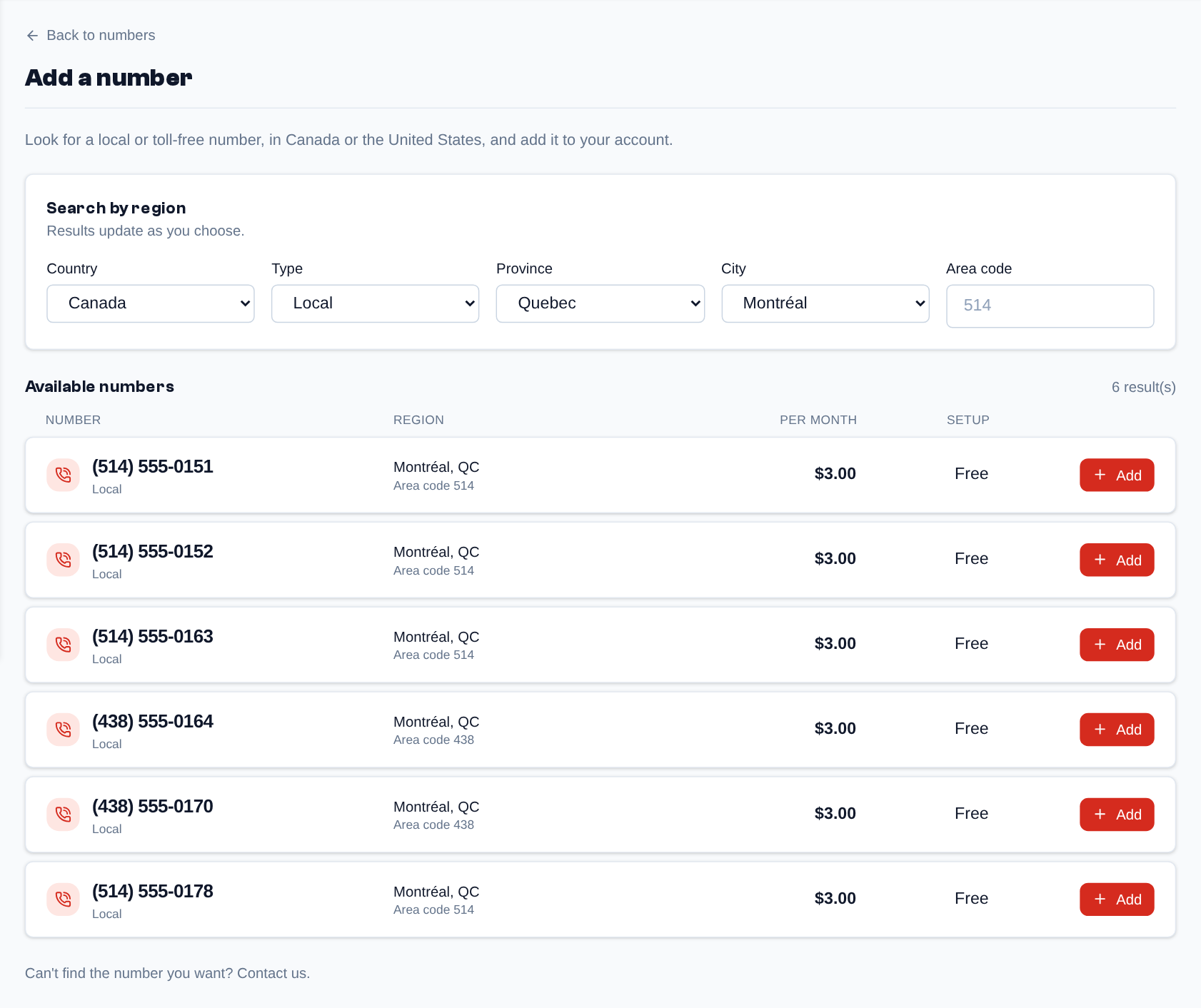 Add a number: country, type, province, city or area code, then the numbers offered with their price per month and their setup fee.
A Number's Page
A click on a number opens its page: its name, its state, and one card per feature, with its price when it has one. Without voice, only the SMS card shows.
- Call flow: the routing of its calls (see Call Routing);
- Call forwarding: a number to forward the calls to;
- Voicemail and Call recording (with a legal announcement if needed);
- Outgoing calls: the number's name is shown as caller ID (give the number a name first); otherwise the number is shown without a name;
- SMS: receiving texts and, when the organization has at least two teams, the Team that receives the SMS: choose the team whose conversations receive this number's messages. When a number changes team, its conversations stay in the former team and new messages reach the new one.
The "Your number" panel, next to them, recalls the number's type, country, area code, city, arrival date and price (monthly total), with the sleep, pause and release buttons.
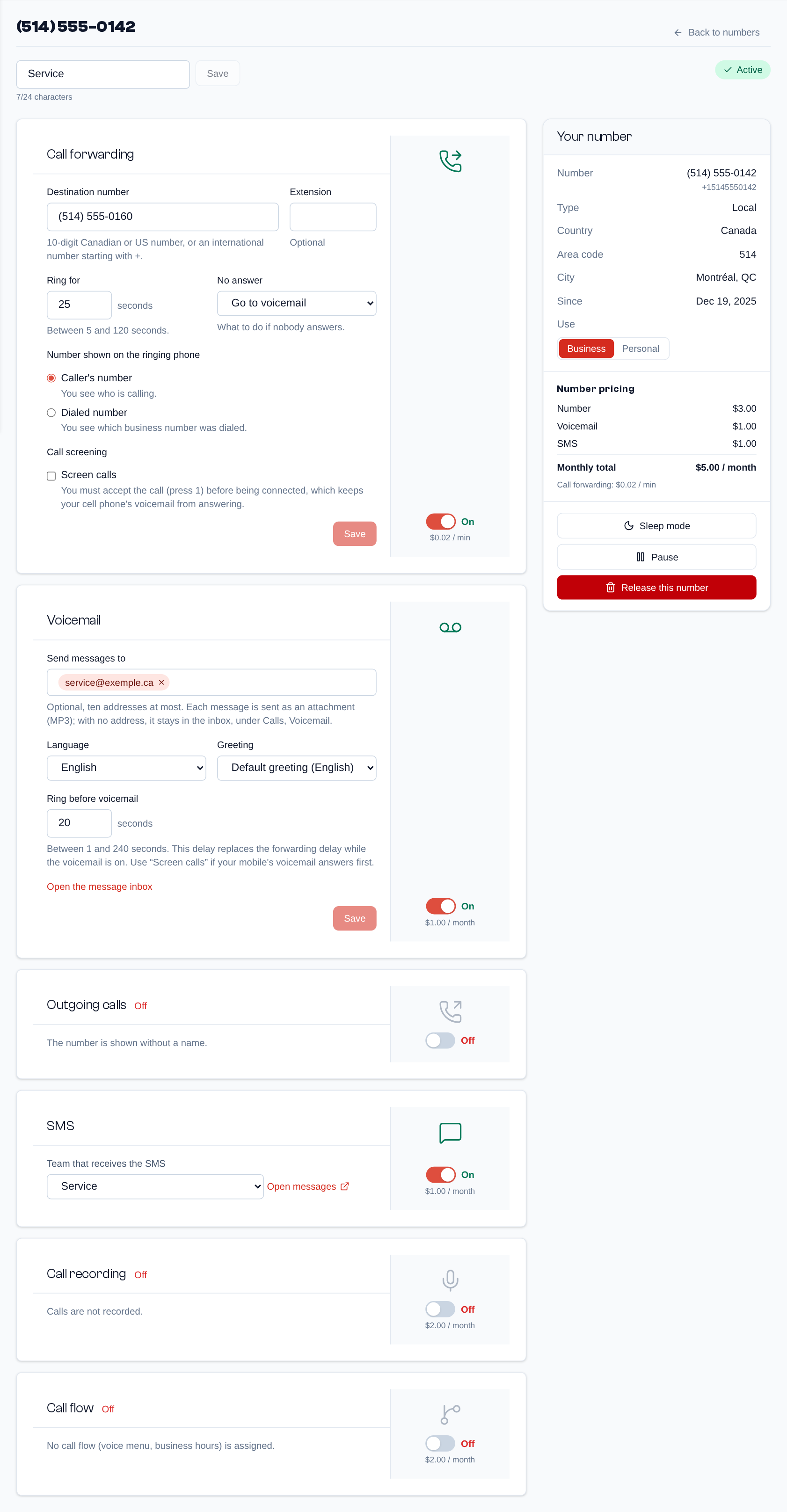 A number's page: one card per feature (call forwarding, voicemail, outgoing calls, SMS and the team that receives them…) and, next to them, the "Your number" panel.
Number Porting
When your provider allows it, the Ports tab brings here the numbers you hold at another carrier. They stay in service there until the transfer day.
- Click "Port numbers", enter the numbers (one per line, same holder; only local Canadian numbers are ported here), then "Check": each number is said "Portable", "Already with us", "Already in an open request" or "Not portable".
- Give the holder exactly as the current carrier knows it: name, service address and account number from its bill. It is the first reason of refusals.
- Choose the wanted date (5 business days later at the earliest, a weekday), then "Send the request".
The fees (port and first month of each number) are debited when each number arrives, never before; your balance must however cover them when you ask. The list follows each request: "Sent", "At the carrier", "Confirmed" (with the transfer date), "Completed". A click on a request opens its details. An e-mail tells you when it is confirmed, refused or completed. A "Refused" request shows the carrier's reason: "Correct and resend" opens the form again, then "Send the request again". "Cancel the request" (optional reason, then "Ask for cancellation") moves the request to "Cancellation asked"; until the cancellation is confirmed ("Cancelled"), the port may still happen.
Call Routing
Sidebar menu > Call routing, for admins, when the organization has voice. This is where you decide what happens when someone calls you. The page has five tabs (Call flows, Ring groups, Sounds and greetings, Music on hold, Voicemail), plus Voicemail boxes when the organization has the Voicemail boxes feature.
Call Flows
A flow describes how one or more numbers answer. The tab shows them as a "List" or as an "Overview" (the numbers, their flows and each flow's destinations, at a glance). The list can be filtered ("All", "Assigned", "Unassigned") and searched ("Search flows"); each flow can be edited there, assigned to numbers ("Assign to numbers"), duplicated or deleted. "New flow" creates one.
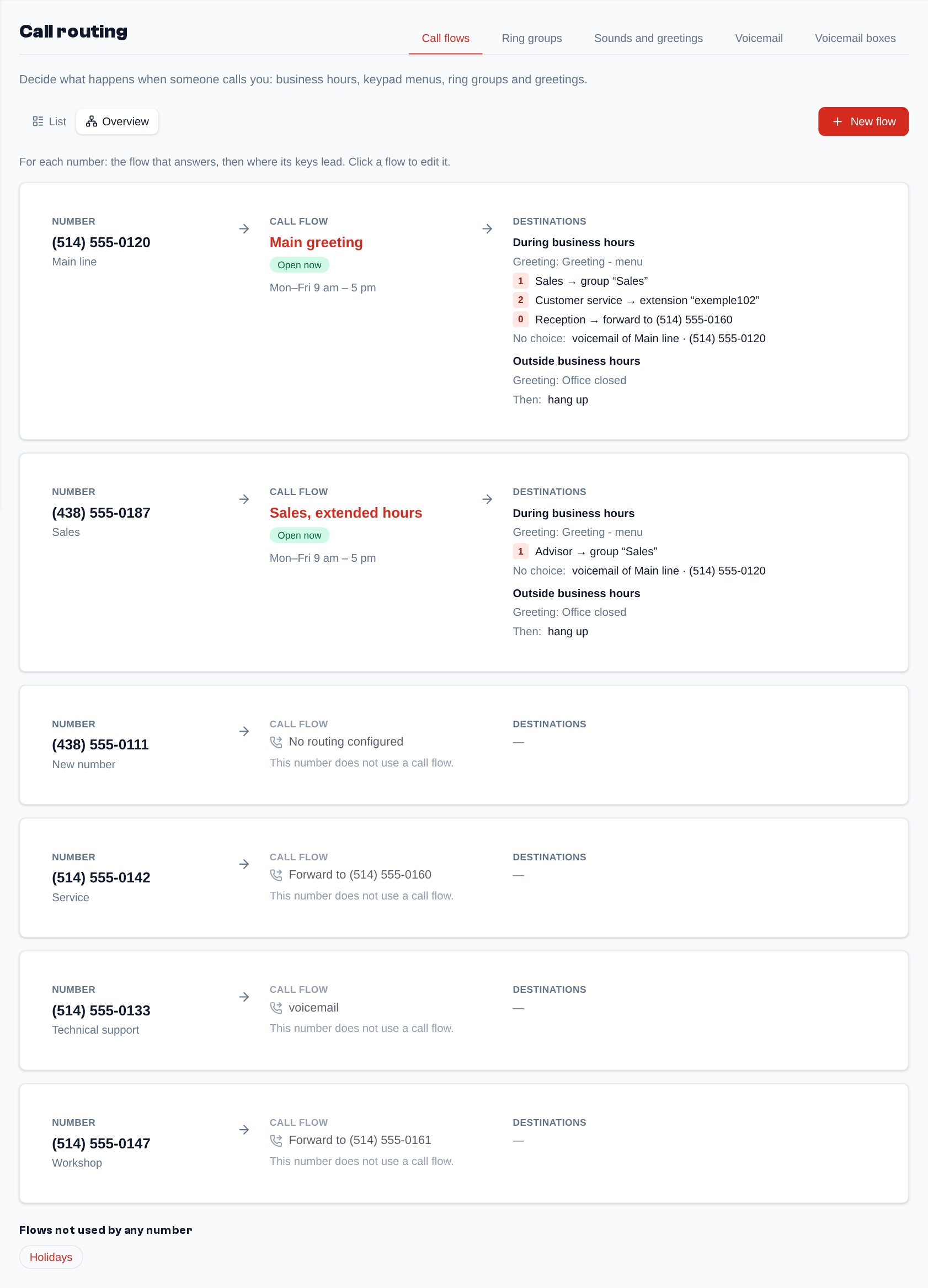 The Call flows tab as an overview: each number, the flow that answers it and that flow's destinations.
A click on a flow opens it in the editor:
- General: the "Flow name", its language, "Flow enabled" (when off, the flow no longer answers) and "Apply the blocklist"; with extensions, the prefix added to the caller's name;
- Numbers using this flow: "Manage numbers" assigns the flow (save a new flow first);
- Business hours ("Use business hours"): the week's time slots, day by day. Outside these slots, the closed menu answers. Without business hours, the flow is open at all times;
- Holidays and exceptions: a date or a range of dates, repeating or not; during a holiday, the closed menu answers, even if the weekly schedule says otherwise;
- Greeting and menu, in the "During business hours" and "Outside business hours" tabs: what the caller hears, the keys they can press and what happens if they choose nothing. Each destination is one of: "Forward to a number", "Ring group", "Ring an extension" (with extensions), "Voicemail", "Message, then back to the menu", "Go to another flow" or "Hang up". "Voicemail" takes the message in the box of a number or, when the organization has standalone voicemail boxes, in one of them (its members listen to it). "Copy the open menu" reuses the open menu for the closed hours;
- "While ringing", on "Ring an extension" and "Ring group": "Ringing" or "Music on hold" for that destination only; "Number setting" keeps the choice of the Music on hold tab;
- "The caller may dial the short number of an extension": during the prompt, the caller types the short number of an extension (for instance "If you know the extension of the person you want to reach, dial it now") and that extension rings the way its own settings say (do not disturb, forwards, follow me). A menu key wins: if "1" is a key and "101" an extension, the menu waits for the delay between digits before deciding. "If the extension does not answer": back to the menu, or the voicemail of a number. An unknown number is treated as a wrong key;
- "Or standard prompts", under the greeting when no sound is chosen: common recorded prompts ("Welcome", "If you know the extension of the party you wish to reach, dial it now", "For sales", "Press 1"...), played one after the other (6 at most), in the language of the call or always in the same language (for instance "For English, press" then "nine" in English in a French menu). The ▶ button plays a prompt before you choose it. In a flow with several languages, "Play" limits a prompt to one language: "For English, press 9" only in French, so that it is not played again once the caller chose English;
- Menu languages: the languages offered to the caller.
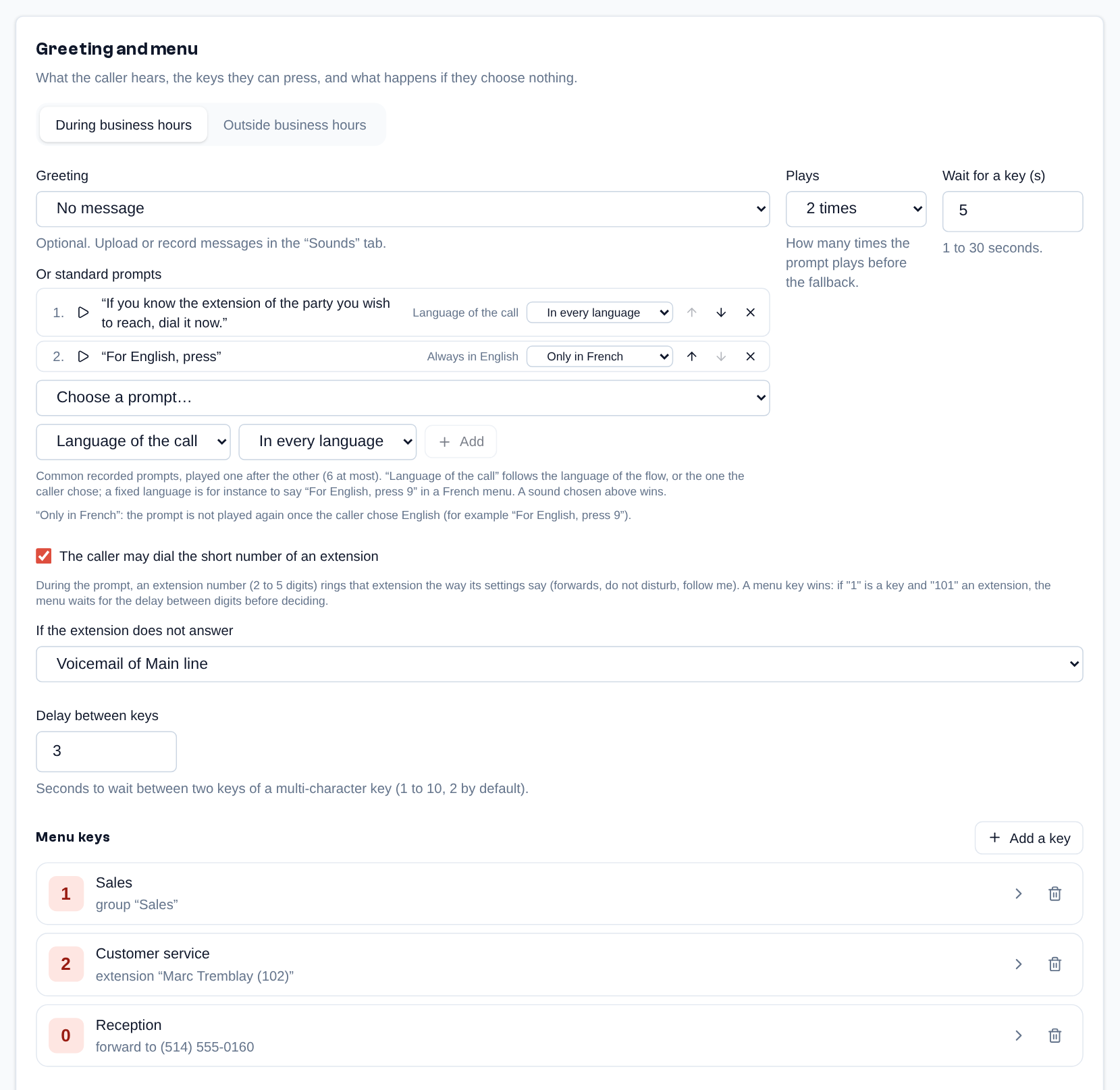 A flow's editor: greeting and menu during business hours, with no greeting sound but two standard prompts (the second one only in French), the short number of an extension the caller may dial, and one destination per key.
The bar at the bottom of the editor stays in view while you scroll: it says "Unsaved changes" or "Everything is saved", with "Discard changes" and "Save" ("Create flow" for a new flow). If you leave with changes, "Leave without saving?" asks you to confirm. A ring group's editor has the same bar.
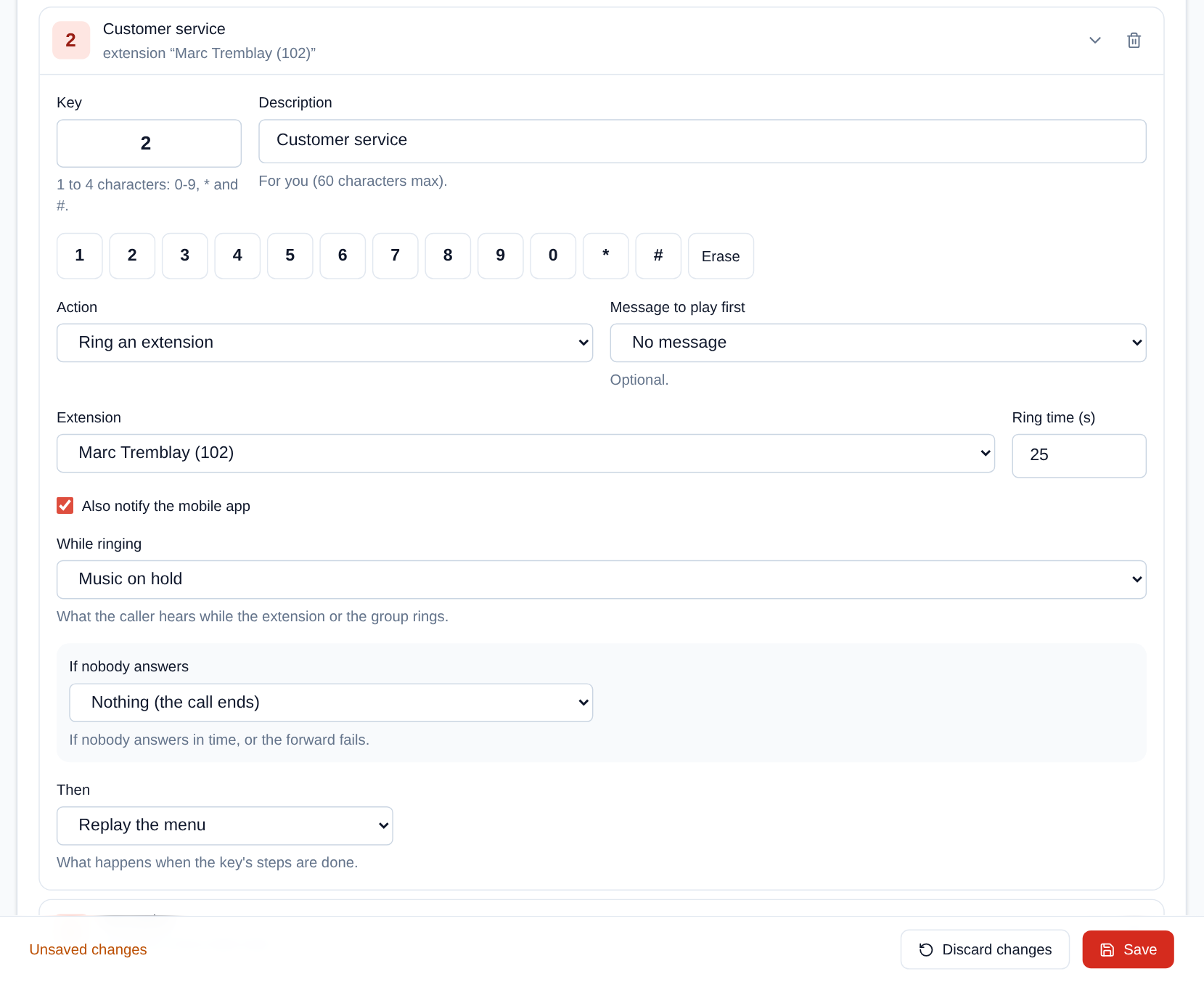 A key opened: "Ring an extension" with "While ringing" (here music on hold), the fallback if nobody answers and, at the bottom, the "Unsaved changes" bar with "Discard changes" and "Save".
Ring Groups
A ring group rings several extensions or outside numbers. They ring together within a stage, for the ringing time chosen for the stage; if no one answers, the next stage rings, then what "What to do if nobody answers" says (otherwise the call is hung up). A group's page also sets the "Ringing heard by the caller" (generated or real) and the notice to the mobile apps, and shows under "Used by" the flows and the numbers that use it.
Sounds and Greetings
The sounds played to callers, under "My sounds": "Upload a file", "Record with microphone", or "Text to speech" to create a sound from a text (type the text, choose the voice, name the sound, then "Create the sound"). Each sound shows where it is used; the number of sounds allowed is shown. Under "System sounds", you replace, language by language, the standard messages your callers hear.
Music on Hold
The Music on hold tab chooses what your callers hear when an extension puts the call on hold and, if you wish, while phones ring:
- What your callers hear: the "Playlist" of the whole organization (the default music of the platform, another playlist of the platform or one of yours) and the box "Play the music instead of the ringback tone": ticked, callers hear the music while an extension, a group or a forward rings; unticked, they hear the ringback tone, and the music only on hold. To listen to it, dial 602 from an extension.
- Per number: a number can have its own playlist and its own choice while ringing; "Like the organization" uses the organization's choice.
- Playlists: those of the platform (cannot be changed, one is the default music) and yours: "New playlist", a name, the order (shuffled or in order) and the tracks to tick, from the library or uploaded.
- Your music: "Upload music" (wav, mp3, m4a or ogg, 20 MB and 15 minutes at most, 30 tracks); you must confirm you hold the rights to broadcast it on the phone (free music, bought with that license, or of your own), and this confirmation is kept with your name and the date.
- Free library: royalty-free music offered to everyone (ambience by Kevin MacLeod, public domain classical, soft electro from opsound), each with its author and license, to listen to with ▶.
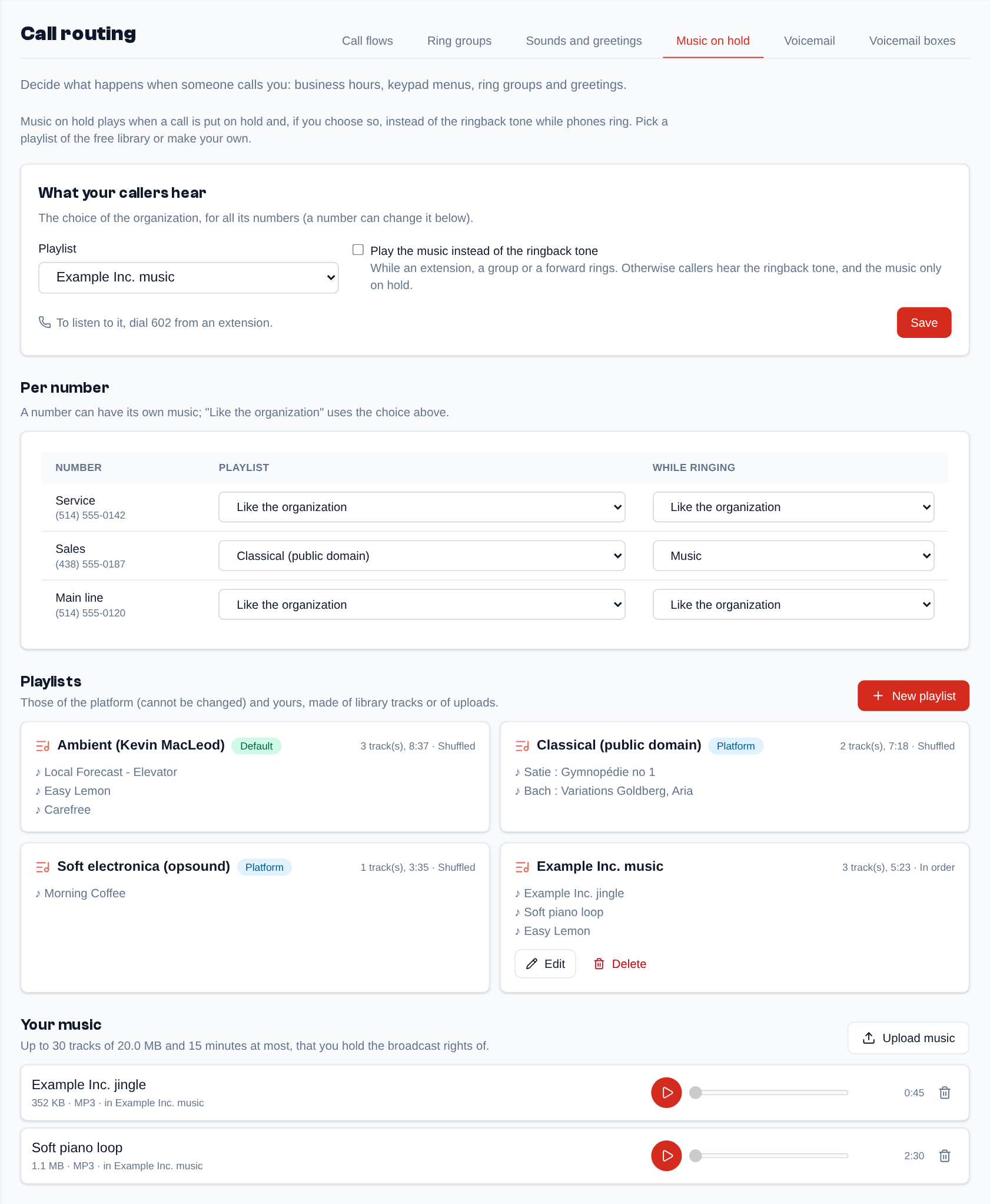 The Music on hold tab: the organization's playlist, the choices per number, the platform's playlists and yours, then your music.
Sounds, music, voicemail messages and call recordings are all kept as MP3.
Voicemail and Voicemail Boxes
The Voicemail tab sets the voicemail of each number ("Voicemail settings": enabled, ringing before voicemail, greeting, language, notification emails) and lists its "Received messages". The Voicemail boxes tab manages the extensions' boxes (with extensions) and the standalone boxes, tied to no number and with their own members.
Calls
Sidebar menu > Calls, for everyone, when the organization has voice. Calls are made with the softphone of the Telma mobile app or with an IP phone (see Extensions). The page has three tabs, History, Statistics and Voicemail, plus Blocklist for admins.
What each person sees depends on their permissions:
- the User profile ("Voice: their extension, their calls, their voicemail") only sees their own calls: those made from their extensions or that rang them (without an extension, they see none). In the voicemail, they hear the messages of their extension's box, of the standalone boxes they are a member of and of the numbers whose routing rings one of their extensions, directly, through a group or through an IVR. They only get the notification of a new message they may hear;
- "Every call and voicemail of the organization" (Manager, Admin): every call of the organization and the voicemail of every number;
- "Call routing: flows, groups, sounds, voice settings of the numbers" (Admin): also the other people's extension boxes and every standalone box; "Call recordings" (Admin): play, download or delete recordings; "Blacklist" (Admin): the Blocklist tab.
History
The cards at the top give the period's totals: calls, missed, talk time, cost, and the calls by number (a click filters the list on that number). The filters choose the period, the call type, the number, the status (answered, missed, blocked) and the direction ("Inbound", "Outbound"); a search finds a number. A click on a call opens its details.
In the log:
- a call between two extensions shows the short number of the extension called and its user's name ("102 · Marc Tremblay"), routed "Internal";
- the status of an unanswered call is precise: Failed (the call could not go through, for example a refused destination or an unavailable network), No answer (the person you called did not answer an outbound call), Missed (an inbound call nobody took), Busy, Voicemail or Blocked (blocklist);
- the microphone at the end of the line marks a recording: a click plays or downloads it.
Recordings. A call is recorded when recording is on for its number (number's page, "Call recording", with an announcement if needed) or for the extension that makes it (extension settings, "Record the calls of this endpoint"). The extension's user can also change that setting themselves in the mobile app (Information window of the dial pad). For outbound calls, the organization's rules, when your provider has set some (see Organization Management, "Recording of outbound calls"), win over the extension's setting. Only those with the "Call recordings" permission (Admin) play, download or delete them; they are kept for the time set by your provider (30 days by default).
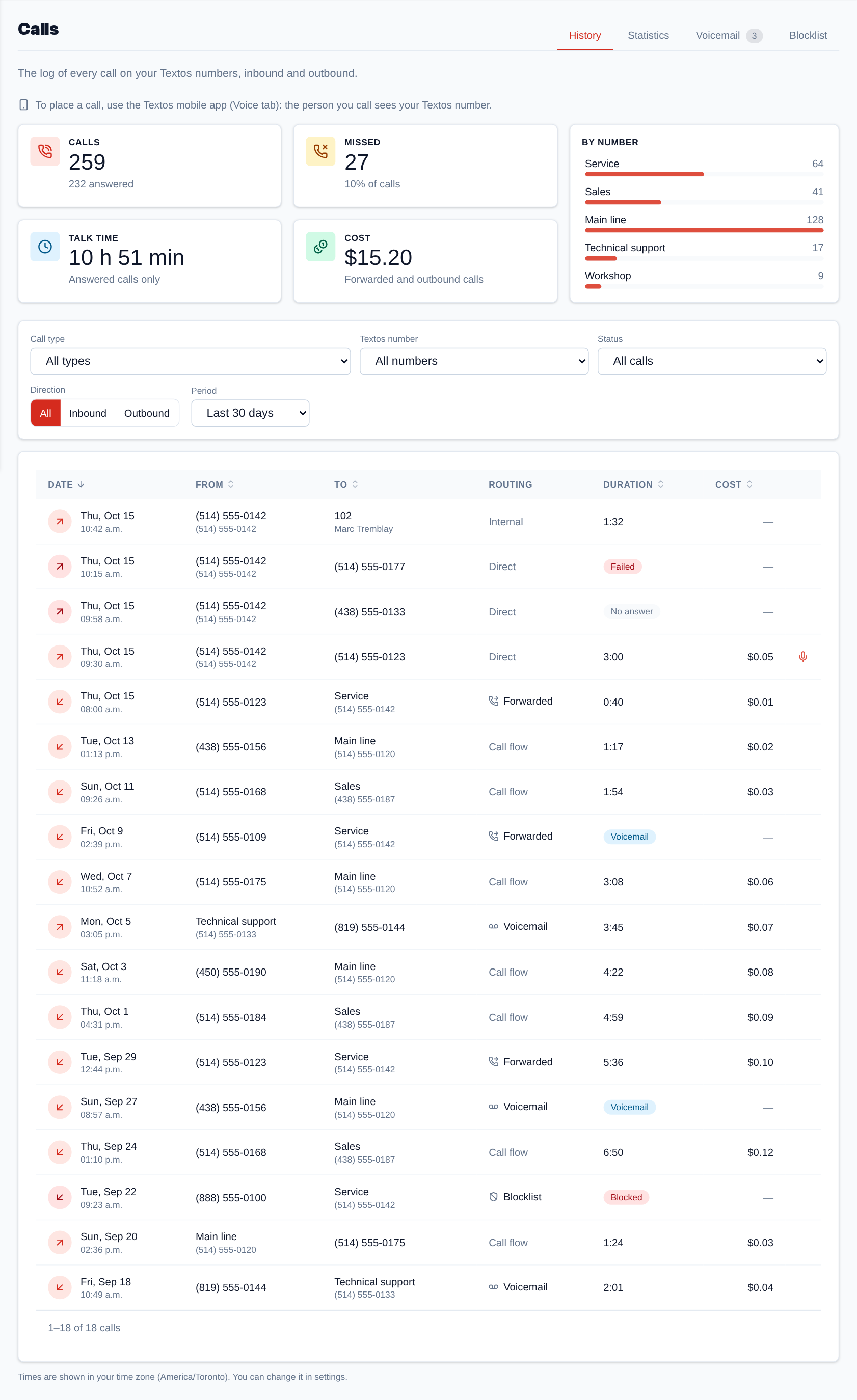 The call history: the period's totals, the calls by number, the filters and the log.
When the provider has suspended the outbound calls of the organization (abnormal spending, a call too costly or an administrator's decision, see Fraud protection), a red banner says so at the top of the Calls and Call Routing pages. Inbound calls go on; only a domain administrator can resume the outbound calls.
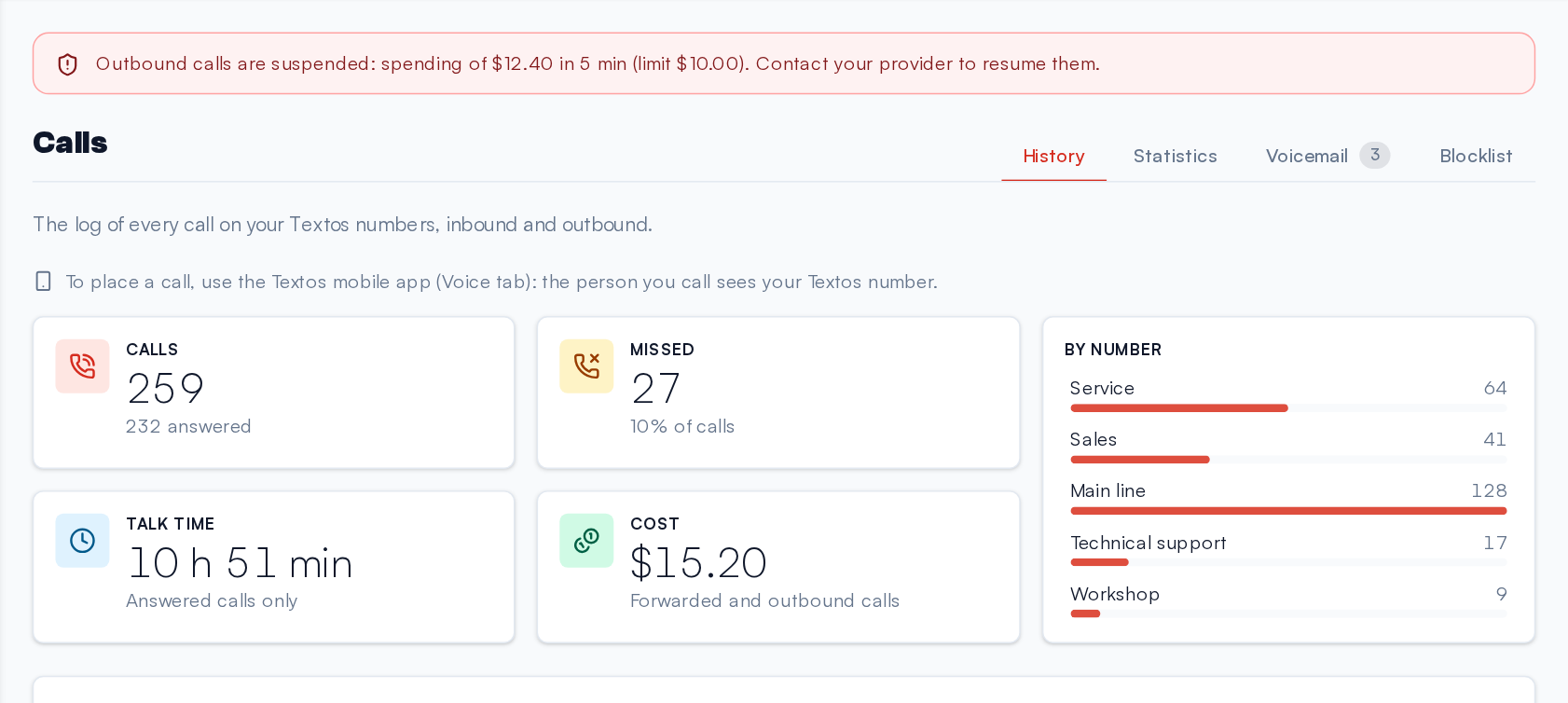 The suspended outbound calls banner, at the top of the Calls page: the reason and what to do.
Statistics
With its own filters (period, number, direction, call type): the totals, the "Call distribution" per day or per hour of the day (answered, missed, blocked; hovering a bar gives its details), and a table per number (calls, missed, % missed, talk time, cost), with a link to each number's calls. Over a very long period, only the most recent calls are counted in the chart, which the page points out.
Voicemail
The messages left on your numbers, your extensions and the boxes you listen to: play, download, mark them "listened" or "new". The filters choose the "Number", the "Voicemail box" and "Show": "All", "New" or "Listened". The menu badge counts the new messages. A number's messages are only deleted by those with the "Call routing: flows, groups, sounds, voice settings of the numbers" permission (Admin), who delete any message; those who listen to an extension box or a standalone box can delete its messages. "Set up the numbers' voicemail" (admins) leads to the numbers.
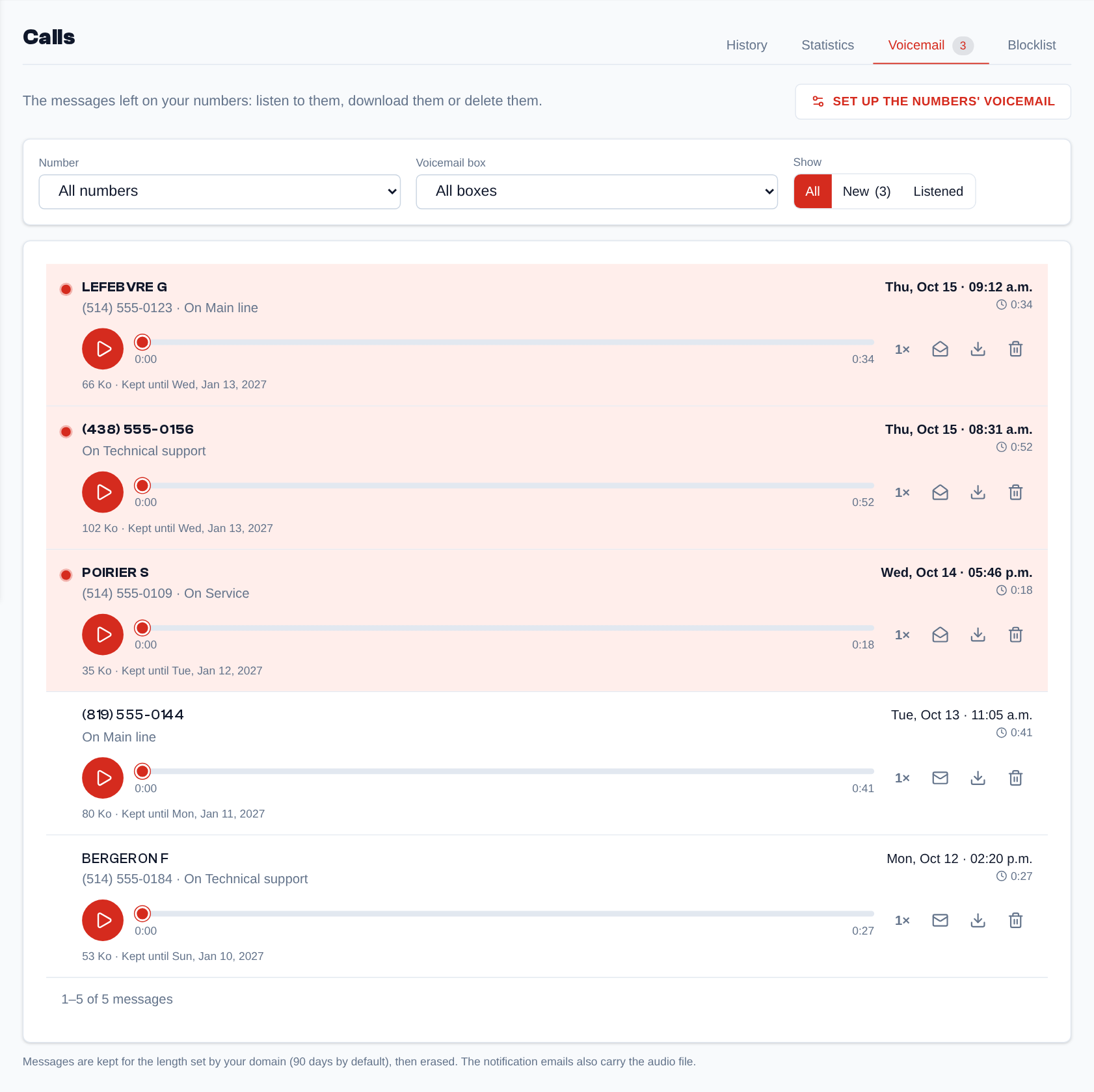 The voicemail: the messages of the numbers and the boxes, new or listened, with the player.
Blocklist
Admins. "Block a number" blocks a number, the start of a number or a whole region (province, toll-free numbers…), for inbound calls, outbound calls or both. The list applies to every number of the organization (to the flows that "Apply the blocklist"); a blocked call is logged as "Blocked" and is not billed. As soon as there is a rule:
- Check a number: type a full number; the page says which rules block it, or that none does.
- Export (CSV) downloads all the rules.
Extensions
Sidebar menu > Extensions, for admins, when the organization has the Extensions feature. An extension rings your numbers on the Telma mobile app or on an IP phone. Create one extension per user, then choose which extension each number sends its calls to.
Extension List
Each extension shows its name, its short number (another extension dials it to call it, for free), the user it is assigned to ("User (mobile app)"), its "SIP credentials" (server, username, password, shown with the eye) and its state: In a call, Registered (ready to ring), Do not disturb, Reachable through the app, Offline, Unknown or Disabled. The state updates by itself. The mobile app does not stay registered between two calls: a notification wakes it when a call comes in. An extension whose user has a phone that receives this notification is therefore Reachable through the app (the tooltip gives its devices and the last time the app checked in). An extension in Do not disturb (set in the app or in the extension's settings) never rings, registered or not; the tooltip gives its end, if it has one. The name and the user can be edited in place; the "Enabled" box disables an extension.
Above the list (from two extensions), "All" then one button per state give the number of extensions in that state; a click shows only those. The search finds an extension by its name, its username, its short number or its user.
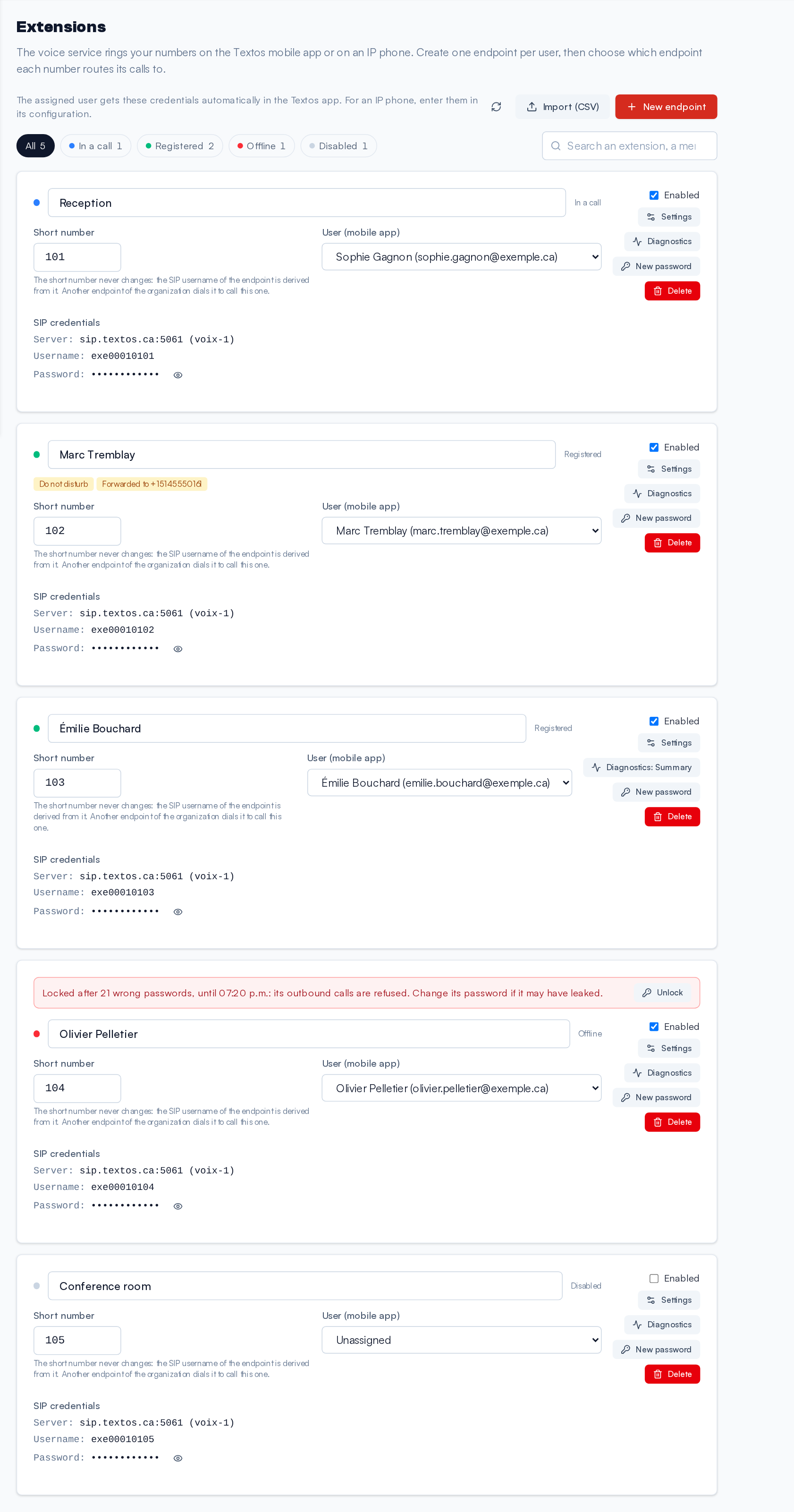 The extension list: short number, user, SIP credentials and state of each extension, with the state buttons and the settings summed up under the name.
A locked extension (20 wrong passwords in 10 minutes, which looks like a stolen password) says so on a red line at the top of its card, with the end time in hours and minutes ("until 7:20 PM"): its outbound calls are refused for 30 minutes. "Unlock", on the same line, frees it at once; change its password ("New password") if it may have leaked.
"New endpoint" creates an extension: "Endpoint name", "Short number" and, if needed, the user, then "Create". "New password" changes its SIP password, after confirmation (to copy into the IP phone, which no longer registers with the old one); "Delete" removes it.
The short number is required at the creation (2 to 5 digits, not starting with 0; 600, 601, 602, 112, 999
and the N11 numbers are reserved) and never changes afterwards: the SIP username of the extension
is derived from it. That username is the code of your organization (3 letters of its name and 4
digits, e.g. cli0001, given with its first extension), a 0, then the short number: cli0001042
for extension 42. Extensions created before this rule keep their username; one without a short number
can be given one, once.
Several Devices on One Extension
An extension can be connected on several devices at the same time: the Telma app on an iPhone, an iPad and an Android phone, and a SIP desk phone set up with the same SIP credentials. When the extension is called, they all ring together; the first to answer takes the call and the others stop ringing. A closed app is woken by a notification, and the server waits a few seconds for each woken device to be ready.
By default, an extension accepts 3 devices at once; beyond, the device registered the longest ago is disconnected. The admin changes this limit for an extension in its settings ("Devices connected at once", 1 to 10), and the platform team changes the default (Infrastructure page).
To also ring a cell phone or another external number, use the extension's follow me or a ring group.
Call Diagnostics
The "Diagnostics" button of an extension asks the mobile app to send a report at the end of each call of this extension, "For" a chosen period (1 hour, 4 hours, 24 hours, 3 days or 7 days; it stops by itself, or with "Off"). The button then shows "Diagnostics:" and the level. Three levels:
- Summary: a few KB per call (network, encryption, packets sent and received, loss, jitter, microphone, problems found, e.g. "The microphone sent only silence");
- Detailed: also one sample per second, the SIP messages (without passwords) and the app's log during the call;
- Full: also the trace of the headers of every audio packet, never the audio itself.
The same window lists the "Reports" (date, call, app, problems found). "Open" shows a report on its own page: "Seen by the app" next to "Seen by the voice server" (the call of the history and the server's statistics), then the samples per second, the SIP messages and the app's log; "Download (JSON)" keeps it. Reports are kept 30 days.
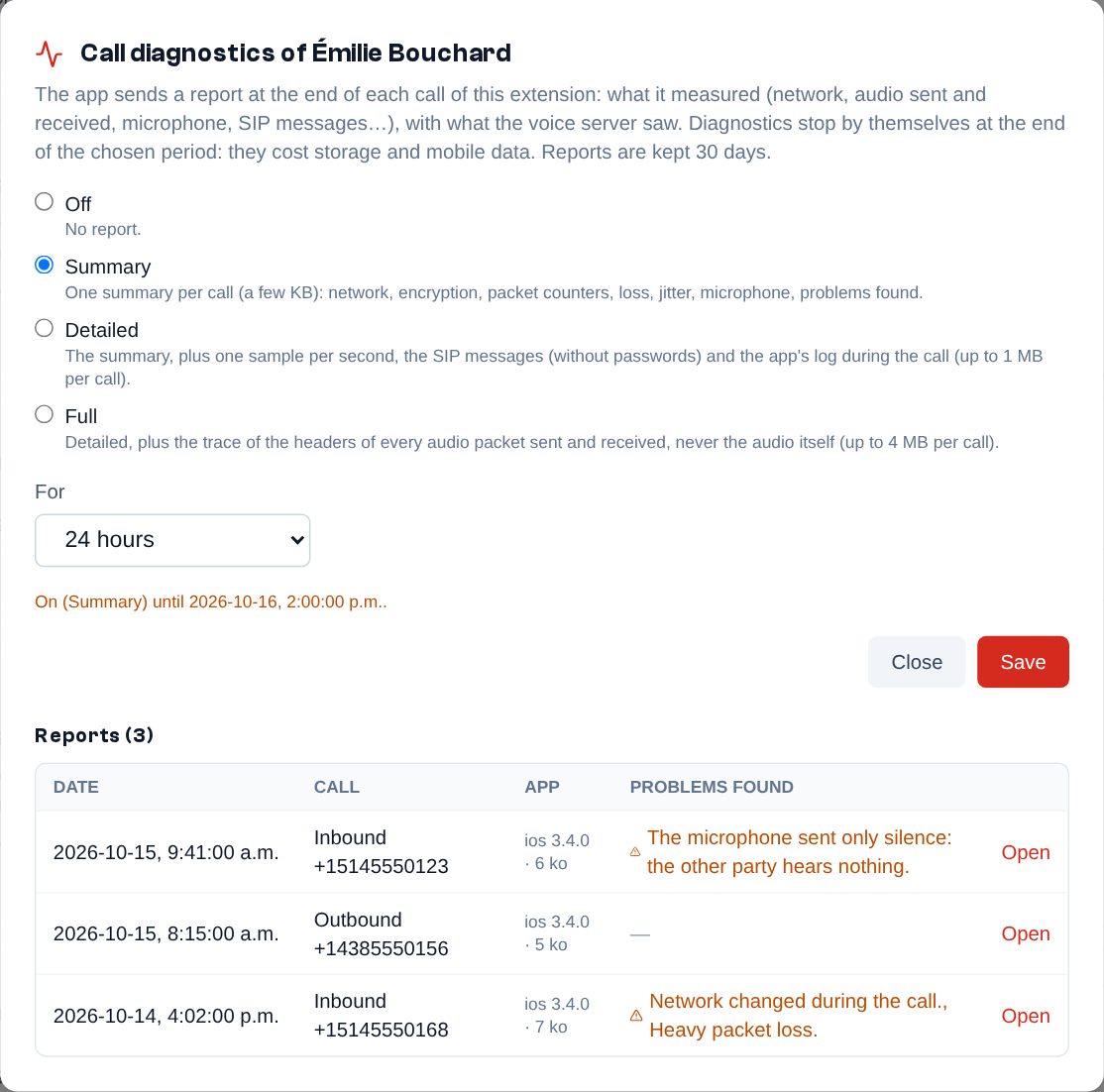 An extension's Diagnostics window: the level, the duration, then the reports received with the problems found.
Importing Extensions (CSV)
"Import (CSV)" creates several extensions at once:
- Choose a CSV file or paste its content: one line per extension, the label, the email of the member to assign it to (optional), then the short number (required). A header line "label,email,short number" is allowed; the separator can be a comma or a semicolon; 500 lines at most. "Download the template" gives an example.
- Click "Evaluate": each line is said valid, with a warning (label already used or repeated in the file, member who already has an extension, unassigned extension) or in error (missing label, invalid or unknown email, short number missing, invalid, reserved, already taken or repeated in the file).
- Click "Create … extension(s)" and confirm: the extensions are created one by one; lines in error are skipped.
- "Download the report (CSV)" gives the result of each line with the SIP credentials of the new extensions. It contains their passwords: keep it somewhere safe.
Extension Settings
The "Settings" button of an extension opens its settings, what happens when it is called:
- Do not disturb: the endpoint no longer rings; the call goes to the "When busy" forward, else follow me, the "No answer" forward or the voicemail box;
- Forwards "Always", "When busy", "No answer": a 10-digit number or the short number of another endpoint;
- Follow me: when the endpoint does not answer, 1 to 3 numbers ring together, for the chosen ringing time;
- for the admin only:
- the "Ring time (seconds)" (empty: the ring time of the number's routing), the "Language of the messages" and the "Number presented" on its outbound calls;
- "Devices connected at once": 1 to 10; empty, the platform's value (3 by default), see Several Devices on One Extension;
- "Virtual user (no phone, forwards its calls)": an extension without a phone or app, billed as a virtual user of the phone system (see Plans);
- "Record the calls of this endpoint" (the calls it makes, outbound and internal); its user can also change it from the mobile app, and the organization's recording rules win for outbound calls (see History);
- "Networks allowed for its outbound calls": IP addresses or networks (one per line, for example 203.0.113.0/24); the extension can only call out from these addresses, which protects a desk phone at the office. Empty: from anywhere. Receiving calls is not restricted.
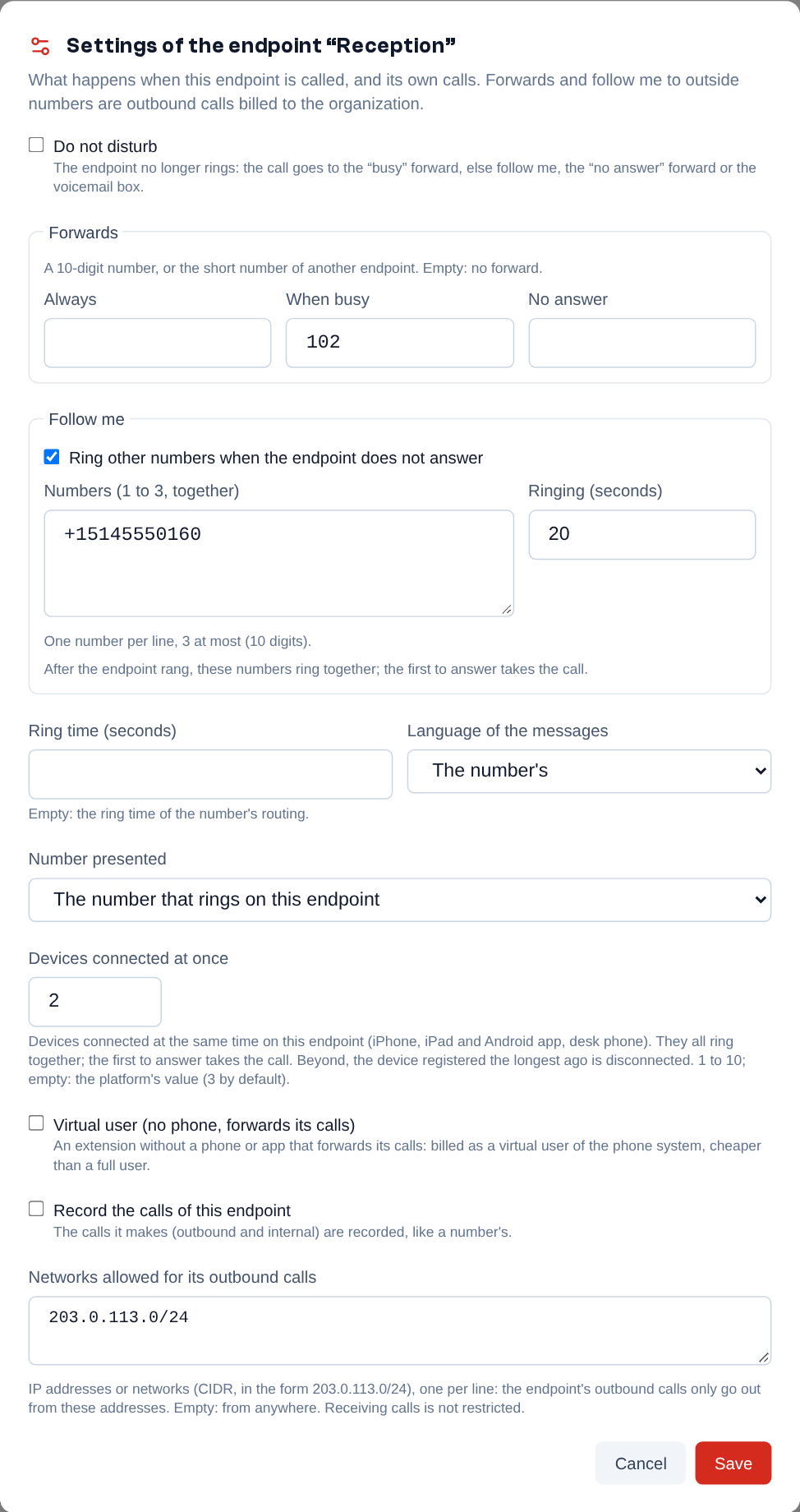 An extension's settings: do not disturb, forwards, follow me and, for the admin, ring time, language, number presented, virtual user, recording and allowed networks.
An endpoint with settings shows a summary under its name ("Do not disturb", "Forwarded to …", "Follow me"…). Forwards and follow me to outside numbers are outbound calls billed to the organization. Each user also sets their own "Do not disturb", forwards and follow me in the "My endpoint" section of their Profile.
Credit
Sidebar menu > Credit, for admins. Messages, calls and numbers are paid from the organization's credit. The "Credit and billing" page has six tabs:
- Balance: the "Account balance" (with what was spent this month and the state of the automatic top-up) and the top-up (choose an amount, a promo code if needed, then pay by card with "Pay and add credit");
- Billing: what you were billed and what you will be, with the next bill estimated and explained (see Billing and next bill);
- Transactions: the history of the balance's movements, with filters and a CSV report;
- Invoices: the invoices and receipts, to view or download as PDF;
- Cards: the saved payment cards;
- Settings: the billing address, the Automatic top-up (the balance is topped up when it falls below the chosen threshold) and the Low balance alert (email and notification).
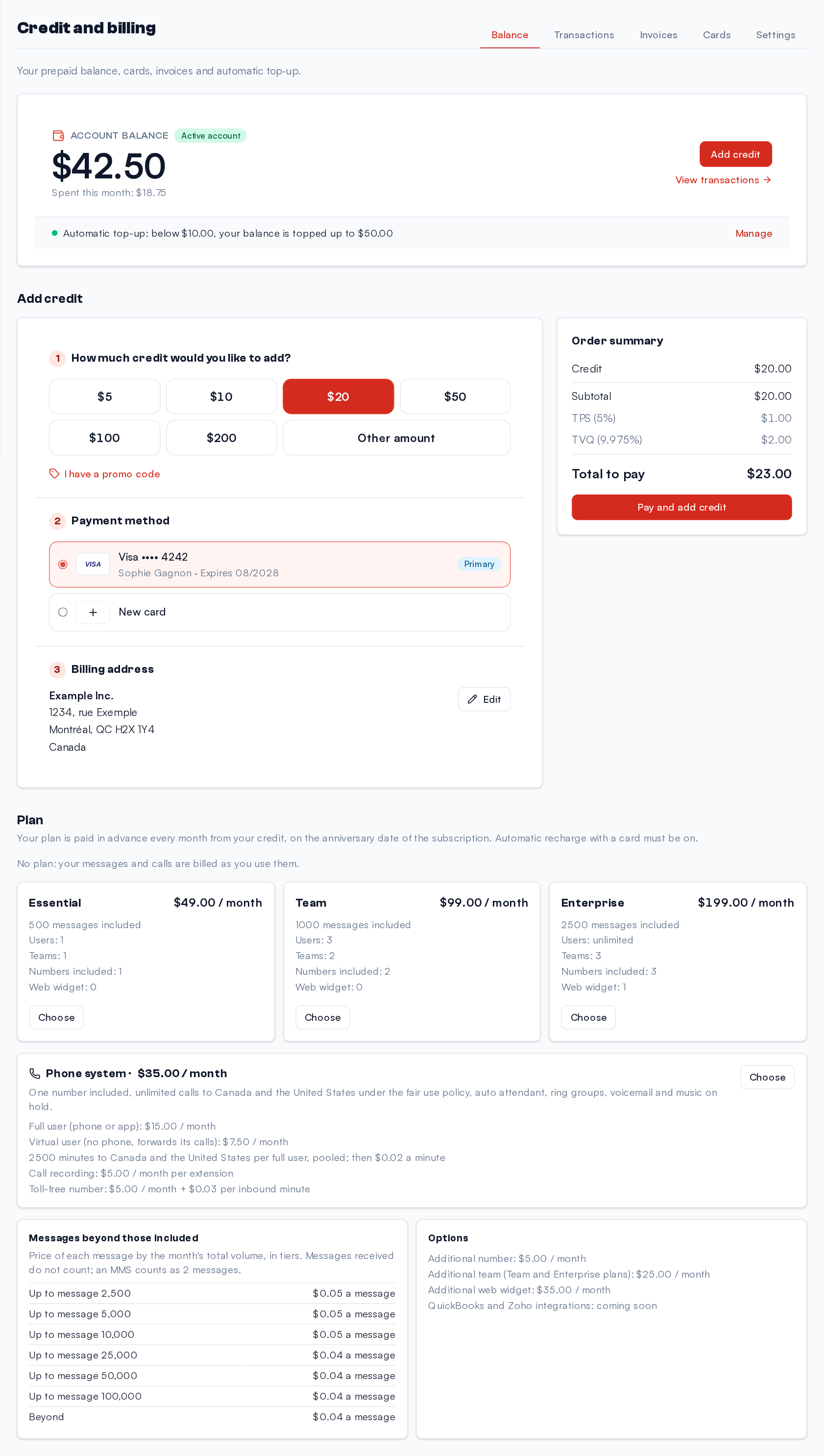 Credit and billing, Balance tab: the account balance, what was spent this month and the automatic top-up, then the top-up by card.
On the other pages (except Conversations), admins see a banner when the balance is low, used up or negative, when the account is in a trial or suspended, when numbers are held or released, or when the automatic top-up failed, with a button to add credit or check your cards. The low balance banner can be hidden for 24 hours.
Plans
When your domain offers plans, the Balance tab of the Credit page has a Plan section. Without a plan, your messages and calls are billed as you use them; with a plan, you pay a fixed amount every month.
- Messaging plans: Essential, Team and Enterprise, each with its included messages, users, teams, numbers and web widget.
- Phone system: one price per company, one number included, then each full user (phone or app) and each virtual user (an extension without a phone that forwards its calls, ticked in the extension's settings). It can be added to a messaging plan or taken alone.
- Options: additional number, team and web widget, toll-free number, call recording per extension. QuickBooks and Zoho integrations are coming soon.
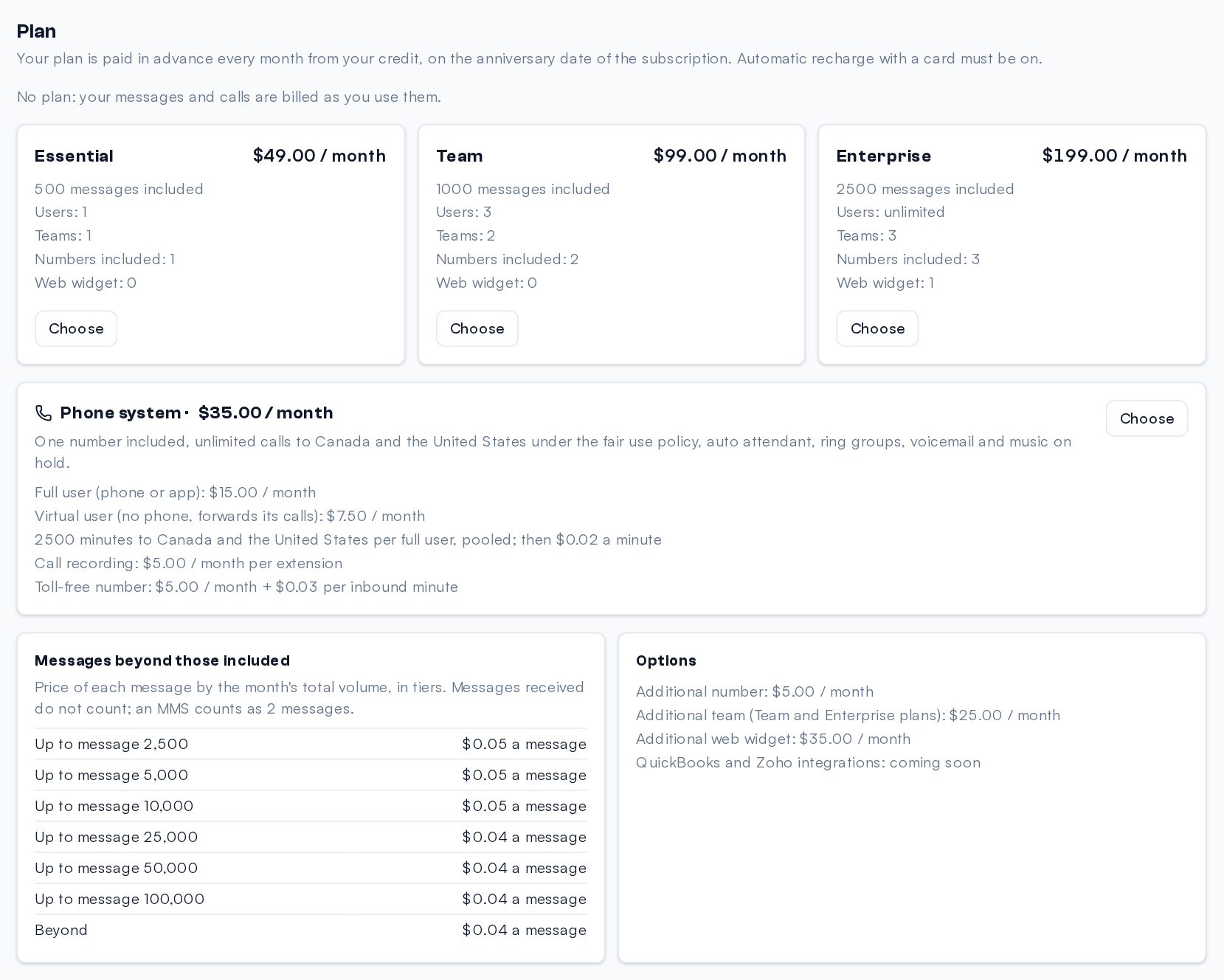 The Plan section without a subscription: the three messaging plans, the phone system, the grid of extra messages and the options.
To choose: "Choose" on a plan, or "Change plan" once subscribed. The window shows the estimated monthly statement with your users, numbers and teams of today. Automatic recharge with a card must be on (Settings tab): the plan is debited from your credit.
- The first month is debited at once, then every month on the anniversary date.
- A dearer plan, or adding the phone system, applies at once: the difference is billed pro rata of the current month.
- A cheaper plan, or a removal, applies on the next anniversary date (the section says so: "Will move to the … plan on …").
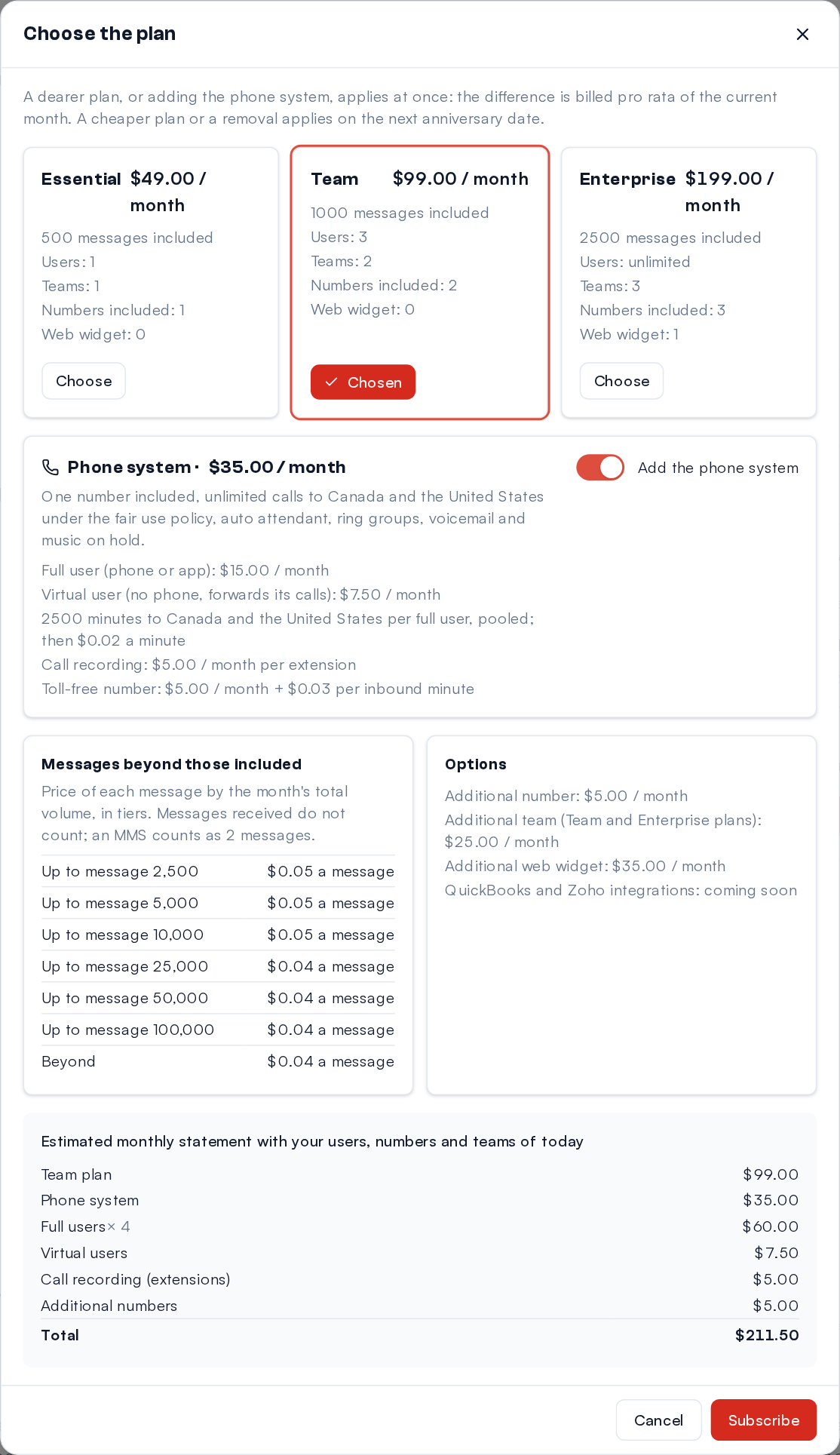 "Choose the plan": the Team plan and the phone system ticked, and at the bottom the estimated monthly statement with the users, numbers and teams of today.
Every month, the statement (in the Invoices tab) counts the plan, the phone system, the full and virtual users, the numbers beyond those included (a number serves messages and voice, it is never counted twice), the toll-free numbers, the extra teams and widgets, and the recorded extensions.
Beyond what is included, during the month:
- a message sent beyond the included messages costs the price of its tier, by the month's total volume (the grid is shown); an MMS counts as two messages; messages received do not count;
- the minutes to Canada and the United States are pooled for the company (one pool per full user); beyond, each minute is billed, and the admins get an email at 80% of the pool; forwards to a cell phone count;
- international calls are billed per minute by destination, and the minutes received on a toll-free number at their rate.
The section also shows the month's usage (messages and minutes), what will be counted on the next statement and the next statement itself.
Lines (phone system): a line is one call in progress at the same time, inbound or outbound; a forward to an outside number counts two. The phone system includes a few lines, plus one per full user (depending on your domain). Nothing is bought: you may go beyond your included lines up to a margin (beyond it, the next call is refused), and the peak of the month (the most calls at the same time) beyond the included lines is added to the next statement, at the price of an overage line each. The section shows the included lines, the margin, the limit, the peak of the current month (and when it happened) and the estimated overage. A client connected through its own phone system (SIP trunk) has no users: it has the included lines and the margin.
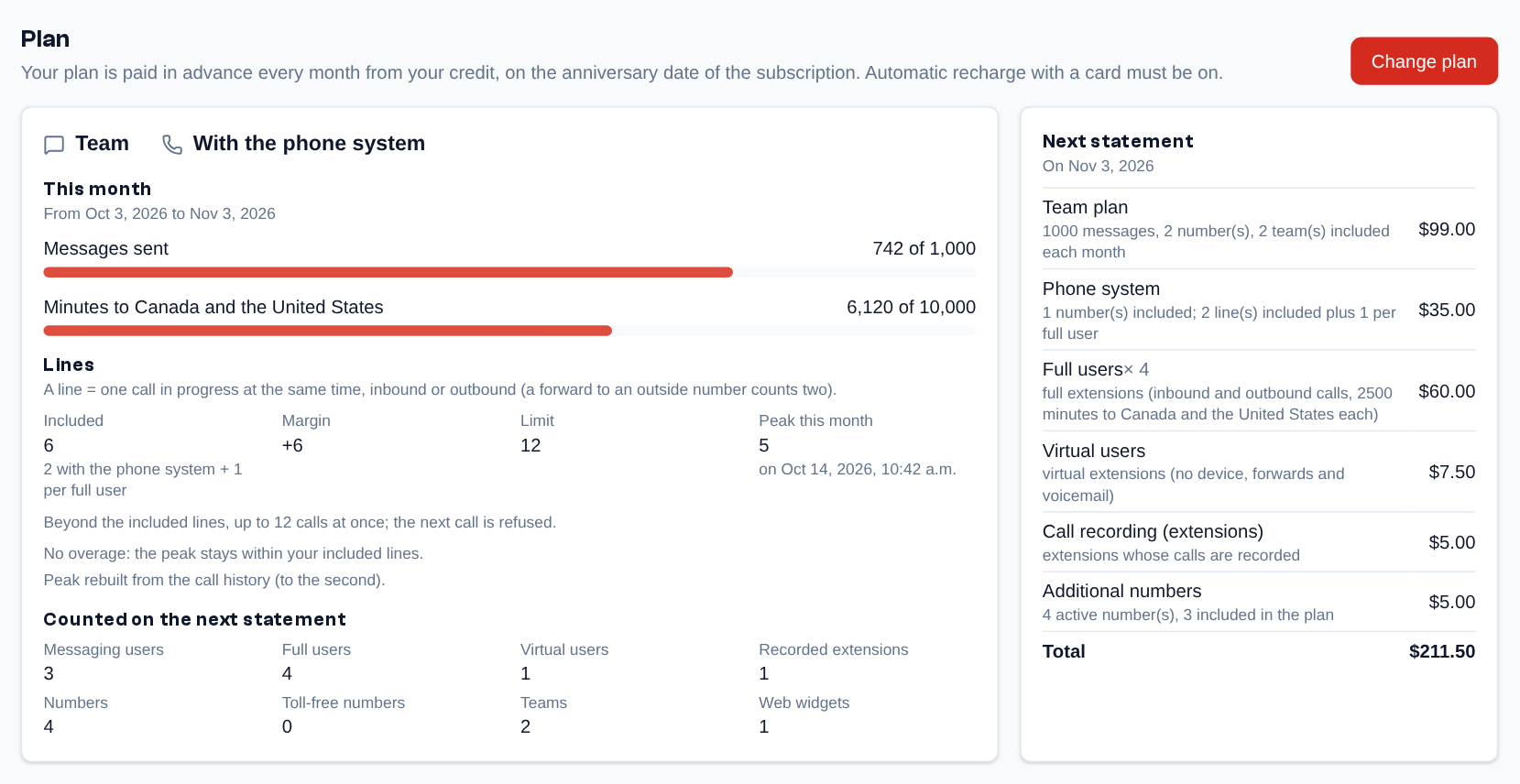 A subscribed organization: the Team plan with the phone system, the month's usage, the seats counted and the next statement.
Limits: by default, the Essential plan allows one messaging user and one team, the Team plan three users (your domain may change these maximums). Beyond, the invitation, adding messaging profiles to a member, adding messaging to a profile members already hold or creating a team is refused, with a "See the plans" link. The users counted are the members who use messaging; a member who only has voice does not count.
Billing and next bill
The Billing tab of the Credit page (right to see the billing) answers two questions: what was I billed, and what will I be?
- Next bill (estimate): its date and each line with its calculation (quantity × price) and its explanation: what is counted and what is included ("3 active numbers, 2 included in the plan", "peak of 5 calls at once, 2 lines included"...). It is computed with your users, numbers, teams and lines of today: it changes if they change by then. Without a plan, it is the monthly fees of your numbers (when your domain charges them), otherwise nothing fixed.
- Last statement: its amount and a link to it, and what was debited last month.
- Lines: with the phone system, the included lines, the margin, the peak of the current month and the overage that will be added to the next statement.
- Usage since the start of the period: the messages and minutes beyond what is included, and everything already debited for messages and calls, by type.
- Projection: the usage projected on the whole period, as a straight line from what was spent so far, and the next bill plus that usage. It is an estimate, not an amount billed.
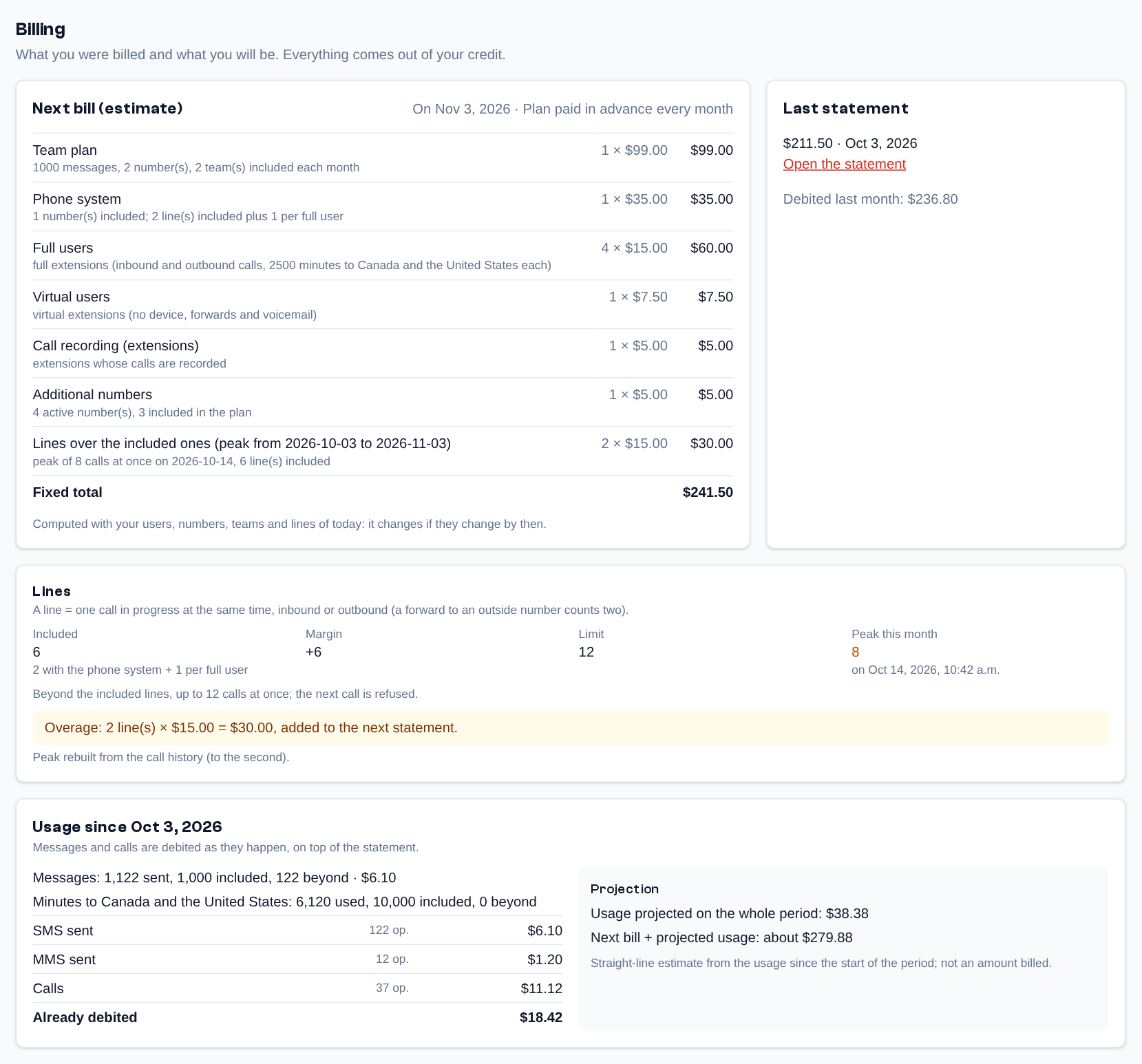 Billing tab: the next bill explained line by line, the last statement, the lines of the phone system with the peak of the month and the overage, the usage already debited and the projection.
Settings
Sidebar menu > Settings, for admins. The page has three cards: Billing (which leads to the Credit page), Website widget and Integrations (with the administration keys). The numbers, the call routing and the extensions have their own pages (see Numbers, Call Routing and Extensions).
Administration Keys (Admin)
Settings > Integrations, at the bottom of the page
An administration key lets a script administer the organization through the Telma API (users, numbers, voice; see the API documentation). It has all your administrator rights: for an application that sends and receives messages, create an integration instead, limited to the teams you choose.
- Type a name in "Key name", for example the name of the script.
- Type your current password in "Your current password": Telma checks that it is really you.
- Choose how long it is valid: 30, 90 (the default), 180 or 365 days.
- Click "New key".
- Copy the key shown in the yellow box: it will never be shown again. Then click "OK".
Every key expires on the chosen date: make a new one before then and put it in the script. A key is also revoked on its own when you change your password or email (or if your account is deactivated).
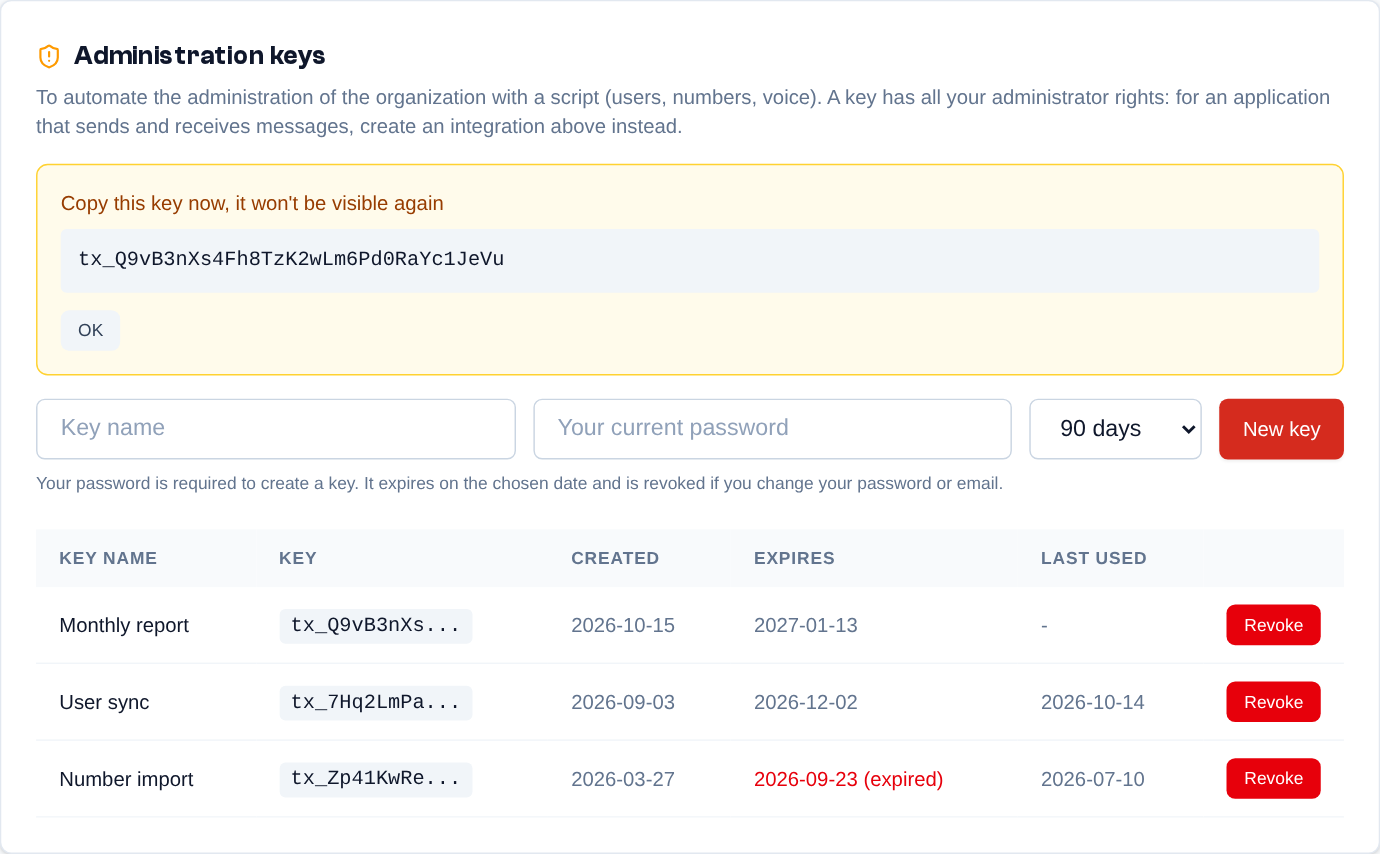 Settings > Integrations > Administration keys: the key just created is shown only once in the box; the list then only shows its beginning, with its expiry date and "Revoke".
The table lists the keys with their name, the beginning of the "Key", the creation date ("Created"), the expiry date ("Expires") and the "Last used" date. "Revoke" disables a key immediately, without asking for confirmation: the script that used it loses access at once.
Website Widget (Admin)
Settings > Website widget
The widget shows a small form on your website: the visitor enters their mobile number and immediately receives a text from your team. The conversation appears in the team like any other, and an agent can reply. Existing widgets are listed under "Widgets"; a click opens their settings.
-
Click "New widget" and fill in the form: "Name (internal)", "Team", "Sender number" (a team number whose SMS provider is configured), "Default language", "Button color" and "Button text color". For each language, write the "Welcome message" sent to the visitor and adapt, if needed, the "Displayed title", the "Button label", the "Introduction text" and the "Confirmation message". The widget follows the page language (
<html lang>, ordata-lang="en"on the<script>tag or the<div>) and uses the default language when the page does not say. A welcome message left empty in one language falls back to the default language's.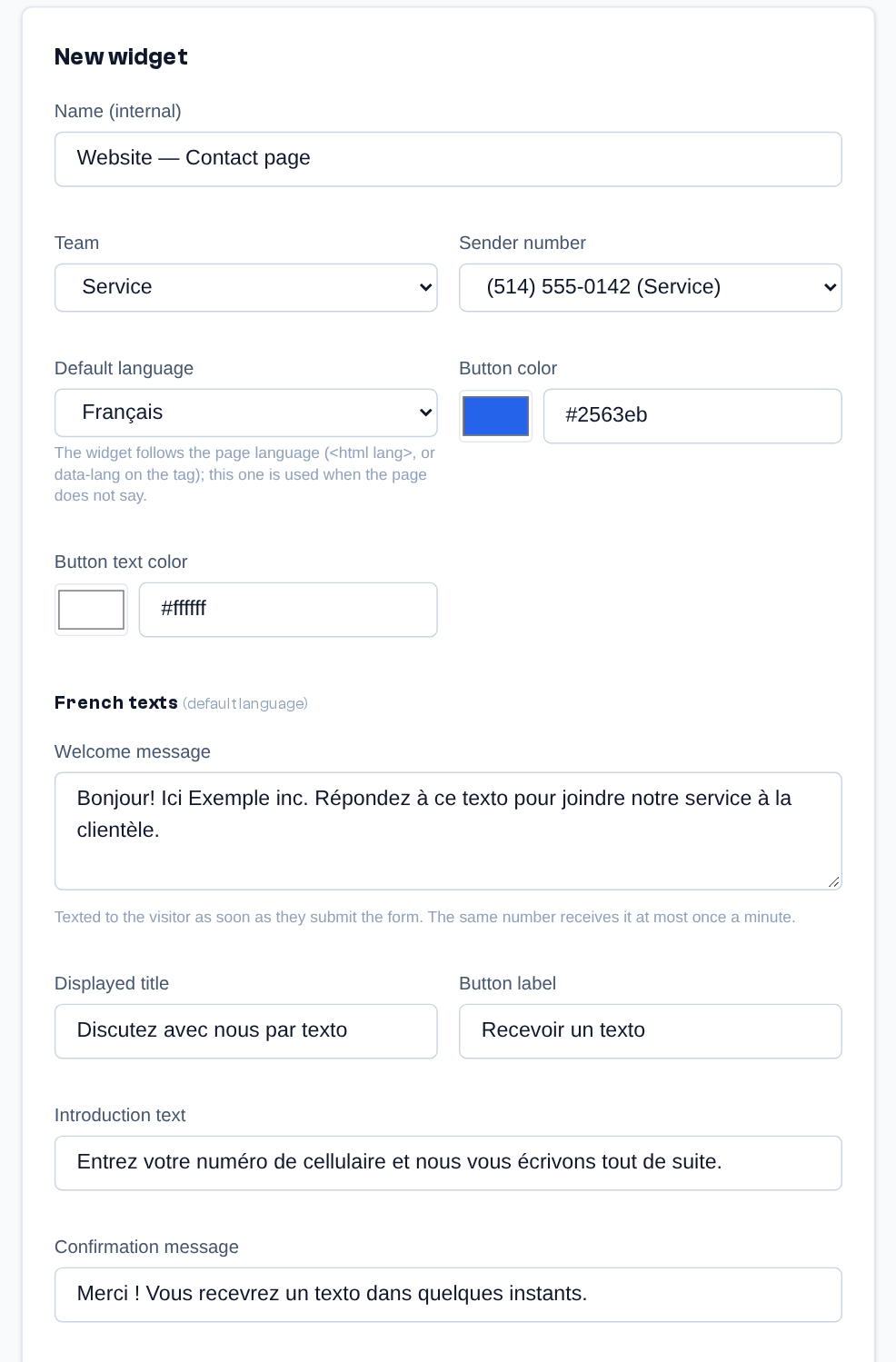 New widget: name, team, sender number, default language, colors, then the welcome message and the displayed texts in each language (here French, the default language; the English texts follow).
 -
Optional: in "Allowed sites (one per line)", restrict the widget to your own sites' domain names (their subdomains are included); left empty, any site can use it. Check that "Widget enabled" is ticked, then click "Save".
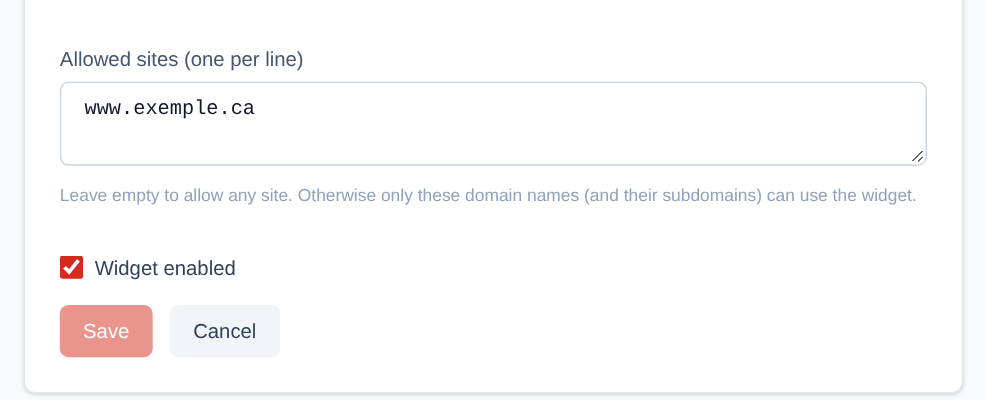 At the bottom of the form: the allowed sites (one per line), the "Widget enabled" box and "Save".
 -
Once the widget is saved, the "Install on your site" section gives the code to copy (copy button to the right of the code). Paste the "Floating button (recommended)" line right before
</body>on your site, or in the custom scripts tool of your platform (WordPress, Wix, Squarespace, Shopify…): a button appears at the bottom right of every page. To place the form at a specific spot of the page, use the "Form embedded in the page" variant, with the<div data-textos-widget>tag.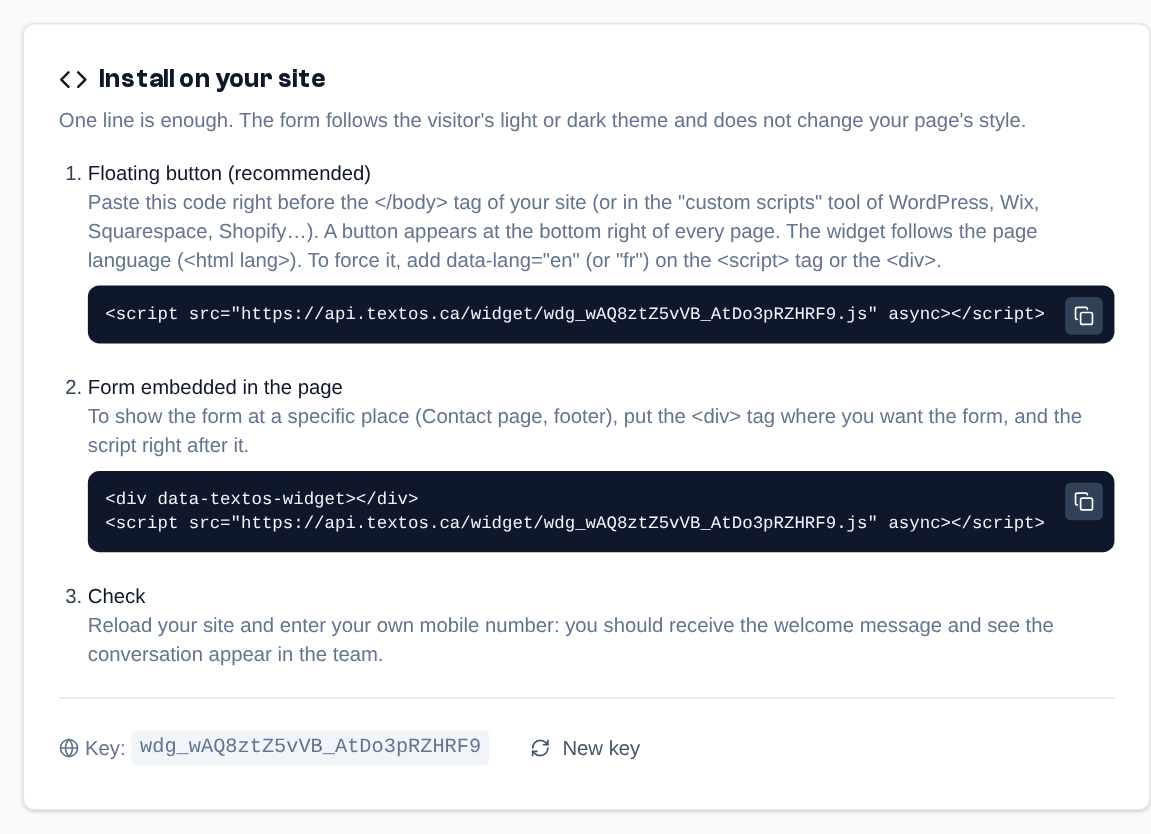 "Install on your site": the floating button code, the variant embedded in the page, and the widget key with "New key".
 -
Check: reload your site and enter your own mobile number; you should receive the welcome message and see the conversation appear in the team. The "Preview", below the code, shows the real widget: a number entered there really receives the text.
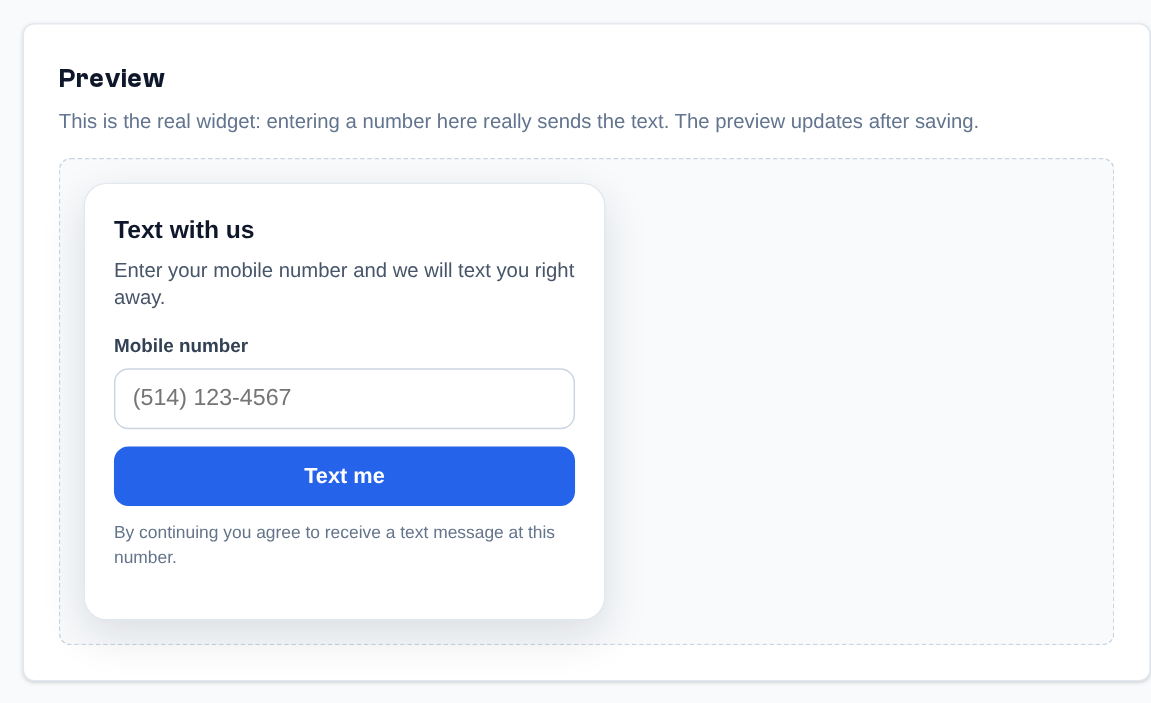 The preview shows the real widget as your visitors will see it (a number entered here really sends the text).
Each send uses credits like a regular message. The same number receives the welcome message at most once a minute, and the form is protected against bots. "New key" replaces the widget's key: the code already installed on your sites stops working and must be replaced. To remove a widget, open it and click "Delete".
Integrations (Admin)
Settings > Integrations
An integration lets another application (your CRM, your dispatch tool…) read and write the conversations of some teams, and be told in real time about what happens in them.
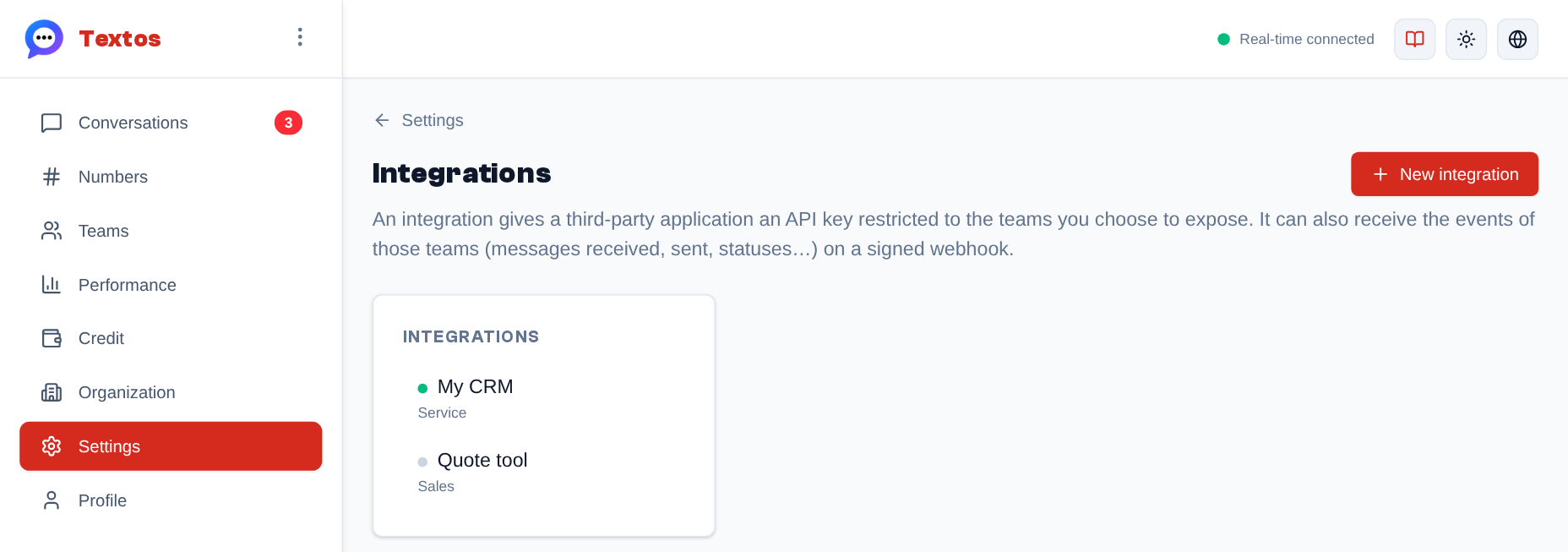 Settings → Integrations: the organization's integrations and the teams they expose (green dot = enabled, grey = disabled).
- Click "New integration", give it a name (that name appears as the sender of the messages it sends) and tick the "Exposed teams". No team ticked = every team of the organization, including those created later.
-
If the application must be told about messages, enter the "Webhook URL (optional)": a public
https://address, reachable from the Internet, on port 443, the default one ofhttps://(anhttp://address, one with another port such as:8443, or an internal address is refused). Choose the "Events sent": message received; message sent (including the automatic welcome and out-of-hours messages); delivery status (only with the providers that send delivery receipts); conversation read, closed (including by the former "archive" action), reopened (including by a new message from the contact) or renamed (contact name); conversation note added, edited or deleted. A new integration gets them all.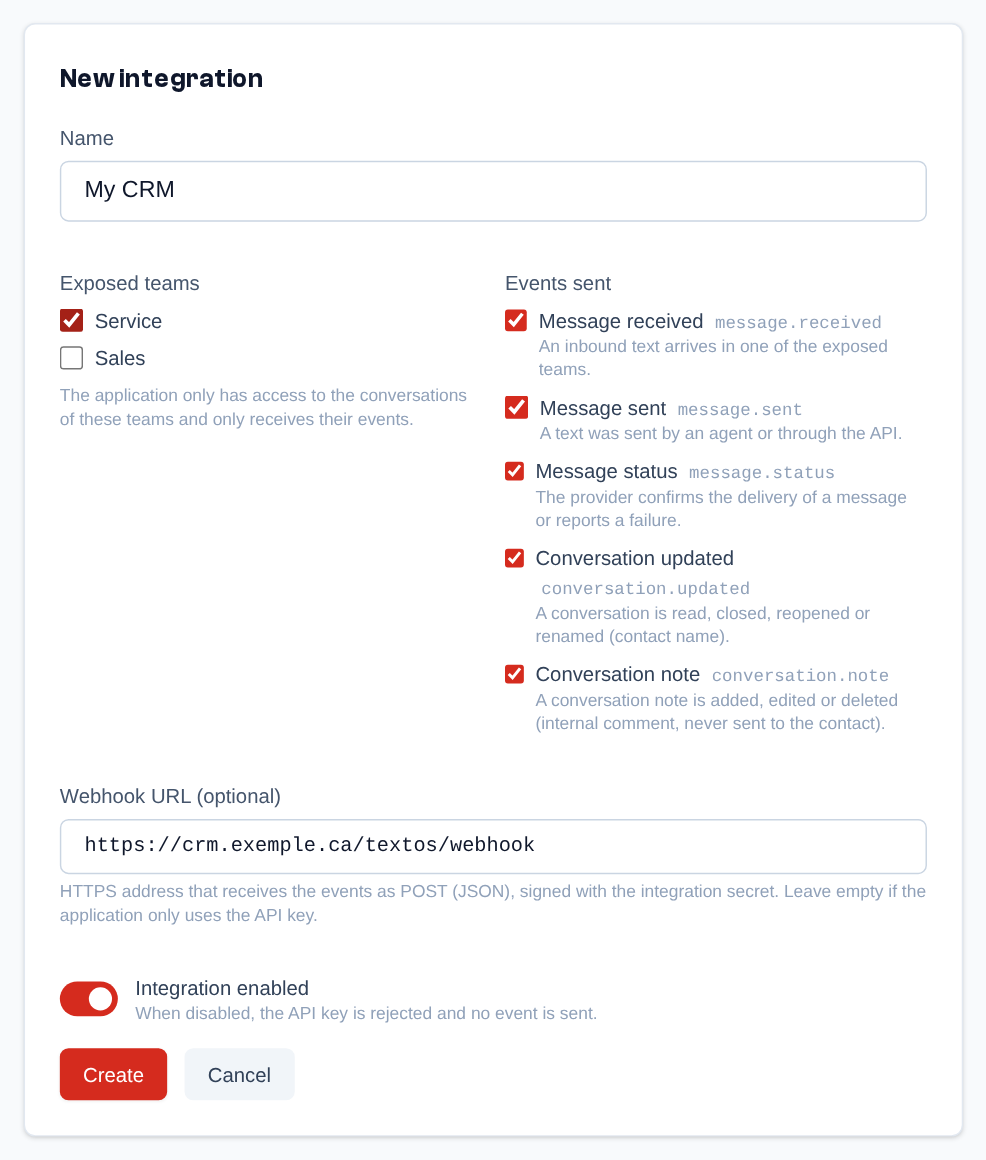 Creating an integration: name, exposed teams, events sent, webhook URL and enabled switch.
 -
On save, the API key is shown once: copy it into the application. The webhook signing secret stays readable and lets the application check that calls really come from Telma.
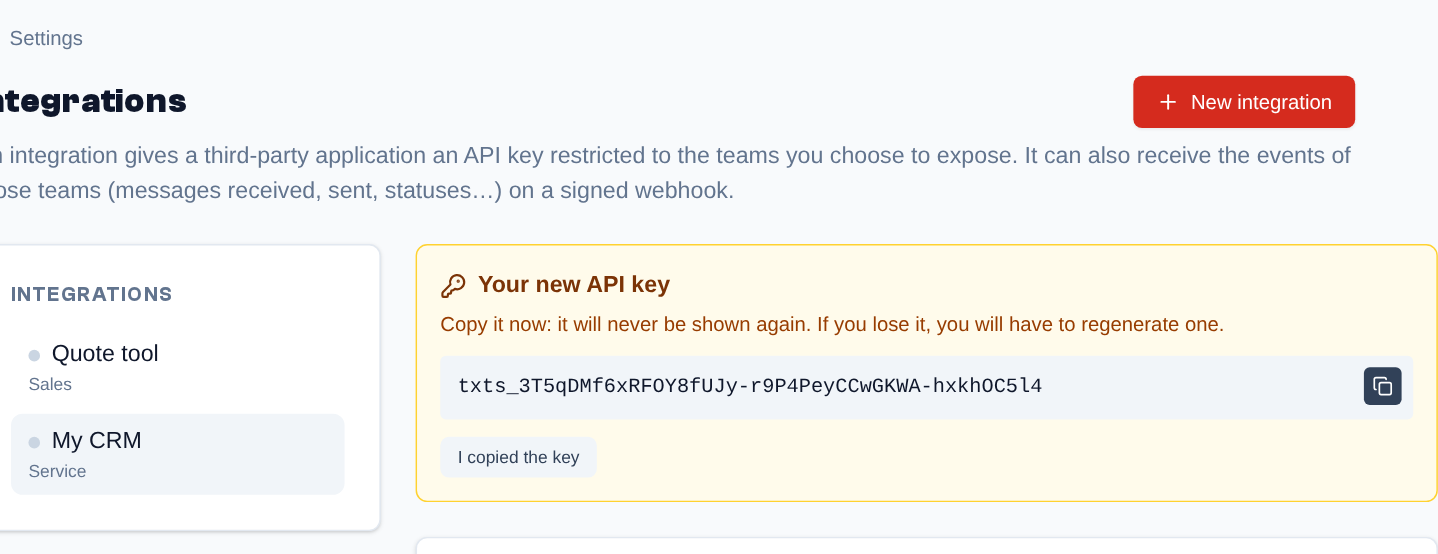 The API key is shown only once, right after creation: copy it before dismissing the box.
"Regenerate key" replaces the API key: the old one stops working at once, put the new one in the application. "Regenerate secret" replaces the signing secret: until the application has the new secret, it rejects the deliveries. Regenerate them if the key or the secret may have been disclosed.
The "Test webhook" button sends a test event and shows the outcome: the HTTP status answered by the
application, or the error (HTTP 500, timeout, connection error, redirect not followed,
address not allowed, or not sent: Telma had too many calls in progress to make the test in time
and sent nothing, try again a little later). The organization gets 10 tests per minute, all its
integrations together: beyond that, the test is not sent and the page shows "Rate limit exceeded (10
per 1 minute), retry in … s"; wait for that delay. The "Recent deliveries" section shows the 50 most
recent calls (kept seven days) with their outcome; a delivery marked not sent (Telma, too busy,
did not make the call) is taken up again automatically for one hour, without counting as a failure.
After 25 failures in a row the webhook is "Paused": fix the problem on the application side, then
click "Resume". The events that happened during the pause are not sent again.
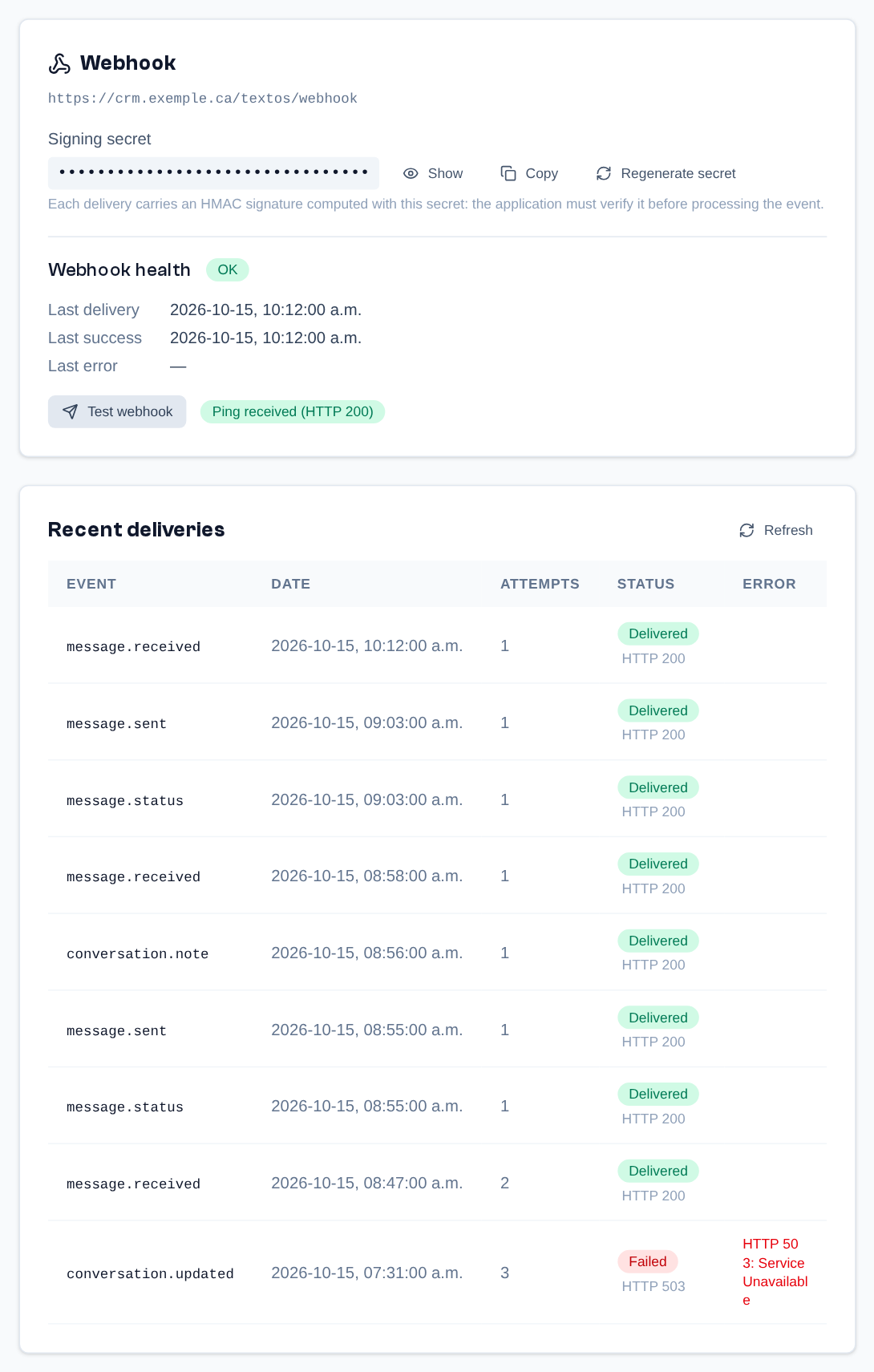 The webhook: masked signing secret, health, result of "Test webhook" and the recent deliveries log.
In a conversation, a message the application sends in the name of a person shows "Julie Tremblay via My CRM" above the bubble; without a person's name, the sender shown is the integration.
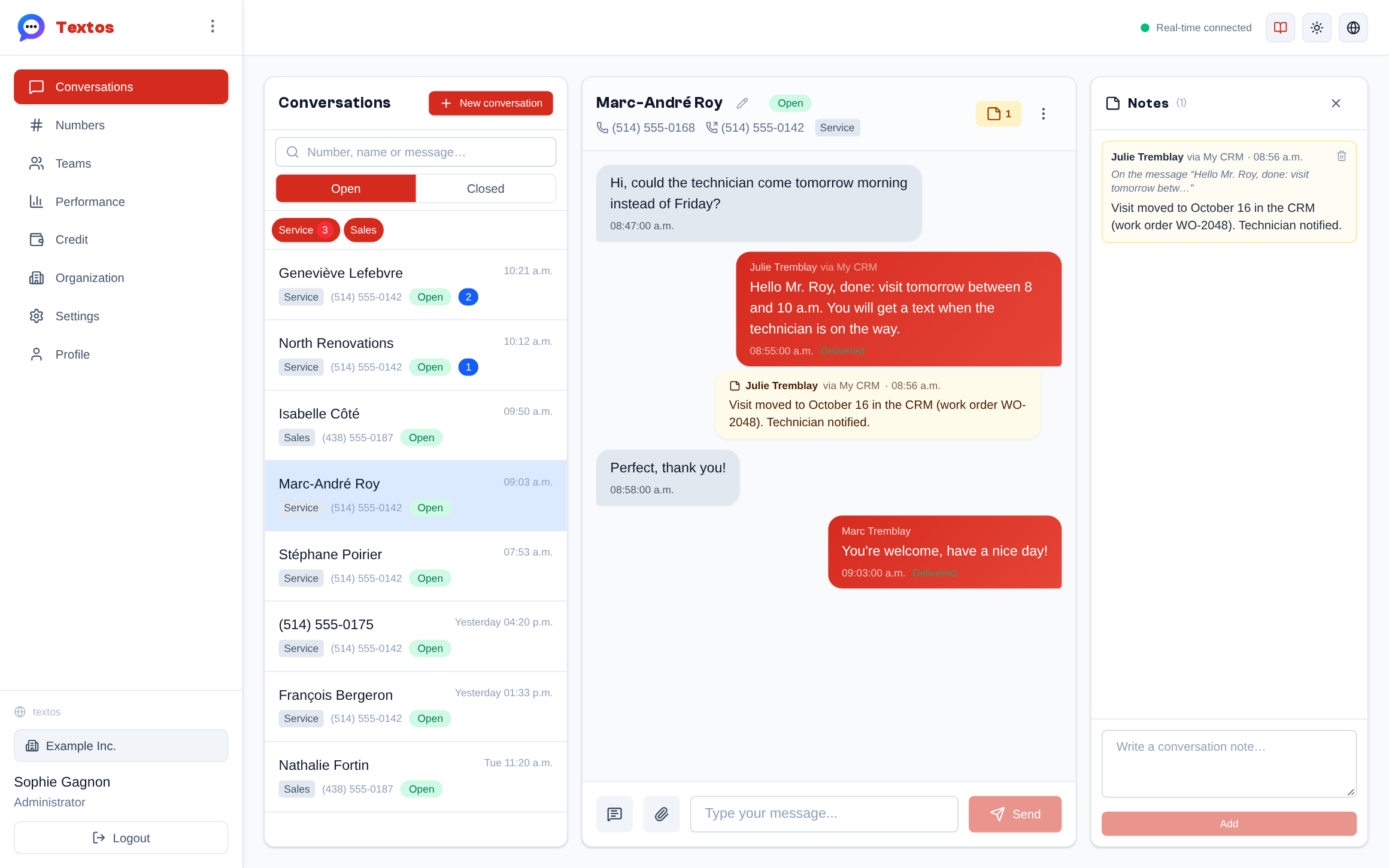 A message sent from the CRM on behalf of Julie Tremblay ("Julie Tremblay via My CRM") and a conversation note written through the same integration, in the thread and in the Notes panel.
Disabling the integration stops both the key and the webhook, without erasing anything. Deleting it revokes the key for good and erases its delivery log; the messages it sent lose the "via My CRM" mention (those sent without a person's name show no sender at all). To stop an integration and keep the history, disable it.
No visible user is created: the integration uses a hidden technical account, absent from the members and from the per-agent metrics, which cannot log in. Its key only has the rights of the User profile on the exposed teams: it sees neither the billing nor the organization settings. Technical details (event format, signature, rate limits) are in the API documentation.
Organization
Sidebar menu > Organization, for admins.
Organization Settings
The "Organization settings" card shows the "Organization name" and the number of members and teams. "Edit" lets you rename the organization; then click "Save".
Inviting a Member
- In the "Organization members" section, click "Invite member".
- Enter the person's "Email address".
- Tick their "Profiles": "User" by default, "Admin", or a profile of your organization or of your domain; they add up (see Profiles and Permissions).
- Optional: choose their team in "Team (optional)".
- Click "Send invitation".
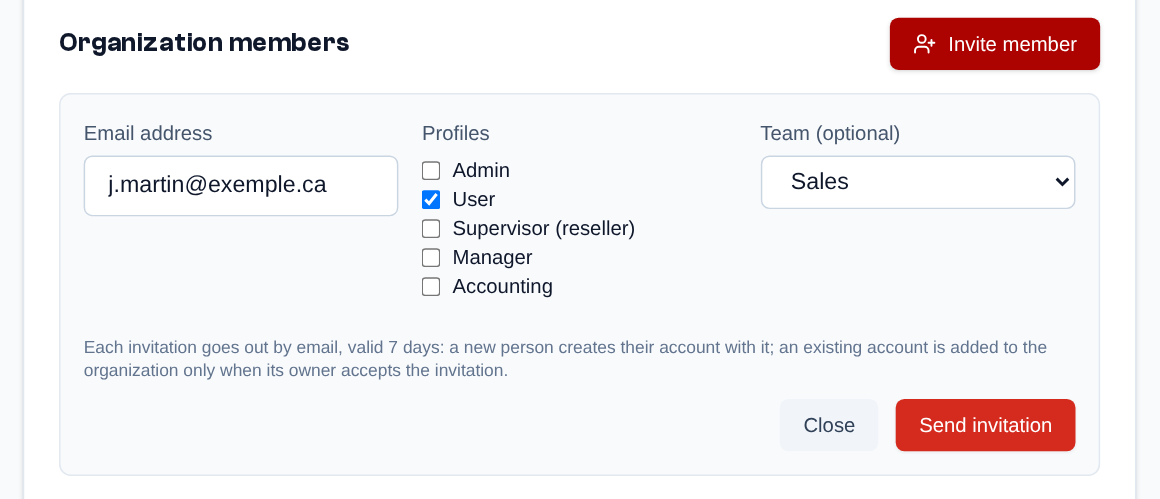 Sidebar menu > Organization > "Invite member": email address, profiles, team (optional), then "Send invitation".
The person gets an email valid for 7 days. If the address has no Telma account, the link lets them create one (see First Login). If it already has one, it is not added to the organization until its owner has accepted the invitation themselves: the invitation stays "Pending" until then. If the email could not be sent (no email server configured), the invitation is created anyway: resend it later.
Pending invitations are shown under "Pending", with the role that sums up their profiles and the expiry date. The arrows ("Resend") send the email again; the cross ("Cancel invitation") cancels the invitation after confirmation.
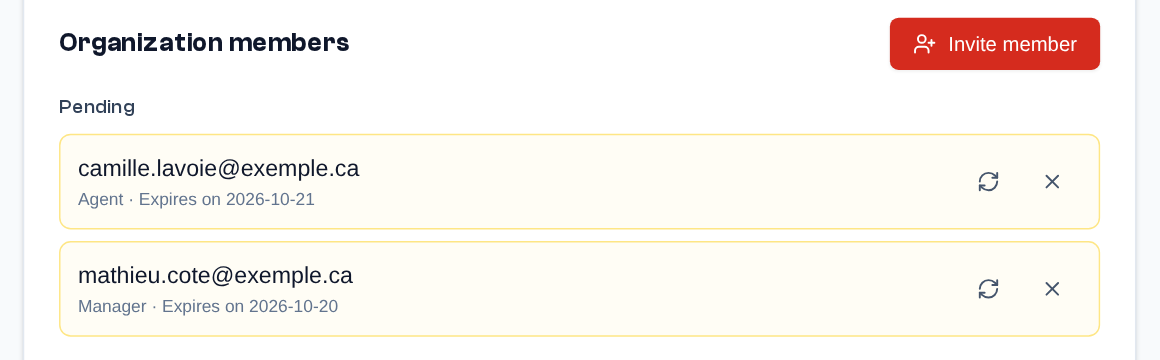 Pending invitations, with their role and expiry date: resend (arrows) or cancel (cross).
Organization Members
The "Organization members" table lists the members with their name, address, profiles, team and actions. For another member, you can:
- change their profiles with the shield of the "Profiles" column (active members): tick one or more profiles, their rights are the sum. The change is immediate. The organization always keeps at least one member who can manage the members.
- deactivate them with the "Deactivate" icon: after confirmation, they can no longer log in and their open sessions are ended. Their name then carries the "Deactivated" mention. It can be undone: the "Reactivate" icon gives them access again, after confirmation.
- delete them: only a deactivated member can be deleted, with the trash. The browser asks for confirmation; deleting the account is permanent.
- sign in as them with the "Sign in as" icon (arrow into a door, active members), without their password: after confirmation, you see the app exactly as this member does, to help them or check their setup (the "Administer" mode, if it was on, is left). The yellow banner "You are signed in as …" reminds you at the top of the page; "Back to my account" (or "Logout") gives you your own session back, on the page you had left. This session ends after 12 hours without activity, does not count as the member's sign-in, is journaled, and cannot change their password, email or phone, verify an address or a number, delete their account, create an API key or sign in as another member.
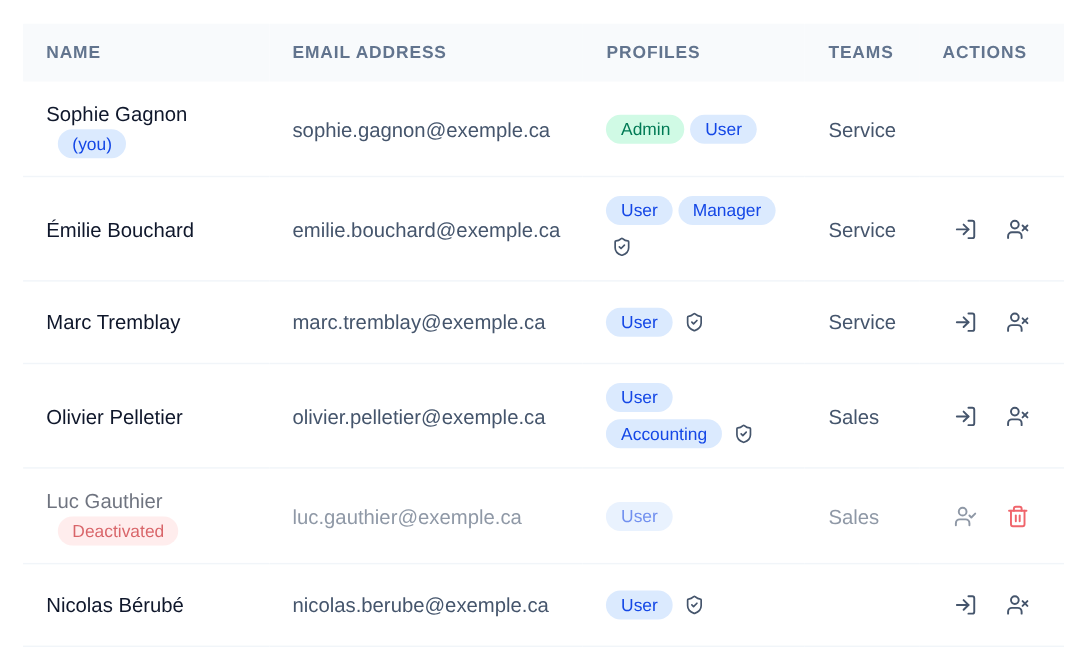 The organization's members: their profiles, and the shield to change them; the "Sign in as" icon opens their session; the "Deactivate" icon cuts their access; a deactivated member can be reactivated or deleted (trash). Your own row has no actions.
These actions follow a few rules:
- nobody acts on their own account: your row is marked "(you)" and has no actions;
- with "Invite and remove members, give them teams and profiles" (Admin), you act on every member of the organization; with only "See and edit the members of their teams" (Manager), on the members of your team who do not manage members themselves (Agent role). Domain and platform admins are never managed here but on the domain's page (see Domain Admins);
- profiles are set organization by organization, but deactivation, deletion and signing in as the member apply to the whole account: a member who also belongs to other organizations is only in reach of someone who administers all their organizations.
A member's team is chosen in the Team Members tab.
Profiles and Permissions
What everyone can do in an organization comes from their profiles: a profile is a set of permissions (read or send messages, manage members, billing, numbers, call routing, extensions…), and a member can have several, which add up. An admin who also answers customers has, for instance, "Admin" and "User".
- Built-in profiles, the same everywhere and never changed: Admin (manage everything in the organization) and User (their own things: the conversations of their team, sending, their calls and voicemail, their extension).
- Domain profiles: the reseller offers some to all their organizations (Domain page, "Profiles" section), starting from a copy of Admin or User.
- Organization profiles: "Profiles" section of the Organization page; "New profile", a name, optionally "Start from a copy of", then the permissions to tick, by theme. A profile members hold cannot be deleted.
- Organizations that had managers got a "Manager" profile that keeps exactly their rights.
- You only give what you have: a profile, an invitation or a role that would give a permission you do not hold is refused. And you do not change someone who can do more than you: you must hold each of their permissions too. If your own "Admin" profile lacks "Call recordings", you cannot change a member who has it.
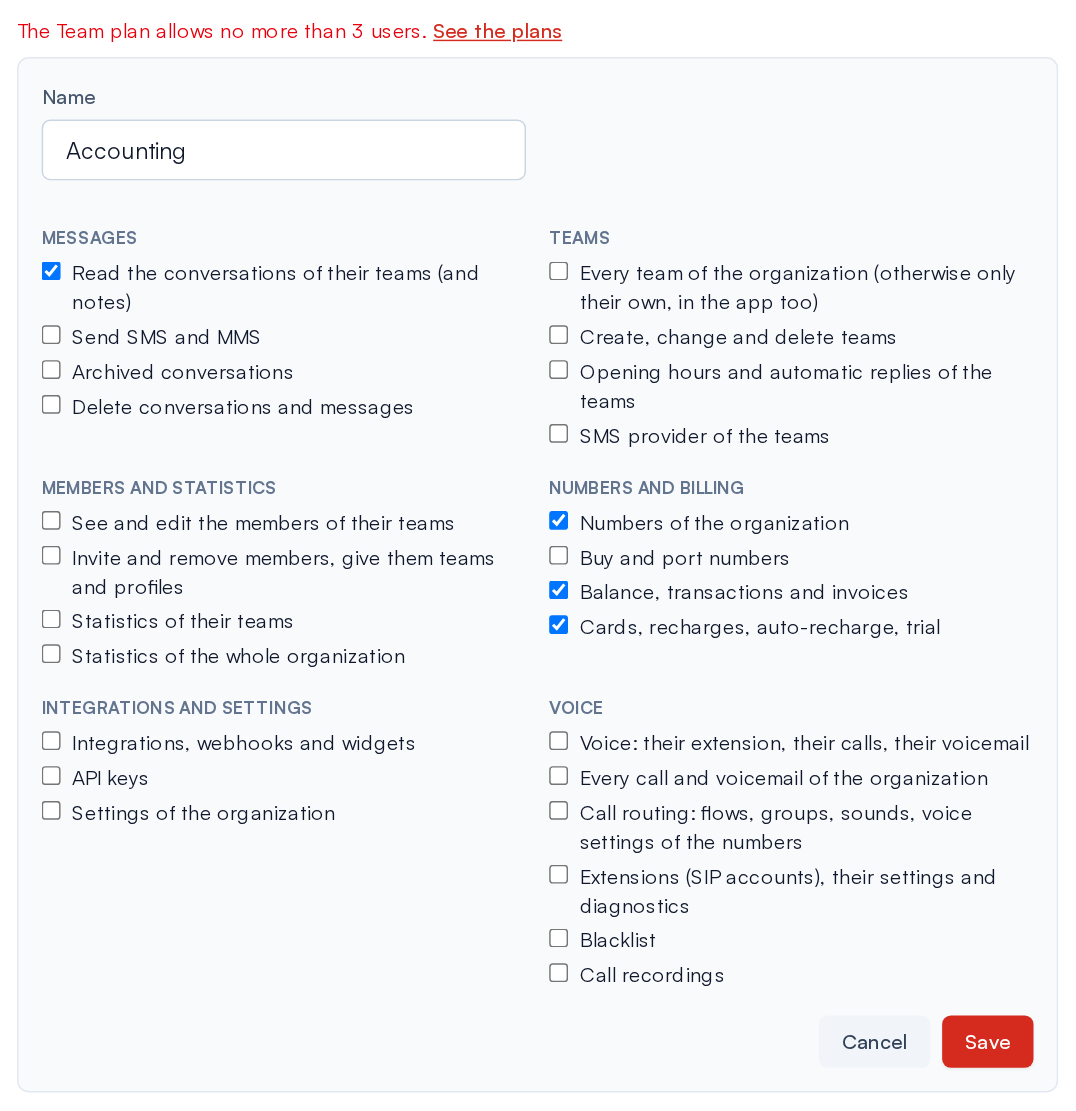 Adding "Read the conversations of their teams" to a profile members hold while the plan is full: the change is refused, with a link to the plans.
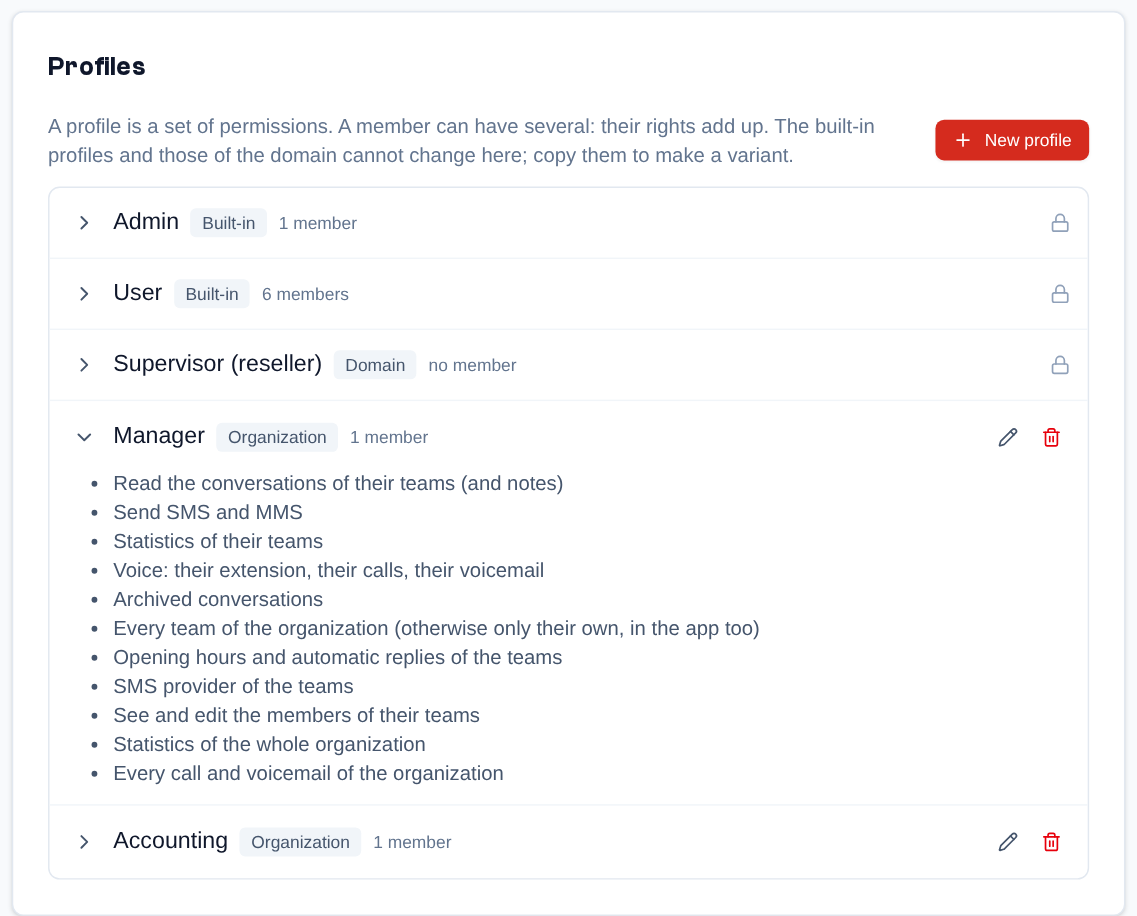 The Profiles section of the Organization page: the built-in and domain profiles (padlock), the organization's own (pencil, bin); the arrow unfolds their permissions.
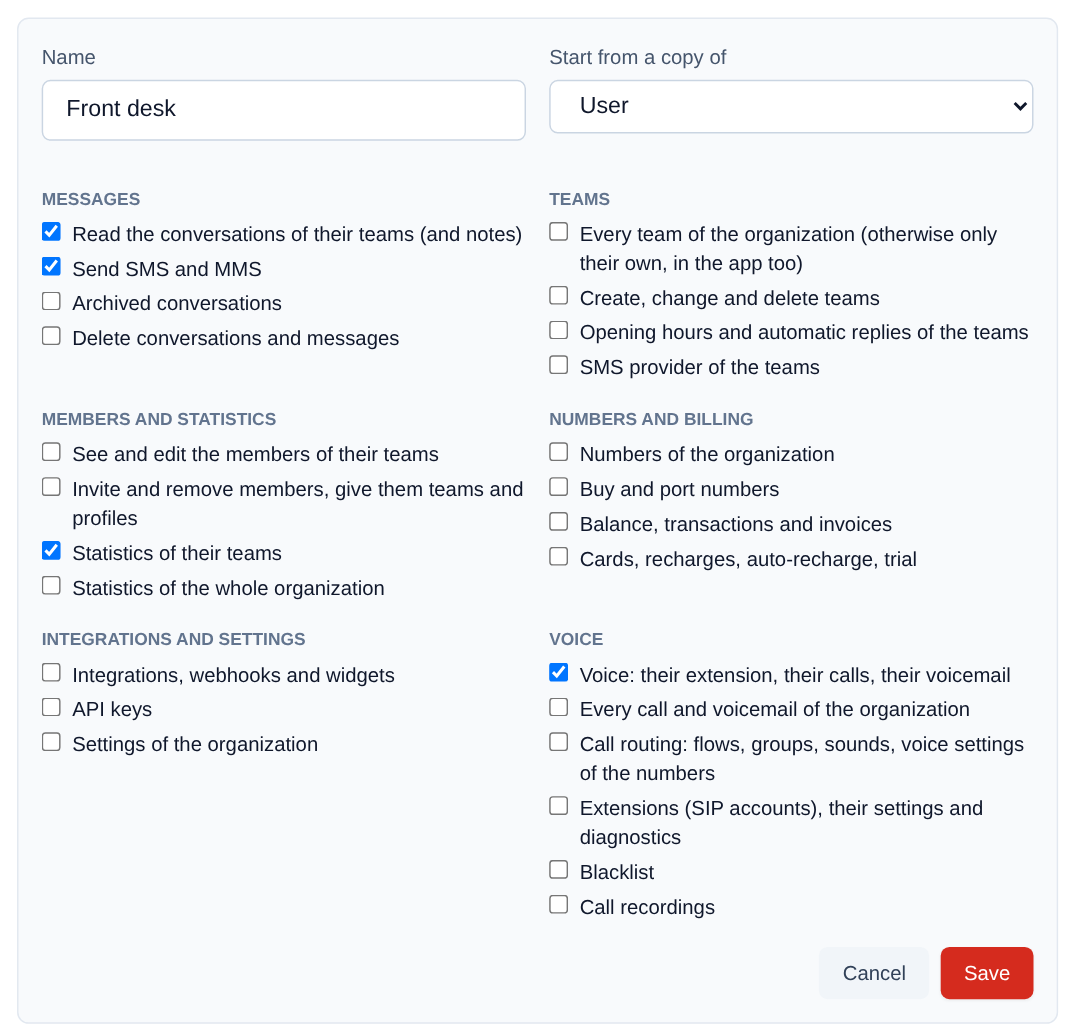 "New profile": a name, "Start from a copy of", then the permissions to tick, by theme.
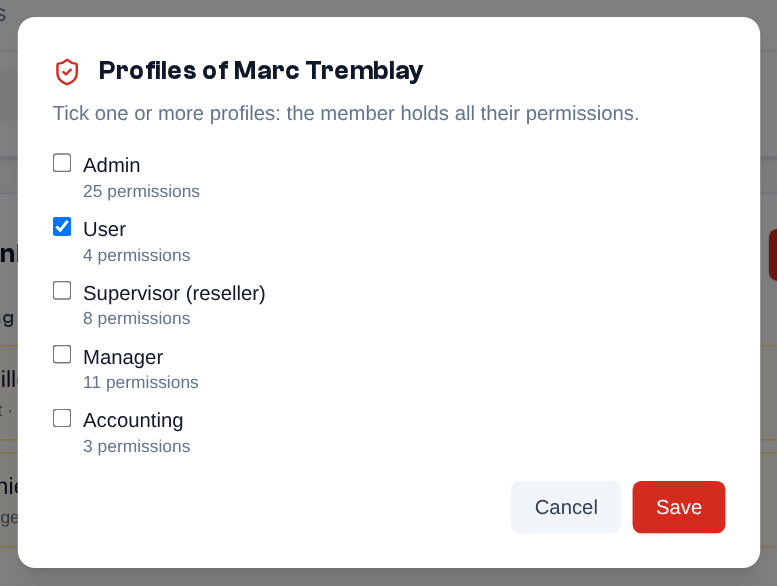 A member's shield opens their profiles: tick one or more.
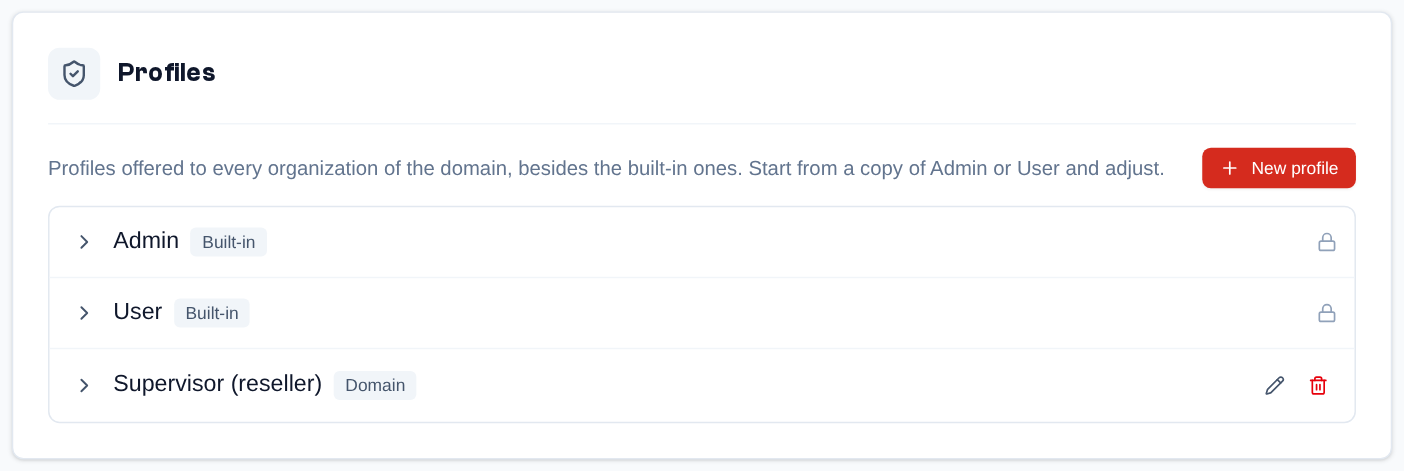 Domain page, Profiles section: the profiles the reseller offers to all their organizations.
The following table shows what the User and Admin profiles give, the Manager profile of former managers, and the rights of a domain admin:
| Access | User | Manager | Admin | Domain admin |
|---|---|---|---|---|
| Their team's conversations (Messages feature): read, reply, close, reopen, write notes | ✓ | ✓ | ✓ | ✓ |
| Conversations of every team of the organization | — | ✓ | ✓ | ✓ |
| Delete someone else's note | — | ✓ | ✓ | ✓ |
| Delete a conversation | — | — | ✓ | ✓ |
| Teams (or Message settings) menu: numbers, members, hours and closed conversations (view) | — | ✓ | ✓ | ✓ |
| Configure teams: creation, members, hours, welcome, templates | — | — | ✓ | ✓ |
| Performance (Messages feature, at least two teams) | — | ✓ | ✓ | ✓ |
| Calls (voice): the calls of their own extensions and the messages of the voicemail boxes they listen to | ✓ | ✓ | ✓ | ✓ |
| Calls (voice): every call of the organization and the voicemail of every number | — | ✓ | ✓ | ✓ |
| Organization: members and invitations | — | — | ✓ | ✓ |
| Numbers, credit, call routing, extensions, blocklist and call recordings | — | — | ✓ | ✓ |
| Settings: widget, integrations and administration keys | — | — | ✓ | ✓ |
| Organizations, Domain and Domains, "Administer" an organization | — | — | — | ✓ |
Platform admin ("super admin" in this guide) and domain admin are platform permissions of the account, given by a platform admin (orange shield in the page of an organization). A domain admin has every permission in every organization of their domains.
The role shown next to a name (menu, members, invitations, profile) is now only a summary: "Administrator" for the Admin profile, "Manager" when the profiles allow managing the members of one's team, "Agent" otherwise, and "Super Admin" or "Domain Admin" from the platform permissions. Permissions decide, never this label. Creating or deleting a domain and adding credits are done with the Telma team.
This table describes what the interface offers. The API is a little wider for teams: setting up a team (name, business hours, welcome message, message templates) and its SMS provider is open there to the permissions "Opening hours and automatic replies of the teams" and "SMS provider of the teams" (the Manager profile included), whereas the interface only offers these settings to the Admin profile.
In the mobile app (Messages tab), a profile with the permission "Every team of the organization" (Admin, Manager) sees every team; otherwise only the team the person is placed in (none without a team). The person who creates their organization is placed in its default team. Platform permissions (domain admin, platform admin) add nothing in the app.
Administration
This part is reserved for domain admins and super admins. At the bottom of the sidebar menu, below a line, Organizations and Domain appear; below a second line, Domains and, for super admins, Providers and Infrastructure. With the menu at the top, these pages are in the Administration column. A domain admin manages every organization of their domains.
Organization Management
Sidebar menu > Organizations
The "Organization Management" page lists the organizations of your domains with their number of members and teams and their creation date.
- "New organization": enter the "Organization name" and click "Create".
- "Administer" opens the organization in administration mode (see below).
- "Edit" opens an organization's page: its name, its "Features" (ticked among the domain's), its members and its teams. Members are managed there with the role menu (the ⓘ icon shows the "Profiles given by this choice"; choosing Agent, Manager or Administrator gives the member the matching profiles: User, User and Manager, or Admin; for another combination, "Administer" the organization and change their profiles on the Organization page), the "Activate" / "Deactivate" switch, which asks for confirmation, the "Sign in as" icon and the trash: as on the Organization page, only a deactivated member can be deleted. "New invitation" invites a person with a role (the profiles of that role, as above).
- At the top of that page, "Voice limits, plan, credit and grace" opens "Settings of …", in tabs: the organization's Voice limits (simultaneous calls, forwarding countries, always allowed prefixes, fraud protection and "International calls only during business hours", with the allowed hours; left empty, they follow the domain's rule; when its outbound calls are suspended, a red box gives the reason and "Resume outbound calls" restores them; otherwise "Suspend outbound calls" cuts them by hand), Plan (see Plans), Credit (domain admin: add or remove credit by hand) and Negative balance (extend the grace period of an organization whose balance is negative). The super admin adds credit with "Add credits", in the Billing section of the page.
- When the organization has voice, the "Outbound calls" section chooses through which trunk its outbound calls go, according to the number dialed.
- The "Recording of outbound calls" section imposes the recording: of every outbound call of the extensions, or of those that present a number whose recording is on. These rules win over the setting of each extension, which its user changes in the app (Information window of the dial pad). If you allow it, the user may skip the recording of their next outbound call, once and within 15 minutes; incoming calls are not concerned.
- "Delete" only appears for an organization without members. Deleting it also closes all its other accesses: its integrations and their API keys, its widgets, its pending invitations and its voice endpoints stop working, and its numbers go back to the domain, free to be assigned to another organization.
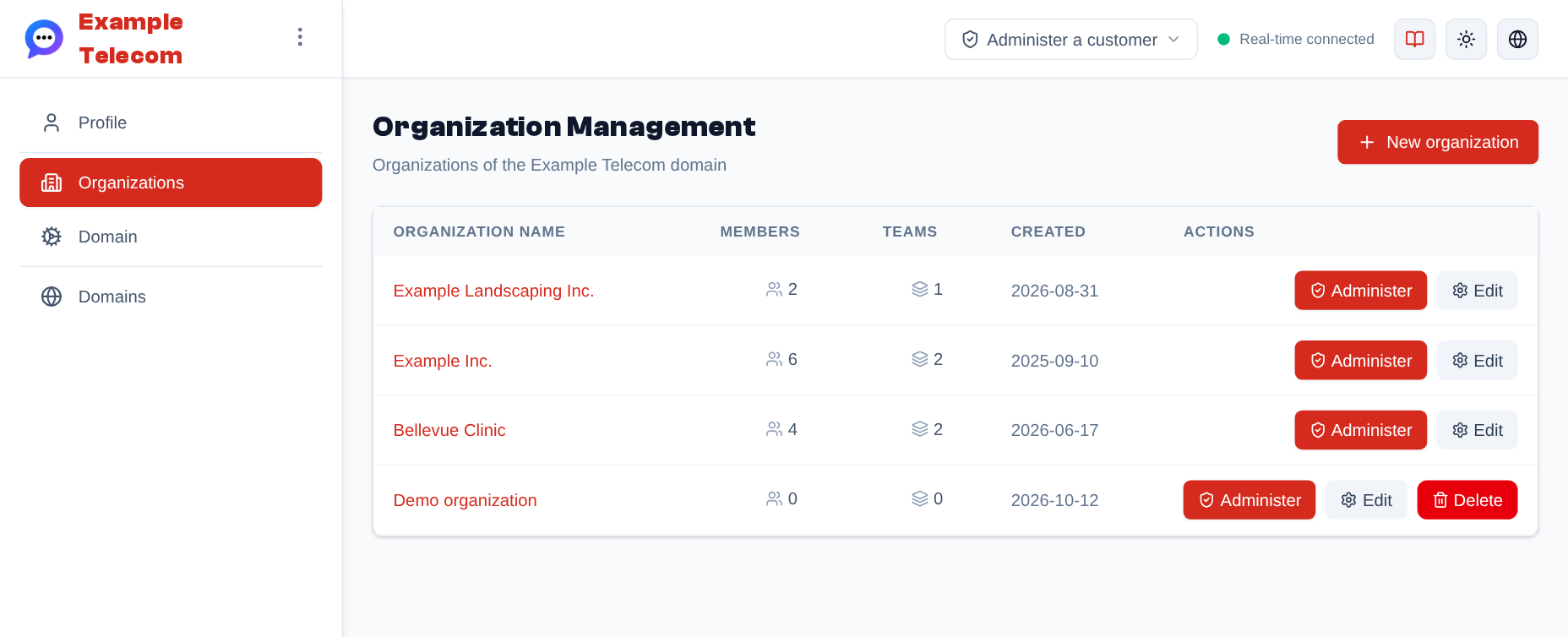 Sidebar menu > Organizations, as a domain admin sees it: the organizations of their domains, with their members and teams; "Administer" opens one in administration mode, "Edit" opens its page.
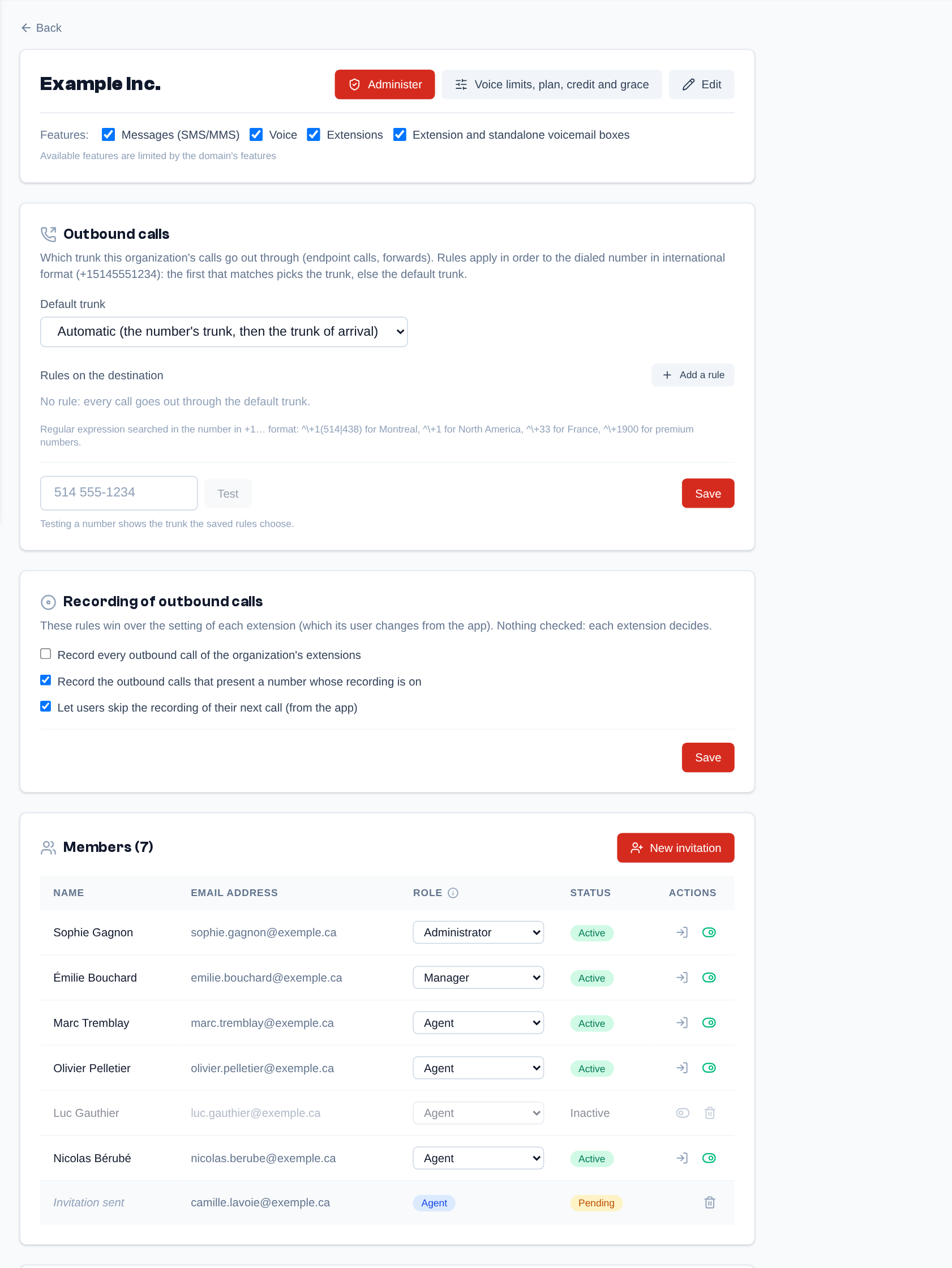 An organization's page: "Administer", "Voice limits, plan, credit and grace" and "Edit" at the top, then its features, its outbound calls, the recording of outbound calls and its members.
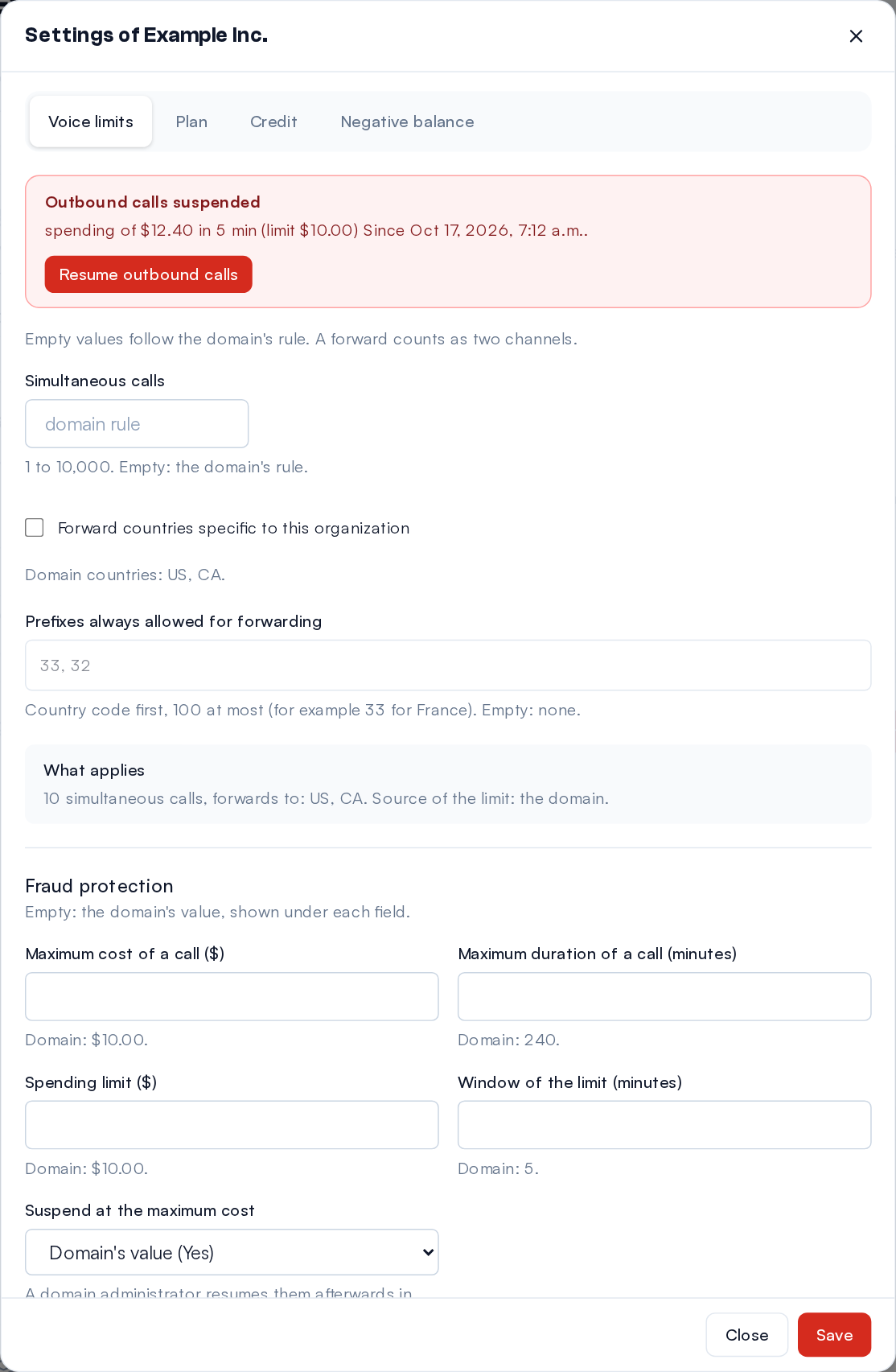 "Voice limits, plan, credit and grace" of a suspended organization: the reason of the suspension, "Resume outbound calls", its own limits and its fraud protection.
Administering an Organization
"Administer" (in the list or on an organization's page), or the Administer a customer menu of the header (the shield icon; search the organization by its name or its owner's email), opens the application inside that organization, without making you a member:
- an amber banner "You are administering …" recalls it at the top of every page;
- you see its conversations, its numbers, its calls and its settings as an admin of the organization; what you change there is logged. Your own account access, password and the danger zone of your profile are locked meanwhile;
- the mode only applies to this browser tab: you can administer one organization per tab; switching organization and domain, at the bottom of the menu, is hidden;
- "Exit", in the banner, takes you back to the list of organizations. Logging out also leaves the mode. If the organization no longer exists or is no longer available to you, the "Organization unavailable" page offers "Back to the list".
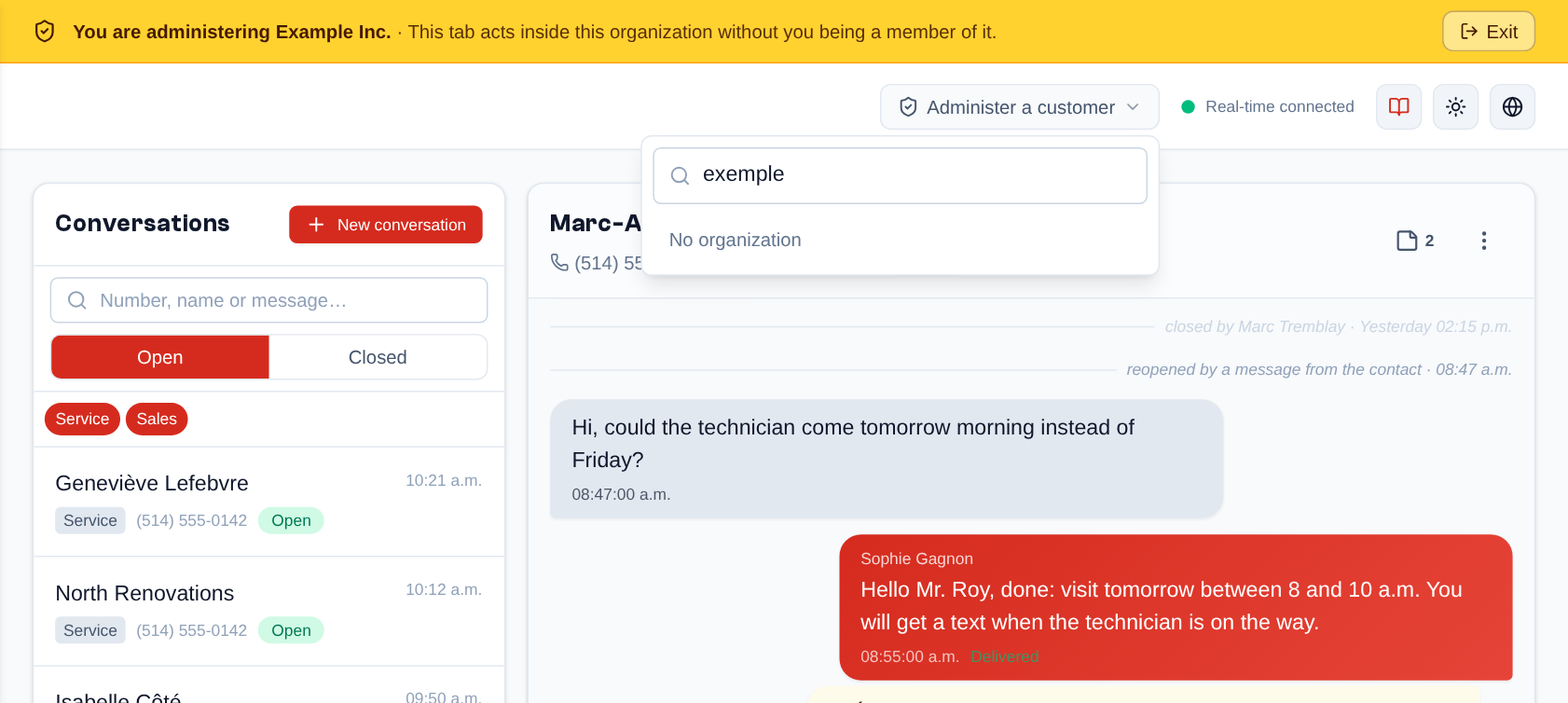 The "Administer" mode: the amber "You are administering …" banner with "Exit", and the header's "Administer a customer" menu open on a search.
This is not "Sign in as" (in an organization's members), which opens the session of a specific user to see the application exactly as they do.
Domain Page
Sidebar menu > Domain (or, in Domains, a domain's "Domain settings" gear). The page, titled "Domain ·" followed by the domain's name, has six tabs when the domain has voice (General, Numbers, Voice, Billing, Negative balance, Sign-up and accounts), five otherwise.
General
- "Platform providers": the platform's providers the domain uses, by their description;
- "SMS provider accounts of the domain" and "Voice trunks of the domain", when the platform allows the domain its own providers: "New account" adds an account (credentials given by the provider, "Enabled (sends and receives)" box, "Test connection"); the account's page gives the inbound URL to set up at the provider so that incoming texts reach Telma, and its numbers. A trunk of the domain has the same "Direction" ("Inbound only", "Outbound only", "Inbound and outbound") and the same "Outbound through" as those of the platform (see Providers);
- under "Domain settings", the Branding (see Domains), Pricing Plans and SMS Logs (see SMS Logs) cards;
- "Profiles": the profiles the domain offers to all its organizations (see Profiles and Permissions);
- "SMTP Settings": the domain's email server;
- "Security": the "Also require a second factor from the admins of this domain's organizations" box (see Second Factor; for now, the second factor is recommended, signing in is never refused without it);
- "OAuth Providers" (super admin): what shows "Continue with …" on the domain's login page. Google and Microsoft are turned on with a box: they use the platform's credentials. Apple takes the domain's own, with its "Configuration guide".
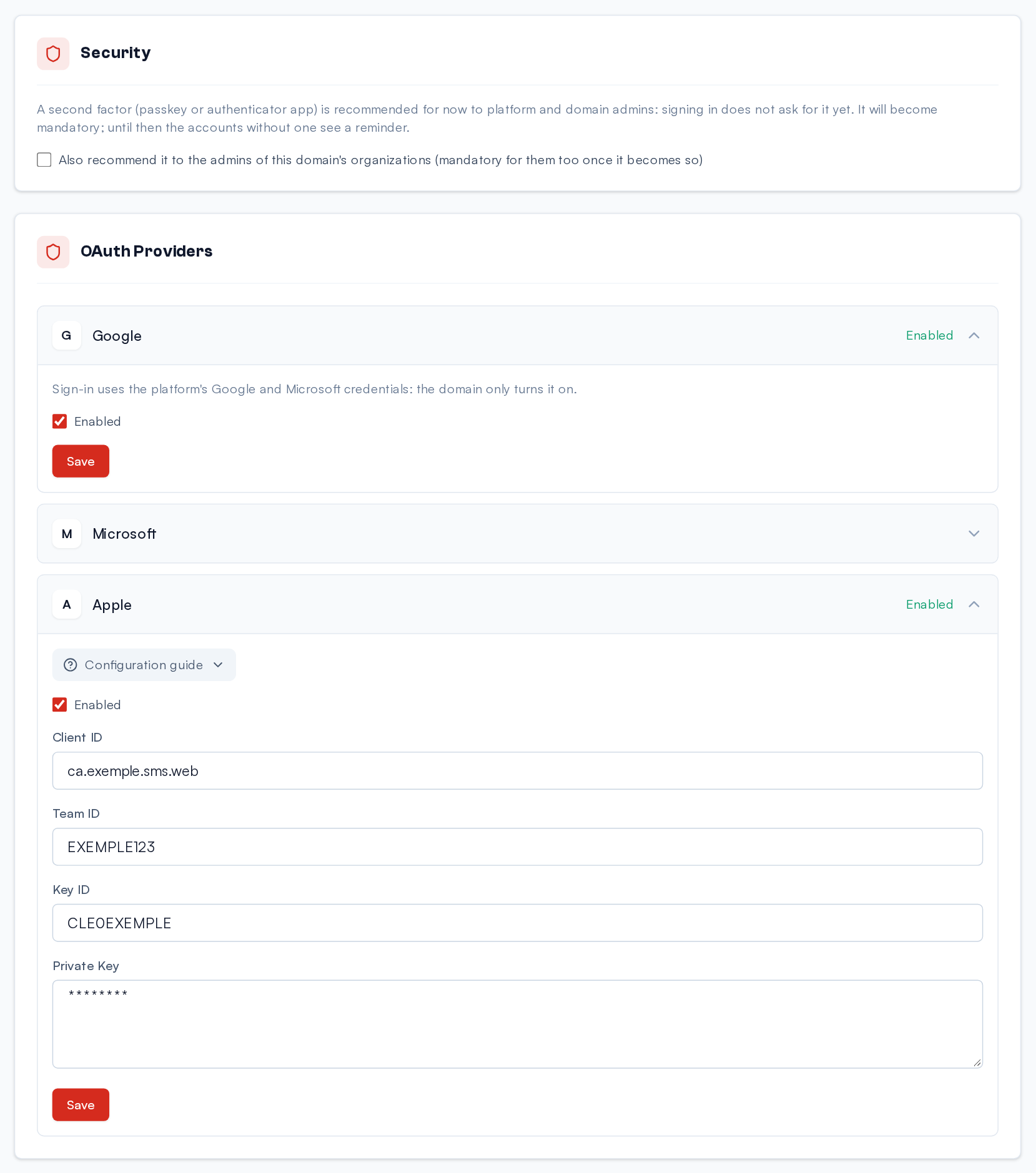 The Domain page, General tab, as the super admin sees it: the Security section (second factor of the organizations' admins), then the OAuth providers: Google opened (one box, it uses the platform's credentials), Apple opened (secrets stay masked).
Each domain has its own email server. In "SMTP Settings", fill in the "SMTP Server", the "Port", the "Username", the "Password", the "From Email" and the "From Name", tick "Use TLS" if your server requires it, then click "Save". Under "Send test email", enter an address in "Send to" and click "Send test email" to check the settings.
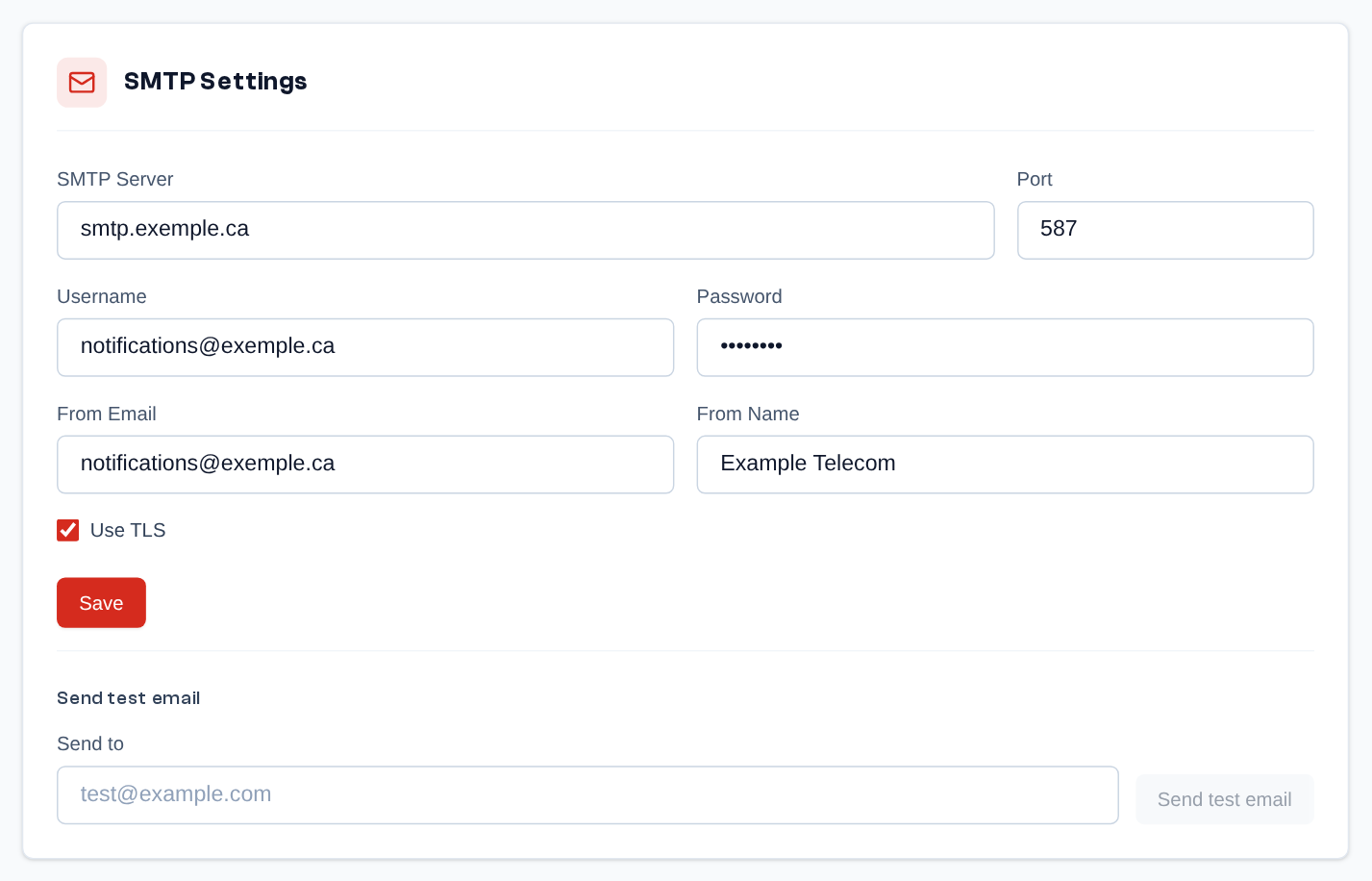 The Domain page, General tab: the domain's SMTP server (the password stays masked) and sending a test email.
This server sends the invitations to the domain's organizations and to its administration, and the reset links of the accounts whose organizations are all in this domain. It never sends those of an account that also belongs to another domain: these emails go through the platform's server. Without a configured server, the domain uses the platform's too.
Numbers
- Number pool: the domain's numbers, free or assigned, with counters per state (free, assigned, in the trash, held, on order, returned). "Add a number" or "Import a batch" (CSV) adds them, "Buy from the provider" buys them when the platform gives the domain a number provider; the pencil edits a number; the trash removes a free number; "Empty the trash now" releases the numbers in the trash at once. A free number can be bought by an organization.
- Assignment: every number of the domain and the organization each one is assigned to (see Domain Phone Numbers).
- Number provider ("Where numbers come from"): where the numbers your organizations buy come from (the pool only, the platform's provider, or the pool first), the markups on setup and monthly fees, the trash delay, and opening porting to the organizations. "Test the connection" and "Synchronize now" check the provider.
- Ports: your organizations' port requests, and "Port into the pool" to bring numbers from another carrier into the domain's pool.
Domain Phone Numbers
Domain page > Numbers > Assignment. The "Phone Numbers" table gives, for each number, its label, its provider, its voice trunk (when the domain has voice), the organization it is assigned to ("Assigned to") and the assignment date; the search box and the column headers let you filter and sort. Numbers are added and removed in the number pool (or in the page of one of the domain's provider accounts), not here.
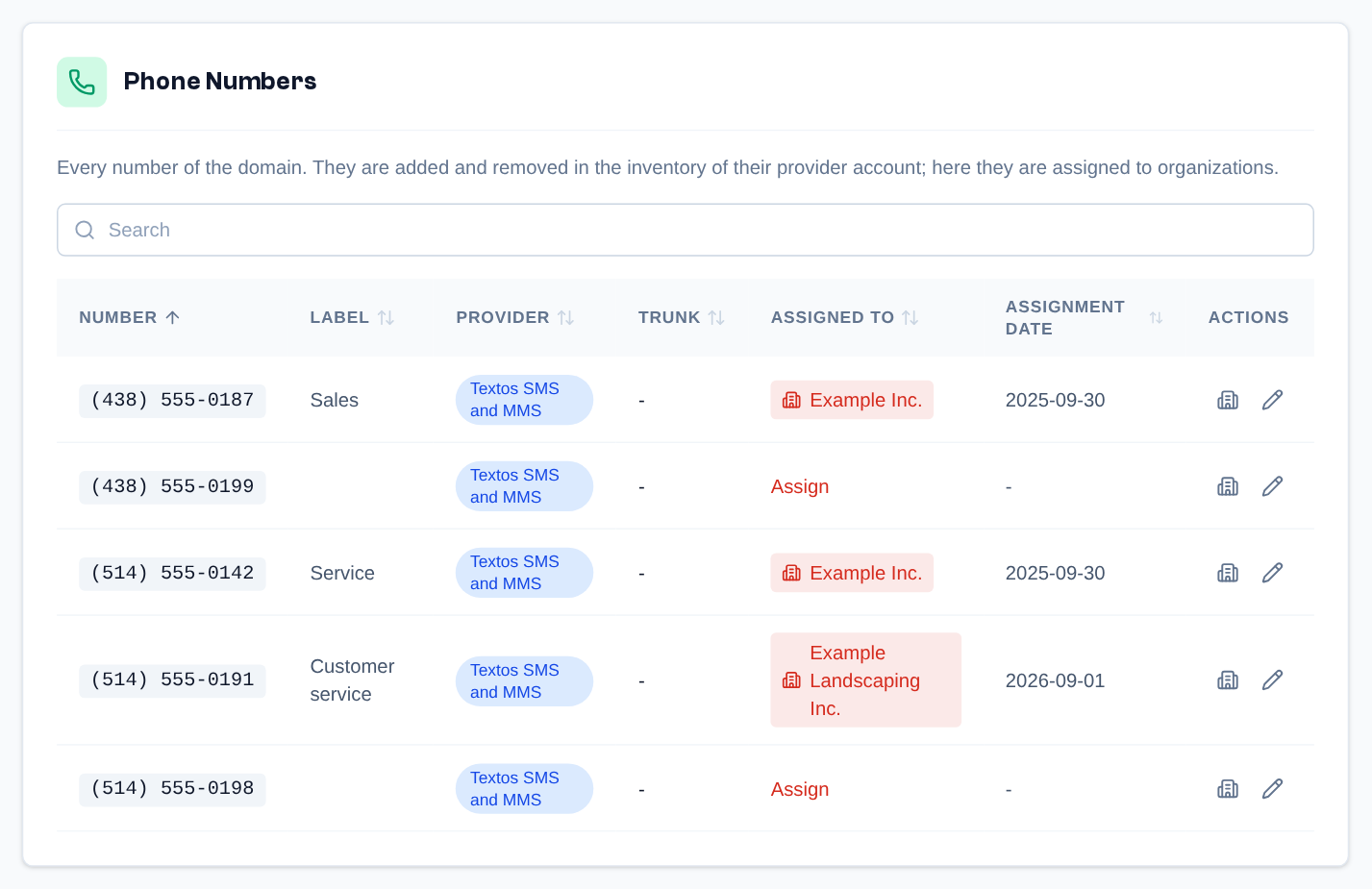 Domain page > Numbers > Assignment: the domain's numbers, with their provider and the organization they are assigned to.
- "Assign" (the building icon, or a click on the organization) opens "Assign to organization": search and choose the organization, or "Unassign". The organization's admin then chooses the team that receives its SMS (see A Number's Page).
- A click on the assignment date lets you correct it.
- The pencil ("Edit phone number") edits the label and, for a number of a provider of the domain's own, its voice trunk; the trunk of a number of the platform is set by the platform and only shown.
- "Buy numbers" (when the platform gives the domain a number provider): choose a province, a city or an area code, click "Search", tick up to 10 numbers, then confirm the purchase. The numbers bought arrive free in the list, ready to send SMS and receive calls; you then assign them. The search asks the provider live: a number may be taken meanwhile, the summary says so. The provider sometimes delivers a number later (from a few minutes to a few hours): it is then listed as "Awaiting the provider", cannot be assigned yet, and becomes free by itself once delivered.
SMS Logs
Domain page > General > SMS Logs card. The page shows every SMS sent and received for the domain: date and time, direction ("Inbound" or "Outbound"), phone number, remote number, provider (by its description), message, status and, in the "Actions" column, the processing steps. The "Direction" and "Provider" filters narrow the list; "Clear filters" resets them, and "Previous" / "Next" change the page.
Voice
When the domain offers voice:
- Call rates: the price billed to your customers, as a margin on the platform's wholesale price or from your own rate table (per prefix, with a default rate, importable as CSV); what the platform bills you; simulating a call and resolving a destination's rate; turning call billing on;
- Limits: default simultaneous calls (10 per organization), countries allowed for forwards and outbound calls, blocked premium numbers, and the fraud protection (see below);
- Security: the organizations whose outbound calls are suspended (with "Resume") and the latest security events (refused or cut calls, loops, first call to a new country, locked extensions);
- Retention: how long recordings and voicemail messages are kept, and the recording announcement;
- System sounds: the messages heard by callers across the domain (call screening, name prompt, invalid key, voicemail greeting), to replace with your own sounds;
- Automatic softphone: see below;
- Platform margin (super admin): the margin applied to this domain and simulating a call for an organization.
Fraud protection
A stolen extension password must not be able to cost much. Every call to the outside (a call from an extension, a forward, an external member of a group) goes through these protections, set in Limits for the whole domain and, when needed, per organization in its page ("Voice limits"):
- Destinations: only the allowed countries (Canada and the United States by default); premium numbers and the Caribbean islands that share country code 1 are refused until opened;
- Maximum cost of a call ($10 by default, cost at the provider): the call is cut when it reaches it; by default the organization's outbound calls are then suspended;
- Maximum duration of a call (4 hours by default);
- Spending limit over a sliding window ($10 in 5 minutes by default): beyond it, the organization's outbound calls are suspended and the calls in progress cut within seconds;
- Loops: the same caller to the same number more than 3 times in a minute is refused, like a forward to the number called itself;
- International calls during business hours (option per organization): outside Canada and the United States, only in the chosen hours.
A suspension is lifted in the organization's page ("Resume outbound calls") or in the Security tab; the organization itself cannot lift it and sees a banner in its call pages. The platform and domain administrators get an e-mail at each suspension, cut call, refused destination, first call to a new country, locked extension or unusual volume of calls at night and on week-ends (the organization's admins too for a suspension), at most one e-mail an hour for the same organization and the same kind of event. The super admin also has, in the Infrastructure page, a switch that suspends every outbound call of the platform.
An extension that receives 20 wrong passwords in 10 minutes is locked for 30 minutes: its outbound calls are refused and an "Unlock" button appears in the Extensions tab. In its settings, Networks allowed for its outbound calls limits the addresses it may call out from (a desk phone at the office, for example).
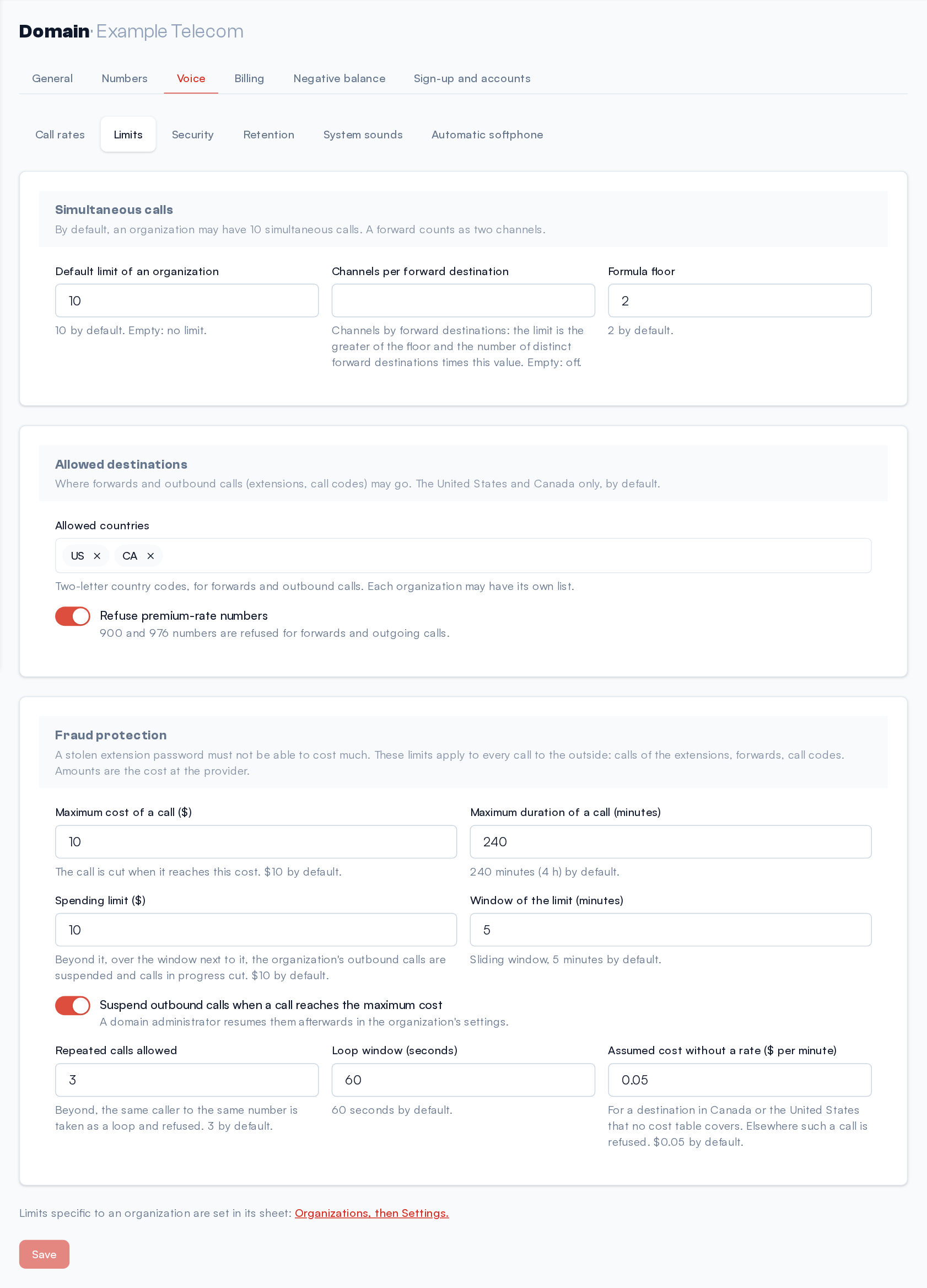 Domain page, Voice → Limits: simultaneous calls, allowed destinations and fraud protection, with the default values under each field.
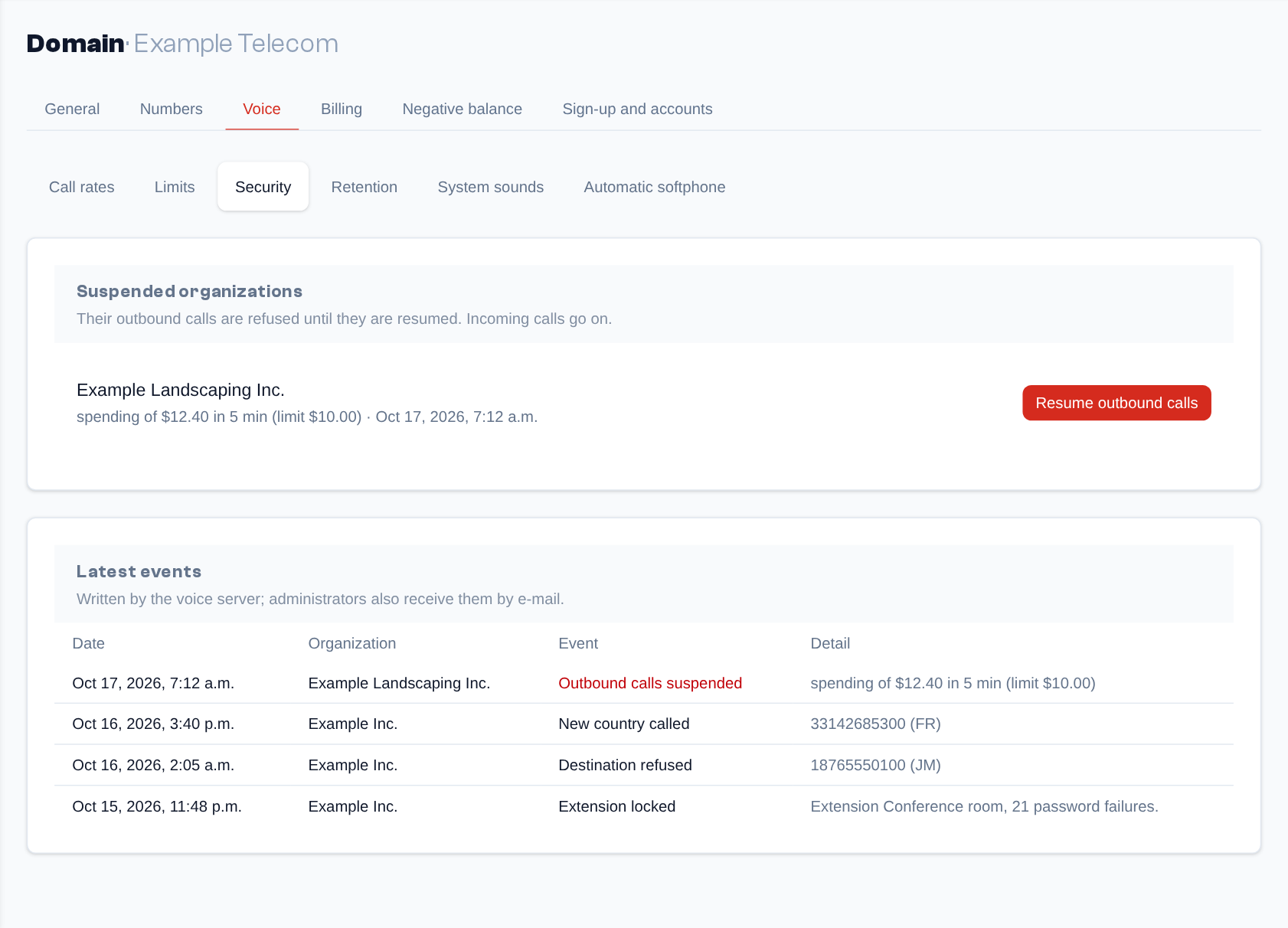 Domain page, Voice → Security: the suspended organizations with "Resume outbound calls", then the latest security events.
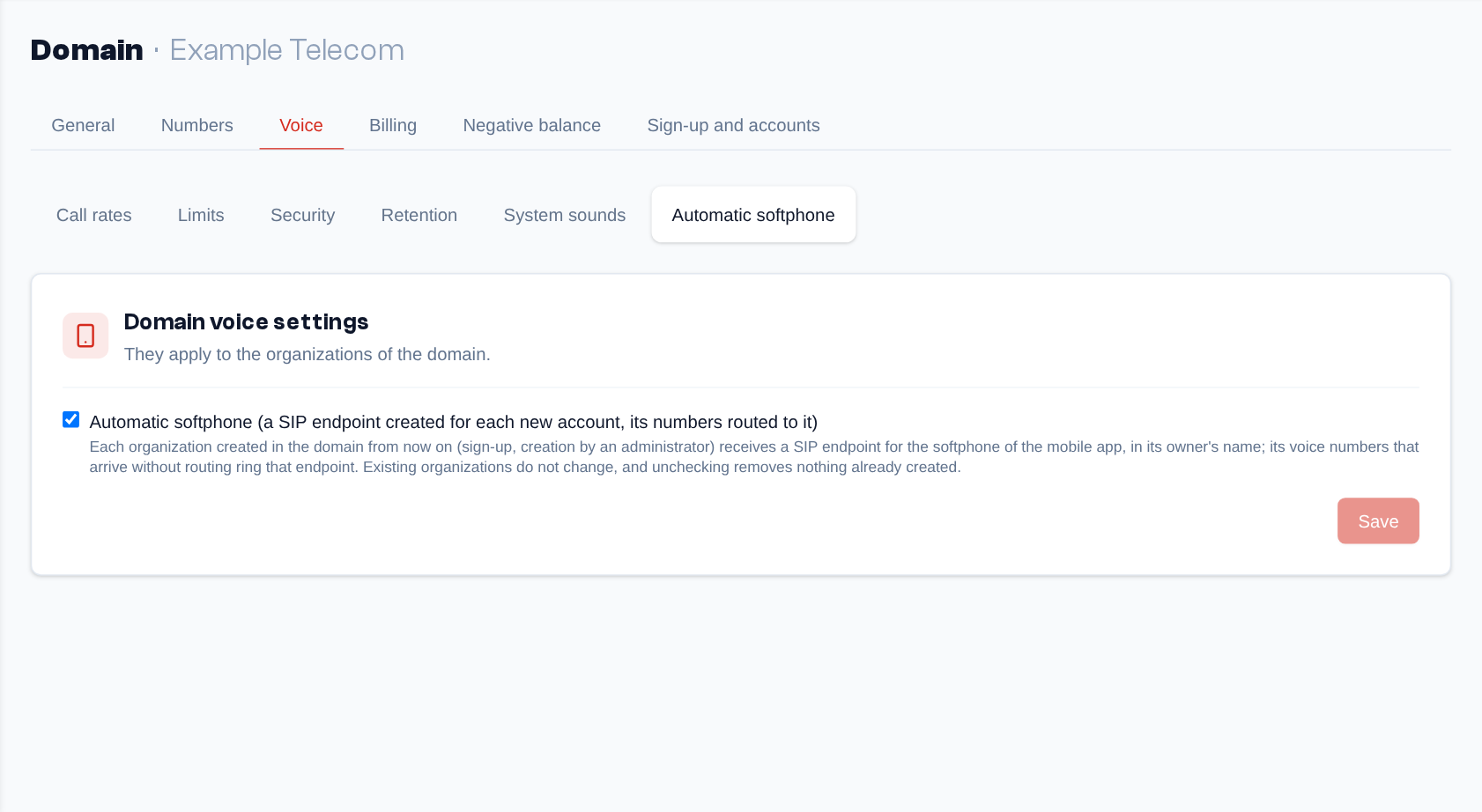 Domain page, Voice tab: the Call rates, Limits, Security, Retention, System sounds and Automatic softphone sub-tabs.
Automatic softphone
The Voice tab > "Automatic softphone" (super admin and domain admins), "Domain voice settings" section, has the box "Automatic softphone (a SIP endpoint created for each new account, its numbers routed to it)". When it is ticked, each organization created afterwards in the domain (sign-up or creation by an administrator) receives an endpoint in its owner's name, for the softphone of the mobile app, and its voice numbers that arrive without routing (purchase, assignment, completed port) ring that endpoint. Existing organizations do not change, and unticking removes nothing already created. The domain also needs the Extensions feature: without it, the page says so and no endpoint is created.
Billing
- What is billed: for each organization, what was debited this month (messages and calls among it), last month, the last statement, the next statement estimated, the lines (peak of the month, included lines and overage) and the balance, with the domain total. The platform administrator also sees every domain there;
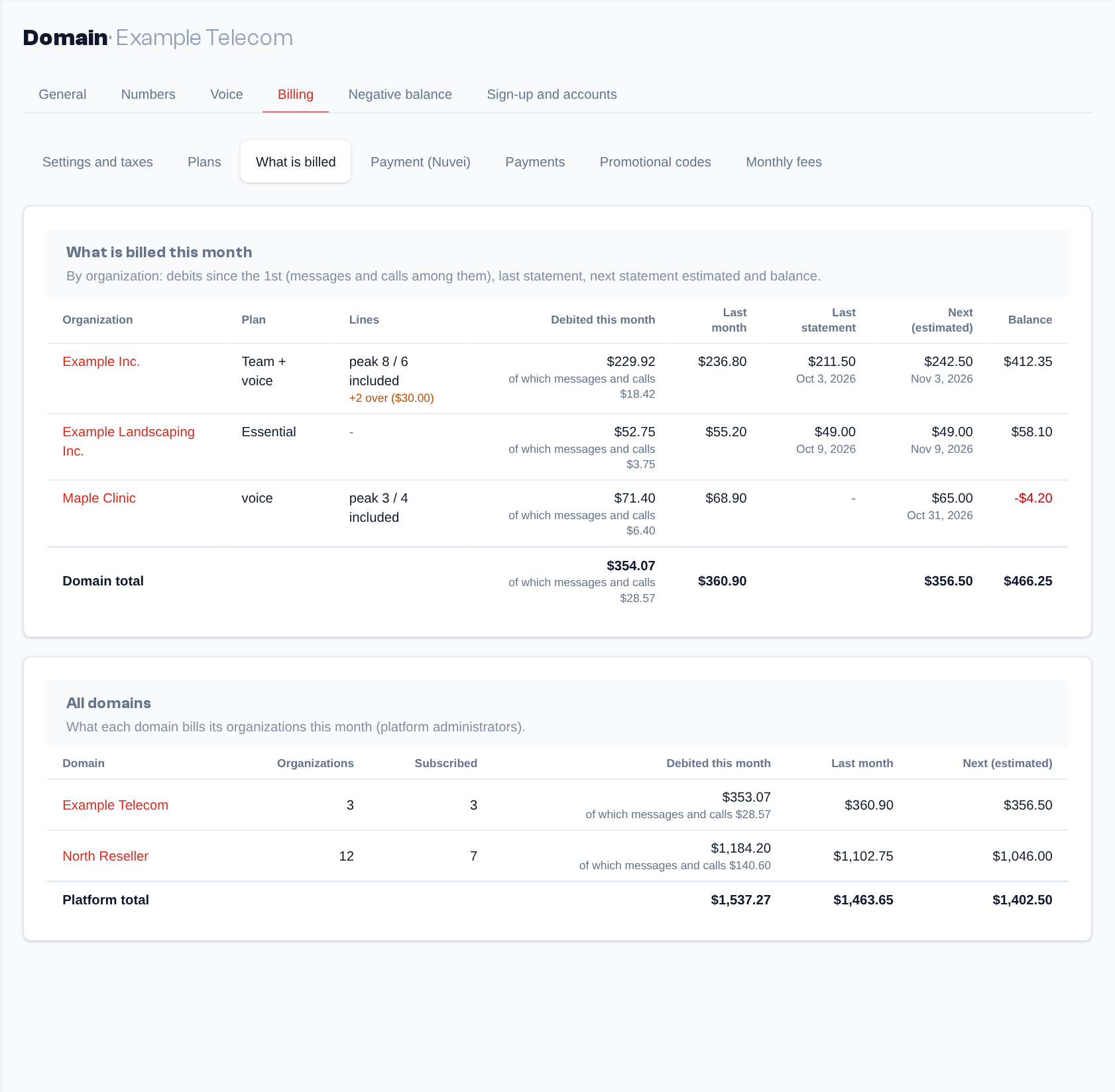 Domain page, Billing → What is billed: one row per organization and the domain total; below, for the platform administrator, every domain.
- Settings and taxes: the taxes applied to your customers according to their province or country, the rules of balance recharges, the seller and the receipt numbering;
- Plans: whether your organizations are offered the plans, the price and inclusions of each messaging plan (offered or not, users and teams at most), the tiers of extra messages, the number of messages an MMS counts for, the prices of the phone system and of the options; a subscribed organization no longer pays the monthly fees of its numbers. In an organization's page, "Voice limits, plan, credit and grace" → Plan shows and changes its subscription, without requiring its automatic recharge;
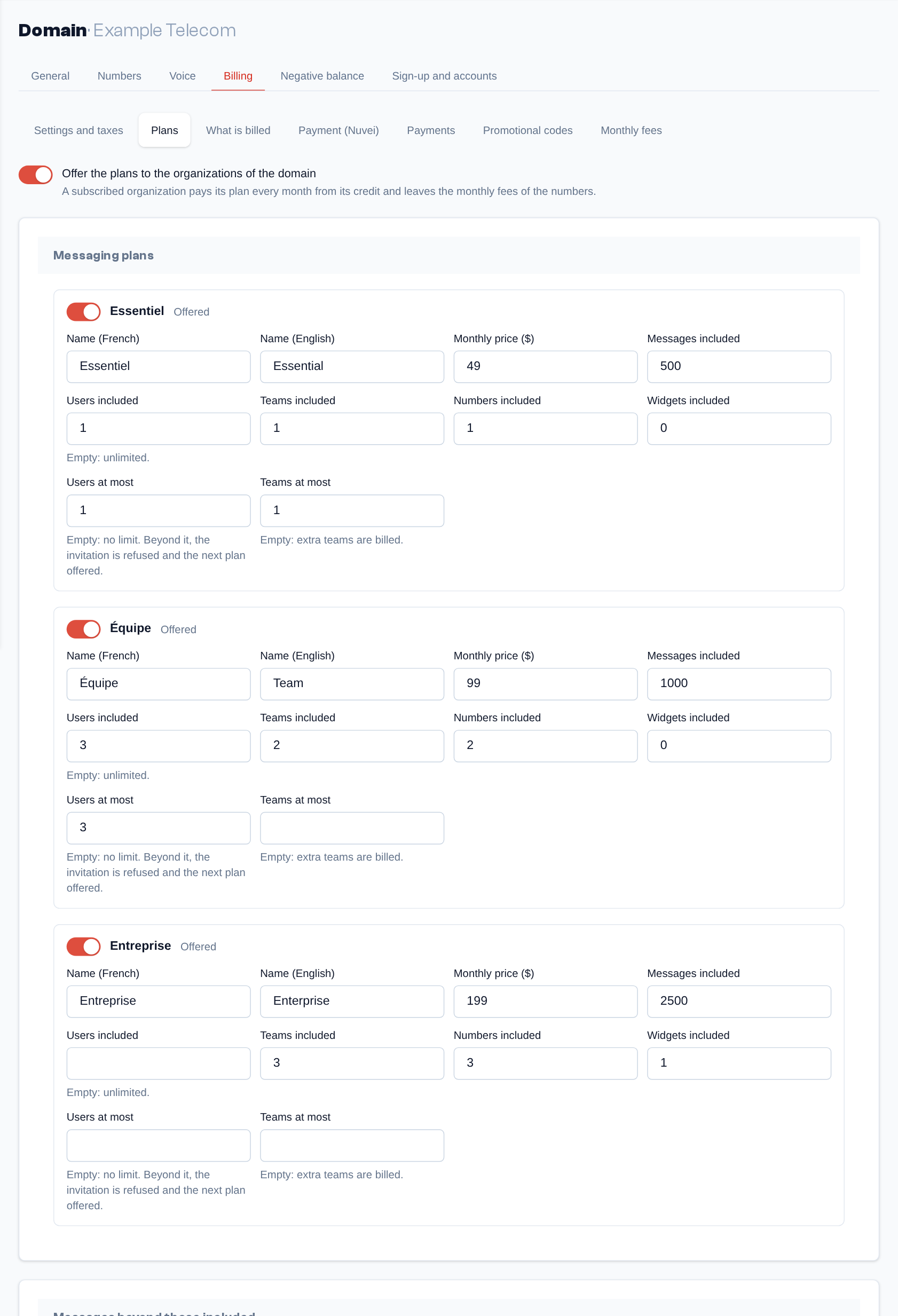 Domain page, Billing → Plans: the switch that offers the plans, then the price, inclusions and maximums of each messaging plan.
- Payment (Nuvei): the domain's card payment account, with a checklist and a test;
- Payments: your organizations' card payments, with refunds and reconciliation;
- Promotional codes: the codes offered when buying credit;
- Monthly fees: the numbers' monthly fees, charged each month, with their history.
Negative Balance
What happens when an organization's balance goes below zero: the grace period, then suspension, reserve and finally the release of the numbers. The page lists the organizations concerned.
Sign-up and Accounts
- Sign-up: open sign-up (or not), the starting credit, the number of sign-ups per IP address and per day, the link to the terms of use, the blocked email domains;
- Captcha: none, reCAPTCHA or Turnstile, to protect the sign-up form;
- Free trial: a trial credit for a new account, with its length and its end;
- Account and SMS: the delay before an account is deleted (it can be cancelled during that delay), the default time zone, the maximum length of an SMS and the welcome email.
Domains
Sidebar menu > Domains
The page lists your domains. For each domain, the phone icon ("Phone Numbers") opens the domain's page, the gear ("Domain settings") opens its Domain page, and the trash (super admin, domain without organizations) deletes it. "New domain" is reserved for the super admin.
A domain's page contains:
- Domain: the display name, the identifier and the addresses (URLs) of the domain;
- Features: the services offered to the domain's organizations: Messages (SMS/MMS), Voice, Extensions (requires Voice) and Extension and standalone voicemail boxes. An organization only has those of its domain. They decide the menu: Conversations, Message settings and Performance with Messages, Calls and Call routing with Voice, Extensions with Extensions; Teams stay in every case;
- for the super admin: the "Allowed platform providers", the "Allowed platform voice trunks" and the "Allow this domain to add its own providers" box;
- Domain Admins (see below);
- the "Domain settings" card, which opens this domain's Domain page (numbers and assignments, providers, branding, pricing plans, SMS logs, SMTP).
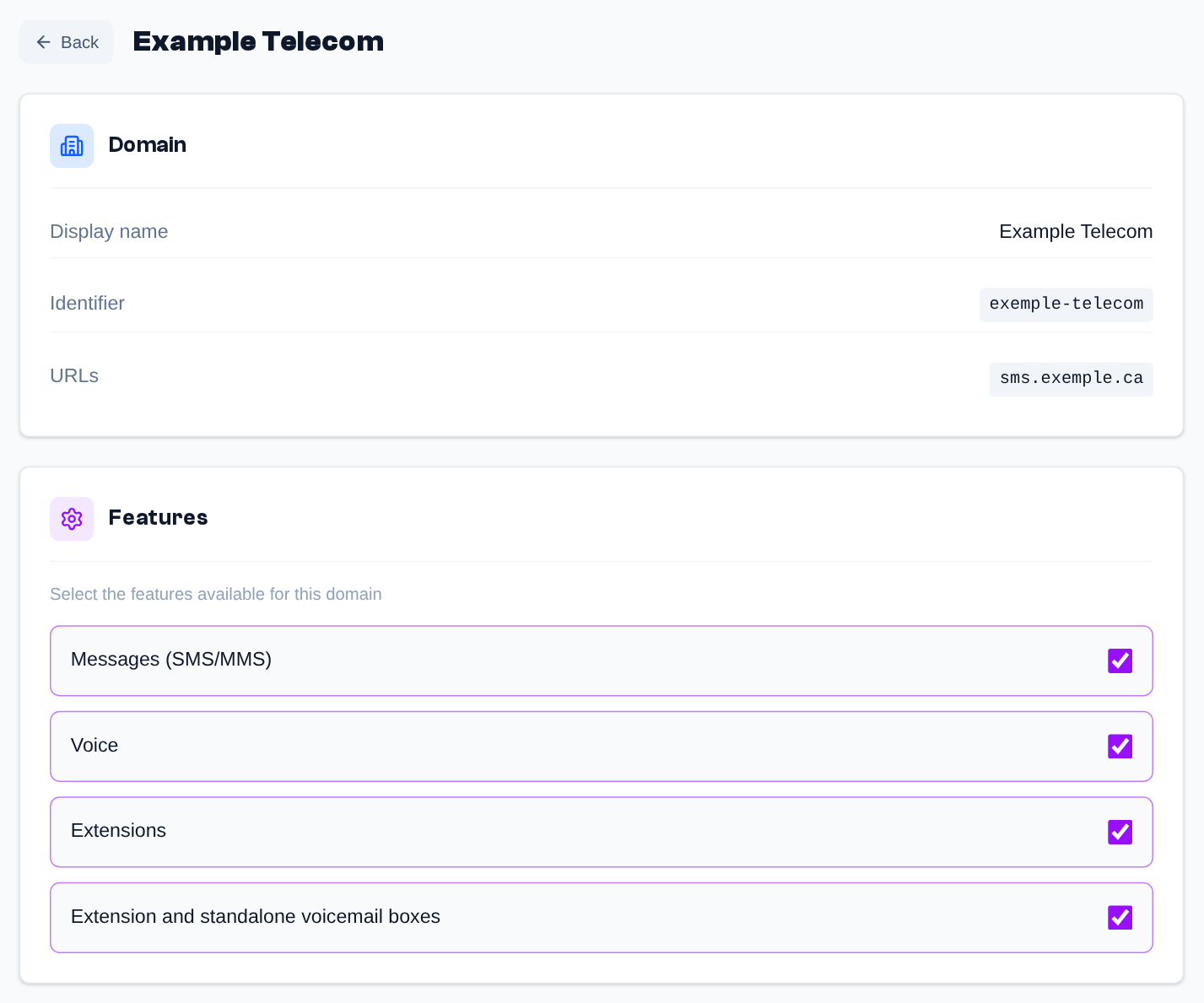 A domain's page: display name, identifier and addresses (URLs) of the domain.
The domain's branding opens from the "Branding" card of the Domain page (General tab):
- the identifier, the display name and the addresses (URLs) of the domain;
- the accent colors (French and English) and the logo URL;
- the "Mobile app accent color": the color of the buttons and tabs of the Telma app for the accounts of this domain (empty: the app's own color);
- under "Home page, logos and support": the home page (what the domain puts first after signing in and at the top of the menu: conversations, numbers or calls), the browser tab icon (favicon), the sign-in page logo, the support links (help center, support tickets, what's new, service status), shown in the Support menu of the header, and the footer shown below the login form.
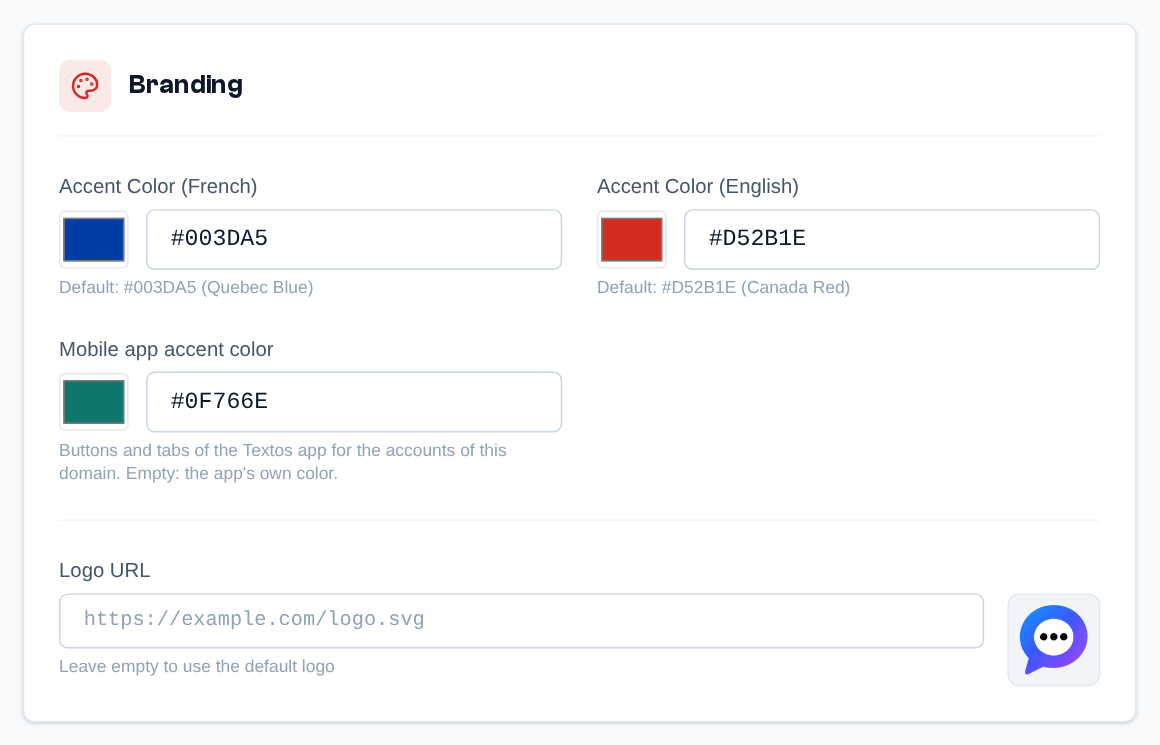 A domain's branding: the French and English accent colors, the "Mobile app accent color" and the logo URL.
Before changing the URLs, check with the Telma team: a new address must first point to Telma.
Domain Admins
Domain admins manage the other administrators of their domains:
-
Open the domain's page (Domains > phone icon) and scroll to the "Domain Admins" section.
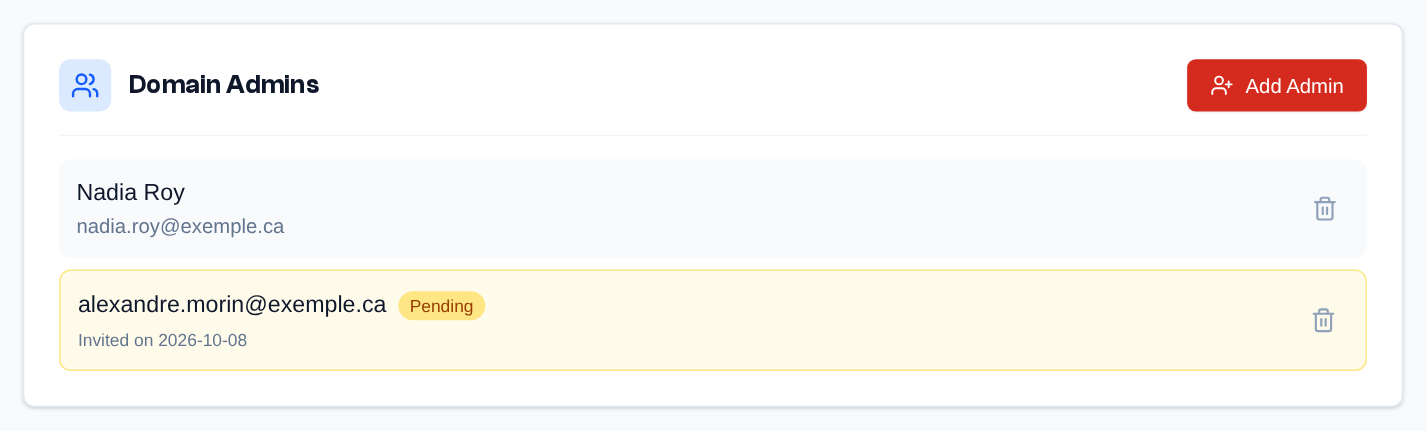 The "Domain Admins" section: the current admins and a "Pending" invitation; the trash removes an admin or deletes an invitation.
 -
Click "Add Admin", enter the person's email address and click "Add Admin".
 "Add Admin": the person's email address; an existing account is added right away, otherwise an invitation is sent.
If the person already has an account in an organization of your domains, they become a domain admin right away; an account that also belongs to organizations outside your domains cannot be added (ask the Telma team). If they have no account, an invitation is sent to them and shown as "Pending", with its sending date; they will become a domain admin when they create their account.
The trash next to an admin removes them, after confirmation: if they no longer administer any other domain, they lose the platform permission and only keep their profiles in their organization. The trash of a pending invitation deletes it, also after confirmation.
Providers (super admin)
Sidebar menu > Providers
One card per provider of the platform, with everything we have there:
- SMS / MMS: its accounts (credentials, inbound URL to give the provider, description the domains see, allowed domains, "Test connection");
- Voice (trunks): its trunks, each one "Inbound only", "Outbound only" or "Inbound and outbound", with its cost table (what an outbound call costs us); the "Provider" field of a trunk puts it in the right card. When a provider delivers inbound and outbound on two circuits, create two trunks: the inbound one, "Inbound only", names the outbound one in "Outbound through", and the outbound calls and forwards of its numbers go out through that outbound circuit;
- Number providers: buying numbers through the provider's API, when it has one;
- Numbers: every number we have there, with its capabilities (SMS, MMS, voice) and the trunk its voice comes in through, chosen in the list. "Add numbers" creates them in an allowed domain, with their SMS account and, if needed, their trunk; the selection moves to another domain; the trash removes a free number. A warning points out the numbers that have voice without an incoming trunk.
A number is assigned to an organization in the Domain page. Further down: the "Call costs" (cost tables), the platform's margin and the number ports.
Infrastructure (super admin)
Sidebar menu > Infrastructure
- Voice servers: "Add a server", then, for each server: its name, its address and port, "Accepts new endpoints", the "Connection given to the apps", the "SIP listeners" (UDP, TCP, TLS, with their port and, for TLS, the certificate), the "Public address (NAT)" and the "Local networks", and the number of extensions it carries. "Live state" shows what really runs (version, transports, audio, time zone, calls in progress); when saved listeners are not applied yet, "Restart when no call is up" restarts the server as soon as it is free.
- Platform voice settings, valid for every domain: the "Longest wait after the push notification" (the time given to the mobile app to wake up), the "Devices per endpoint" (devices connected at once on one extension, 3 by default, unless the extension has its own value), the "Inbound trunk check" (off, report only or refuse the call) and "Test extensions 600 (echo), 601 (message) and 602 (music on hold) on". The voice servers apply them within 30 seconds.
- Platform outbound calls: the master switch. "Suspend every outbound call" refuses every outbound call of every organization (extensions, forwards, call codes) and cuts the calls in progress within seconds; inbound calls go on. Below: the suspended organizations of every domain and the latest security events.
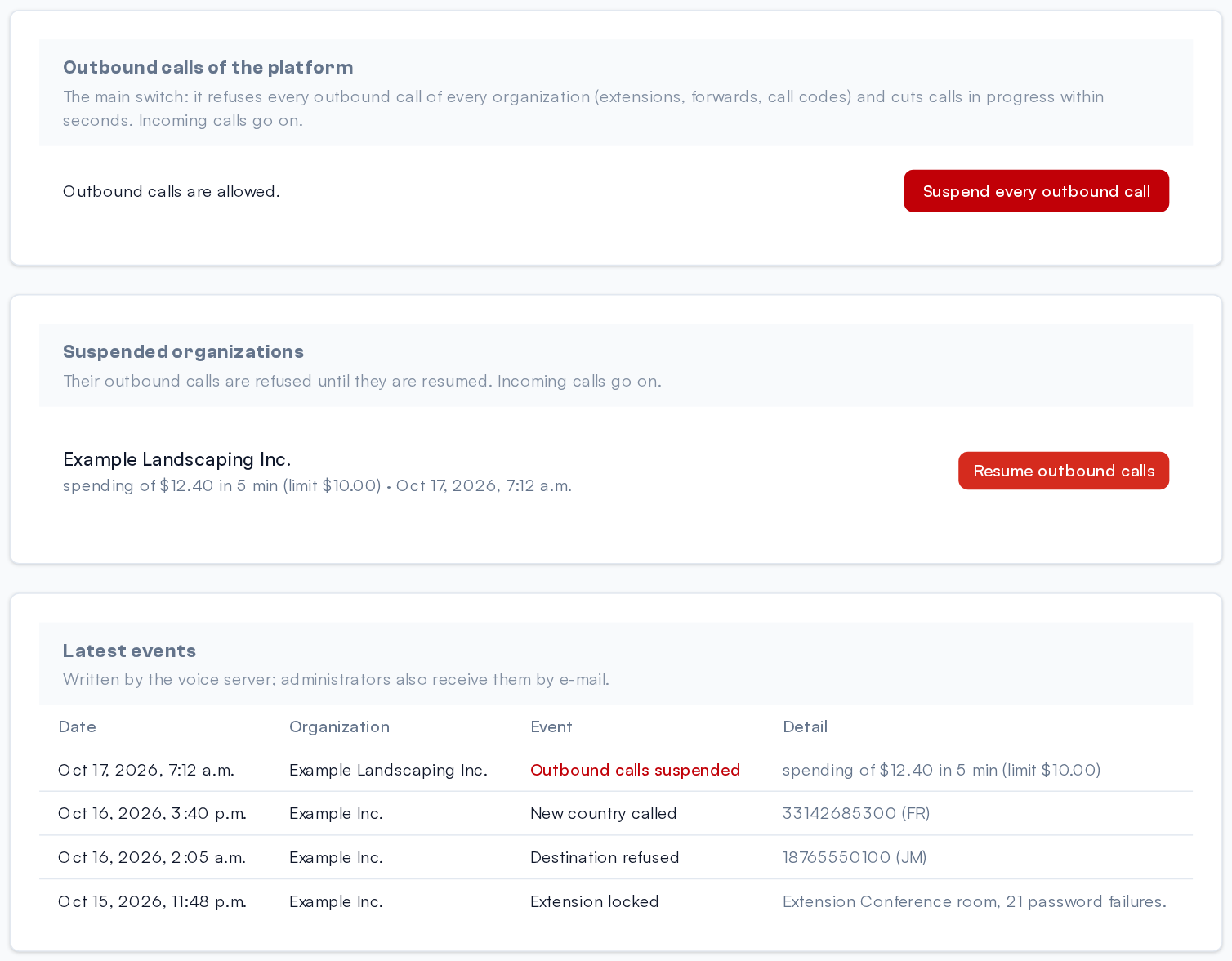 Infrastructure: the platform's outbound calls switch, the suspended organizations and the latest security events.
Help and Support
Keyboard Shortcuts
| Shortcut | Action |
|---|---|
| Enter | Send the message (message field of a conversation) |
| Enter | Add the note (Notes panel) |
| Shift+Enter | Start a new line in a note |
| Escape | Close a dialog window (administration pages) |
Common Error Messages
| Message | What to do |
|---|---|
| "Invalid credentials" | Check your email address and password, or use "Forgot password?". |
| "This invitation is invalid or has expired" | Ask your admin to resend the invitation. |
| "This reset link is invalid or has expired." | Ask again from "Forgot password?"; the link is valid for 24 hours. |
| "The message could not be sent. Try again or contact an administrator." | Try again; if the error persists, your admin checks the team's number and the organization's credits. |
| "Access denied" | Your profiles do not give the permission needed: ask an admin. |
Need Help?
For a question about your account, your teams or your rights, ask an admin of your organization. For platform matters (domains, credits), your admin contacts the Telma team. When your provider has support links, the Support menu of the header leads to them.